57
Enable tally display to toggle on/off output of embedded audio in HDMI output signal.
Click the color box to set the tally color when turn “on” the HDMI audio switch in the
“Select Color” dialog box.
* Click the color box to set the tally color when turn “off” the HDMI audio switch in the
“Select Color” dialog box.
Click the color box to set the active input source color in the “Select Color” dialog box.
Click the color box to set the available input source color in the “Select Color” dialog box.
* Click the color box to set the disabled input source color in the “Select Color” dialog box.
Table 4.1.2.1 Multiview Layout: Property → OSD Option (System) Component and Description
4.1.3 Fullscreen Control
The Fullscreen Control in the property UI of Multiview Layout page allows you to enable/disable the
K/M switching, window layout and maintain aspect ratio functions when set a particular window to
fullscreen display. Upon completing the Fullscreen Control setting, click Apply on the top-left corner.
This will apply the Fullscreen Control options to the Sequoia 4K60.
Enter Remote Mode
Select Automatically in the option Fullscreen control
Enter Remote mode to enable a
particular window to enter Remote operation mode when using any of the below methods to switch to
fullscreen view:
“Ctrl – # (1 to 5) – # (1 to 4)” hotkeys, or
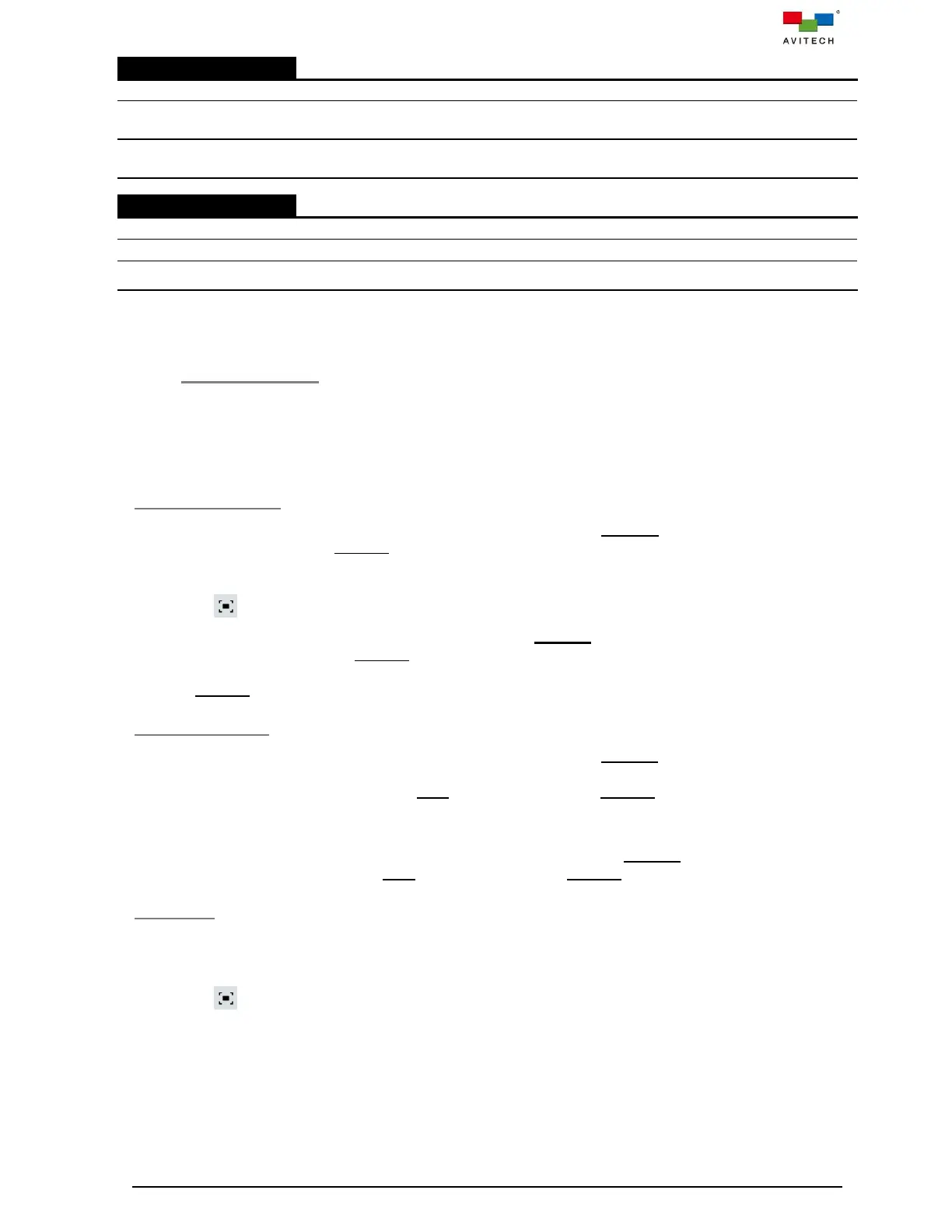
Click icon (top-right corner of windows and only available for HDMI OUT 1)
Select None in the option Fullscreen control
Enter Remote mode to disable the K/M function
automatically be switched to Remote operation mode when a particular window in fullscreen. Each
time when a particular window set to fullscreen display, you need to double-click on the window to
enter Remote operation mode for accessing the computer.
Exit Remote Mode
Select Restore Layout in the option Fullscreen control
Exit Remote mode to enable a
particular window to apply the prior to switching to fullscreen view’s multi-display layout when using
any of the below methods to return to Host operation mode from Remote operation mode:
“Pause/Break” hotkey or “control + option (Alt) + shift + P”, or
Double-click the mouse scroll button
Select Remain fullscreen in the option Fullscreen control Exit Remote mode to remain in
fullscreen display when return to Host operation mode from Remote operation mode.
View Mode
Select Fill up screen in the option Fullscreen control
View Mode to enable the image display on
a particular window to fill up screen when using any of the below methods to switch to fullscreen view:
“Ctrl – # (1 to 5) – # (1 to 4)” hotkeys, or
Click icon (top-right corner of windows and only available for HDMI OUT 1)
Select None in the option Fullscreen control View Mode to keep the aspect ratio of the image.



 To Next Page