102
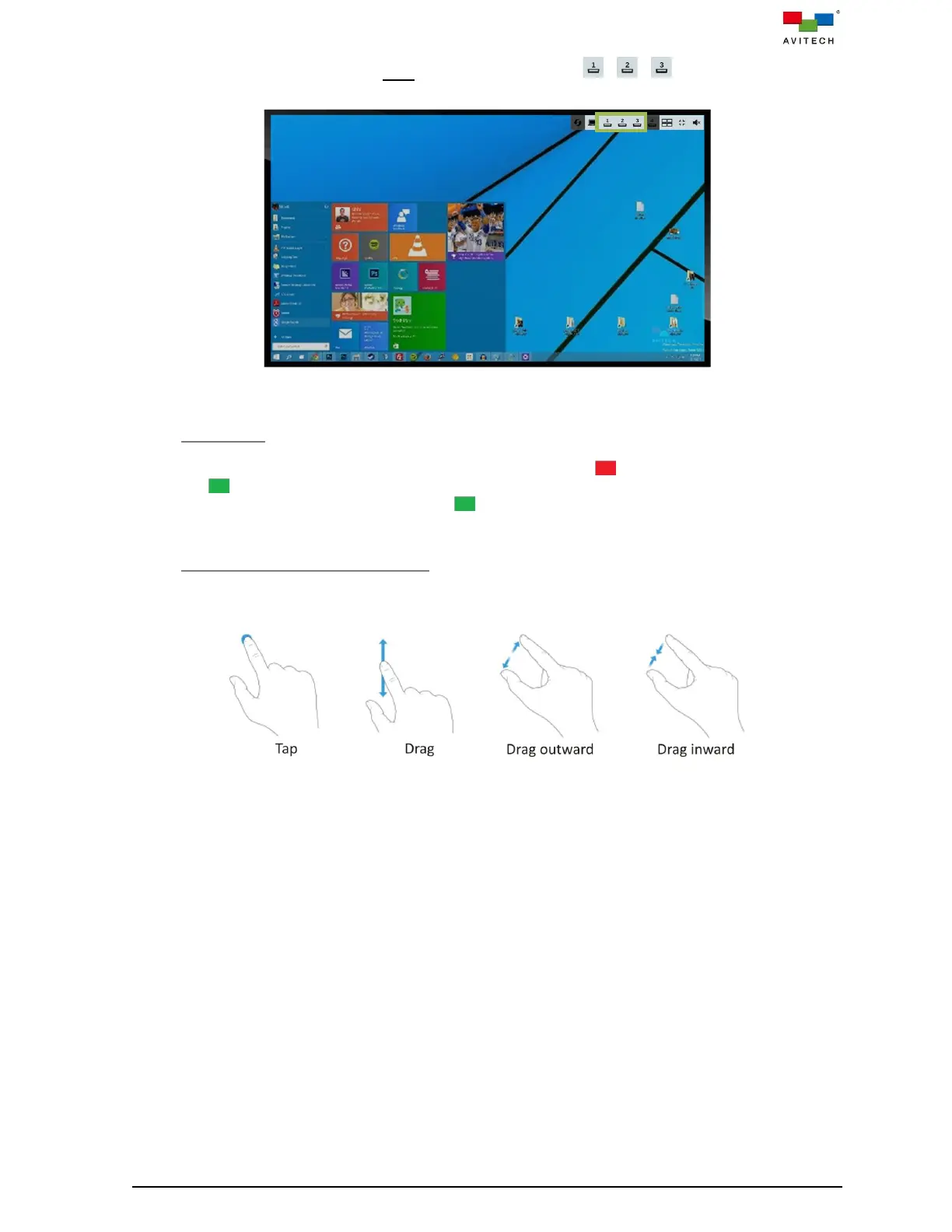
To switch source while in fullscreen Host operation mode, tap on / / icon for approximately
one (1) second.
Figure B.2.1.2 Touch Screen: Pop-up Selection (When in Fullscreen Mode)
B.2.2 Audio Tally
To enable audio output on any window, tap once on the audio tally (the audio is in off state), then it
will turn to (the audio is playing through HDMI to monitor) showing that audio output is coming from
the window. Tap once again on the audio tally to turn off the audio output through HDMI to monitor.
B.2.3 Move/Resize/Close/Open Window
A few simple gestures – tap, drag, and pinch – are all you need to use the touch screen with Sequoia
4K60.
Figure B.2.3.1 Using the Finger(s) to Tap and Drag
To move a window, press and hold your finger on a window, and then drag your finger to move the
window.
To resize a window by placing two fingers apart on a window and then tap-and-drag (pinch) inward
your fingers together to the desired size.
To close a window by placing three fingers apart on the touch screen and then tap-and-drag (pinch)
inward your fingers together.
To add a closed window, press and hold your finger on blank area, and then drag your finger to open
the window.



 To Next Page