56
Set Fading Level
The Sequoia 4K60 allows you to set the speed when one fullscreen image switches to another fullscreen
image for seamless effect (one image fades from view while another takes its place).
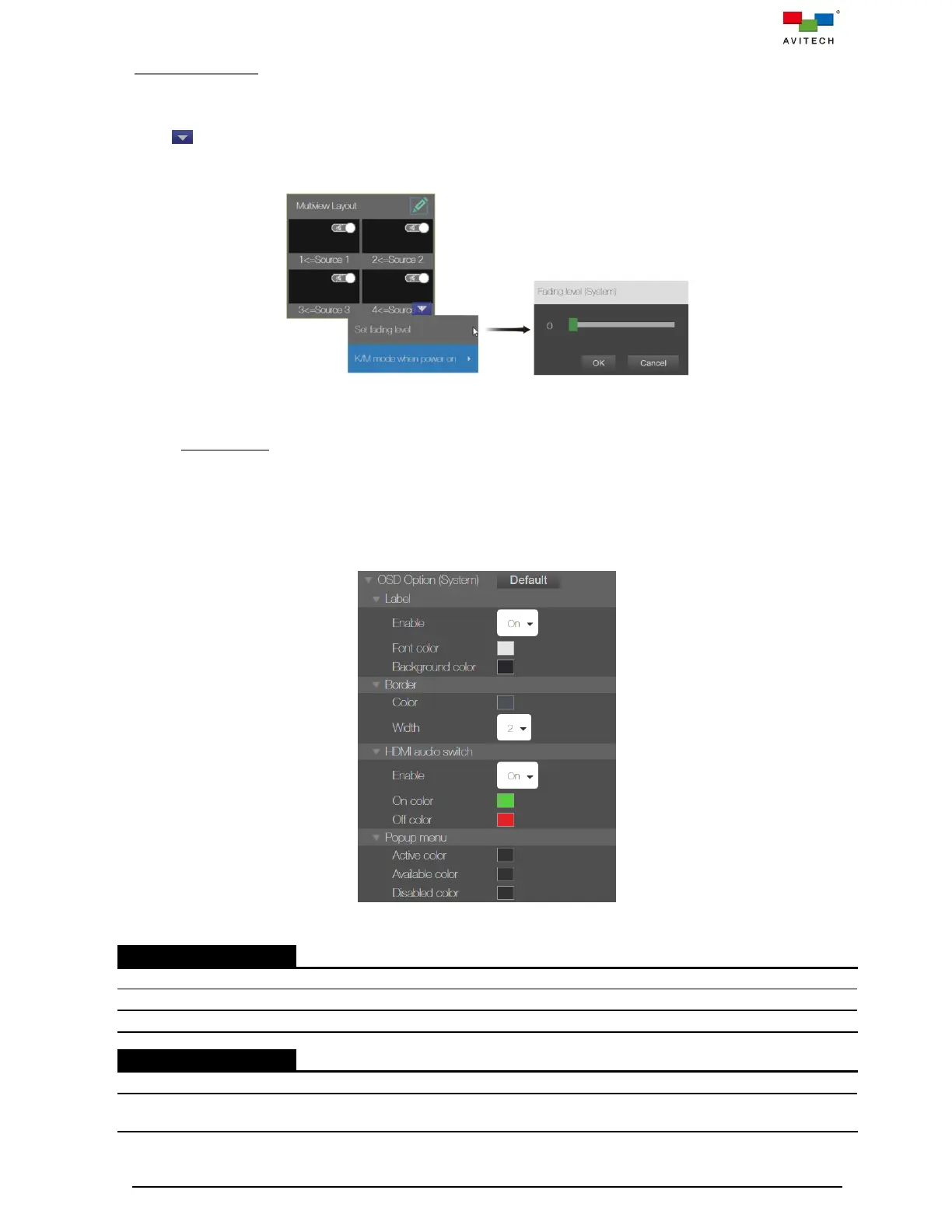
Click icon. Select Set fading level and then select the desired Fading level (fading time) by using
the slider (0 – 255 levels), where 0 is for instant switching while 255 corresponds to the slowest fading
speed.
Figure 4.1.1.14 Multiview Layout: Setting Menu → Set Fading Level
4.1.2 OSD Option
The OSD Option in the property UI of Multiview Layout page allow you to enable/disable the display of
tally/label; set the color properties of tally, label, border and popup menu and set the border width as
well. Upon completing the OSD Option adjustment, click Apply on the top-left corner. This will apply the
OSD options to the entire system of Sequoia 4K60. Click Default to reset all the setting in OSD Option
return to default.
Figure 4.1.2.1 Multiview Layout: Property → OSD Option (System)
Enable label display on all windows.
Click the color box to set the font color in the “Select Color” dialog box.
Click the color box to set the background in the “Select Color” dialog box.
Click the color box to set the border color in the “Select Color” dialog box.
Set the border width on all windows.
Border width (0, 2, 4, 6)



 To Next Page