17
Four Computer Source Connections to Sequoia 4K60
Step 1. Connect the first computer’s display output to the port marked HDMI IN 1 on the rear panel of
the Sequoia 4K60. Repeat this step for all source computers to the ports marked HDMI IN 2 – 4
of the Sequoia 4K60.
Step 2. Connect a USB A/B cable to the first computer’s USB Type-A port, and connect the other end to
the USB Type-B port marked 1 on the rear panel of the Sequoia 4K60. Repeat this step for all
source computers to the USB Type-B ports marked 2 – 4.
1. Be sure to connect the first computer to the USB Type-B port marked 1, the second computer to USB
Type-B port marked 2, and so forth.
2. (For Windows 2000 users) Upon connecting your Sequoia 4K60 to a computer through the USB interface
for the first time, perform the Windows' on-screen steps to initialize the USB connection.
Connection to the Shared Large 4K UHD Screen
Step 1. To simultaneously view four computer sources in a quad-view layout on the large 4K UHD
screen, connect the port marked HDMI OUT 1 on the front panel of Sequoia 4K60 to the shared
large 4K UHD screen.
Connections to Workstation 1
Step 1. Connect the port marked HDMI OUT 2 on the front panel of Sequoia 4K60 to the monitor using
the appropriate signal cable.
Step 2. Connect the port marked HDMI OUT 3 on the front panel of Sequoia 4K60 to the monitor using
the appropriate signal cable.
Step 3. Connect a short USB extension cable or a USB hub to the USB Type-A port marked 2 on
the front panel of Sequoia 4K60 for connection to a set of wireless keyboard/mouse; they will be
used to control the Workstation 1 and the four computer sources.
The Sequoia 4K60 features auto configuration of multiple user workstations with USB connections. Each USB
Type-A port marked can be used to create a user workstation corresponding to the HDMI outputs with
the matching and subsequent port numbers. For example, the mouse for workstation one with HDMI OUT 1
and 2 must be connected to port 1, and the mouse for workstation two with HDMI OUT 3 and 4 must be
connected to port 3.
1. The Sequoia 4K60 can provide a total maximum current of 500mA for both USB Type-A port marked
1 and 2; and another total maximum current of 500mA for both USB Type-A port 3 and port 4.
2. Please be advised when using wireless mouse/keyboard, signal interference may occur with other 2.4 GHz
devices in close proximity, leading to slow mouse movement or other issues. The Sequoia 4K60 has
multiple USB Type-A ports closely packed together, and with each USB Type-A port capable of supporting
one user connection, it would be best to use short USB extension cables to physically separate the wireless
USB receiver dongles, or use USB hubs for direct wired connections to mouse/keyboard/touch screens to
avoid any interference.
3. If you plan to use a USB hub to support more USB devices i.e. keyboard, mouse and touch screen, it is
strongly recommended to use a powered USB Hub to prevent any drops in performance. If a powered USB
HUB is not available, you may use an unpowered USB 2.0 Hub instead.
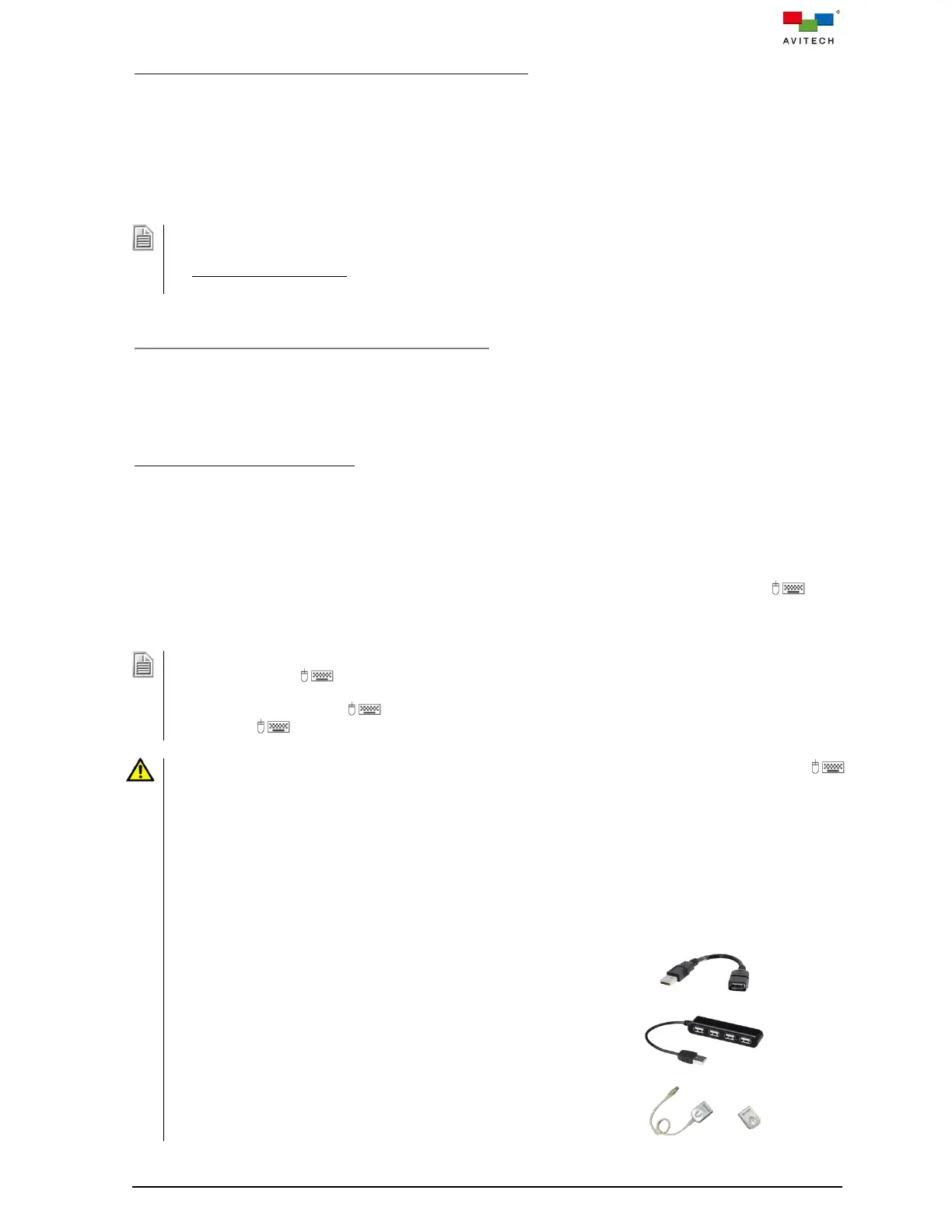
4. The following items can be commonly used for USB extension to avoid any interference:
A short USB extension cable can physically separate multiple
wireless USB receiver dongles concurrently connected to the
Sequoia 4K60, preventing any signal interference.
A USB hub for direct wired connections to mouse/keyboard
and/or touch screen is an option to completely prevent
interference.
For USB connections over longer distances (up to 150 feet),
USB extension over CATx cable is recommended.



 To Next Page