36
To route an input source to display on the monitor, use keyboard “Ctrl – 1 – 3” hotkey will load input
source 3 to display on the monitor in fullscreen mode; “Ctrl – 1 – 2” hotkey will load input source 2 to
display on the monitor in fullscreen mode.
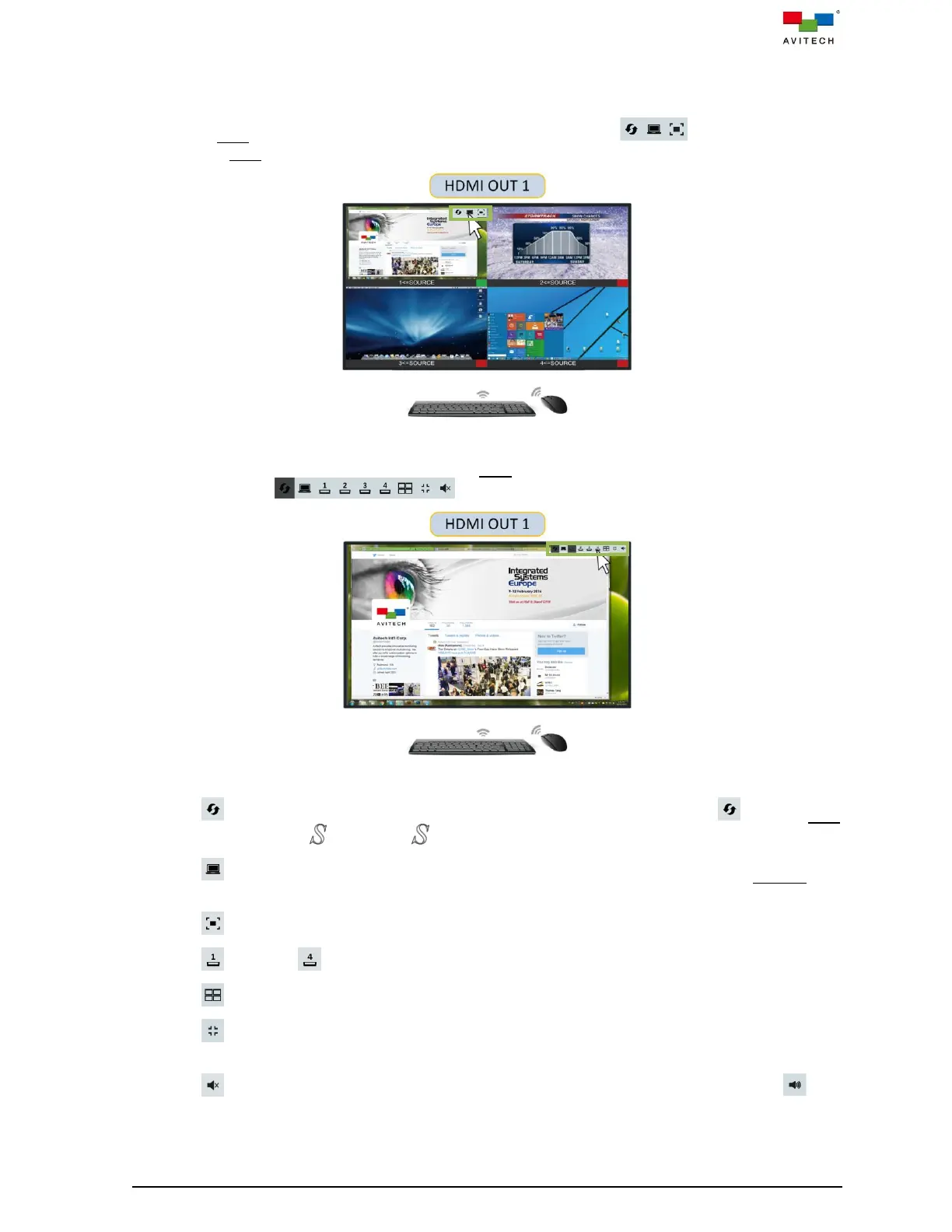
Move the Host cursor to the top-right position, the pop-up selections will appear upon
moving the Host cursor to the top-right of each window.
Figure 3.4.1.1 Pop-up Selections of Quad-view Window
Or, when in fullscreen window upon moving the Host cursor to the window’s top-right position, the
pop-up selections will appear.
Figure 3.4.1.2 Pop-up Selections of Fullscreen Window
Click icon to switch its position and size with the other window. Upon clicking icon, the Host
cursor will change to , then move cursor to the target window and click to swap.
Click icon or double-click the mouse left button on a selected window to enter the Remote
mode.
Click icon to set the selected window to fullscreen.
Click (input 1) – (input 4) icons to switch the input source when in fullscreen window.
Click icon to load default quad-view layout (this icon only appears when in fullscreen mode).
Click icon for returning from a fullscreen view to previous layout (this icon only appears when in
fullscreen mode).
Click icon (the audio currently in off state) to turn on the HDMI embedded audio. Click icon
(the audio currently is playing) to turn off the HDMI embedded audio.



 To Next Page