5 – Reference
127
5.5.3.1 Upgrade Software
There is no associated display for the Upgrade Software utility. For information on upgrading software,
refer to Section 6.4.1.
5.5.3.2 Save DB and Log
There is no associated display for the Save DB and Log utility. For information on saving the database
and log files, refer to Section 6.4.2.
5.5.3.3 Save Log
There is no associated display for the Save Log utility. For information on saving log files, refer to
Section 6.4.3.
5.5.3.4 Reboot
The Reboot function allows you to reboot the main FX computer. This function can be used to restore
communications between the main computer and the instrument stacks if needed. Lost
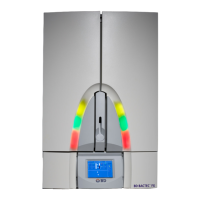
communications is indicated with a flashing amber system indicator on the instrument door.
To reboot the instrument, select Reboo
t. A confirmation message asks if you want to reboot the
application. Select Yes to reboot, or select No to cancel the reboot. A message window confirms that
you select Yes when the confirmation message appears.
5.5.3.5 Change Password
The Change Password utility enables you to change the Supervisor password that is required for
saving Configuration changes.
You cannot change passwords in an instru
ment that is in degraded mode.
To access Change Password:
• From the Status display, select the Maint
enance tab
• From the Maintenance – Test display, select the U
tilities tab
• From the Utilities menu, select Ch
ange Password
Change Password Fields:
Old Password
Select the blank field to access the onscreen
keyboard. Enter the existing Supervisor
password, then select ENTER.
New Password
Select the blank field to access the onscreen ke
yboard. Enter the new password, then select
ENTER. Passwords can be up to 20 characters. Passwords cannot be blank (no characters)
and they cannot be all spaces. Passwords are case sensitive.
Confirm Password
Select the blank field to access the onscreen
keyboard. Enter the new password a second
time, then select ENTER.







 To Next Page