2 – Installation
31
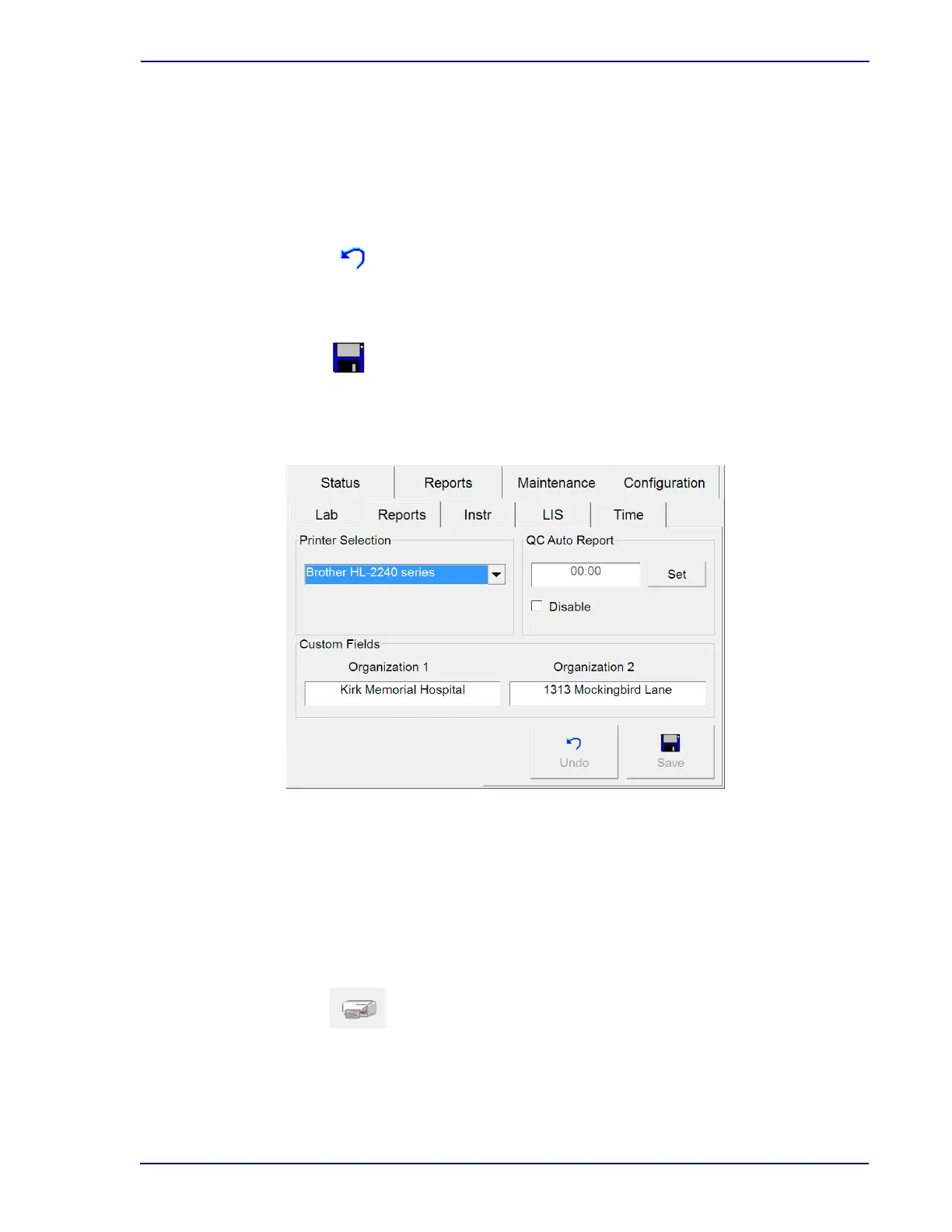
onscreen keyboard (see Section 3.10) to enter the desired hospital or laboratory name. When
the first line is complete, select Enter. Tap in the Organization 2 field to display the onscreen
keyboard to enter the second line of text.
The Organization information prints at the top of reports.
Configuration – Reports Buttons:
Undo button
Select to clear changes and return to saved values. Only active if field values are changed and
are not saved.
Select to save changes. When the Enter Password window appears, tap the blank password
field to display the onscreen keyboard. Enter the Supervisor password, then select ENTER,
followed by OK.
Figure 2-5 – Reports Configuration Display
2.4.3 Instr(ument) Configuration
Instrument configuration settings are unique to each individual instrument within a cluster or workgroup
cluster with BD EpiCenter™ connectivity. See Figure 2-6.
To modify default instrument values, refer to the field r
equirements listed below. When changes are
complete, select Save and enter the Supervisor password.
Instrument No.
Select the instrument identification number. The default setting is 1. To increase or decrease
the instrument number, select the Up or Down Arrow to increase or decrease the value in the
field. You can choose a number from 1 to 99. If there is only a single instrument at your
Save button







 To Next Page