53
Navigation mode
Clock
You can configure the GMT time sent
by the satellite in terms of its format and
the current time zone.
The time only needs to be set so that the
Traffic Pro can supply navigation infor-
mation correctly on routes with time-
dependent route guidance. Setting the
time also ensures that anticipated times
of arrival are announced/displayed cor-
rectly.
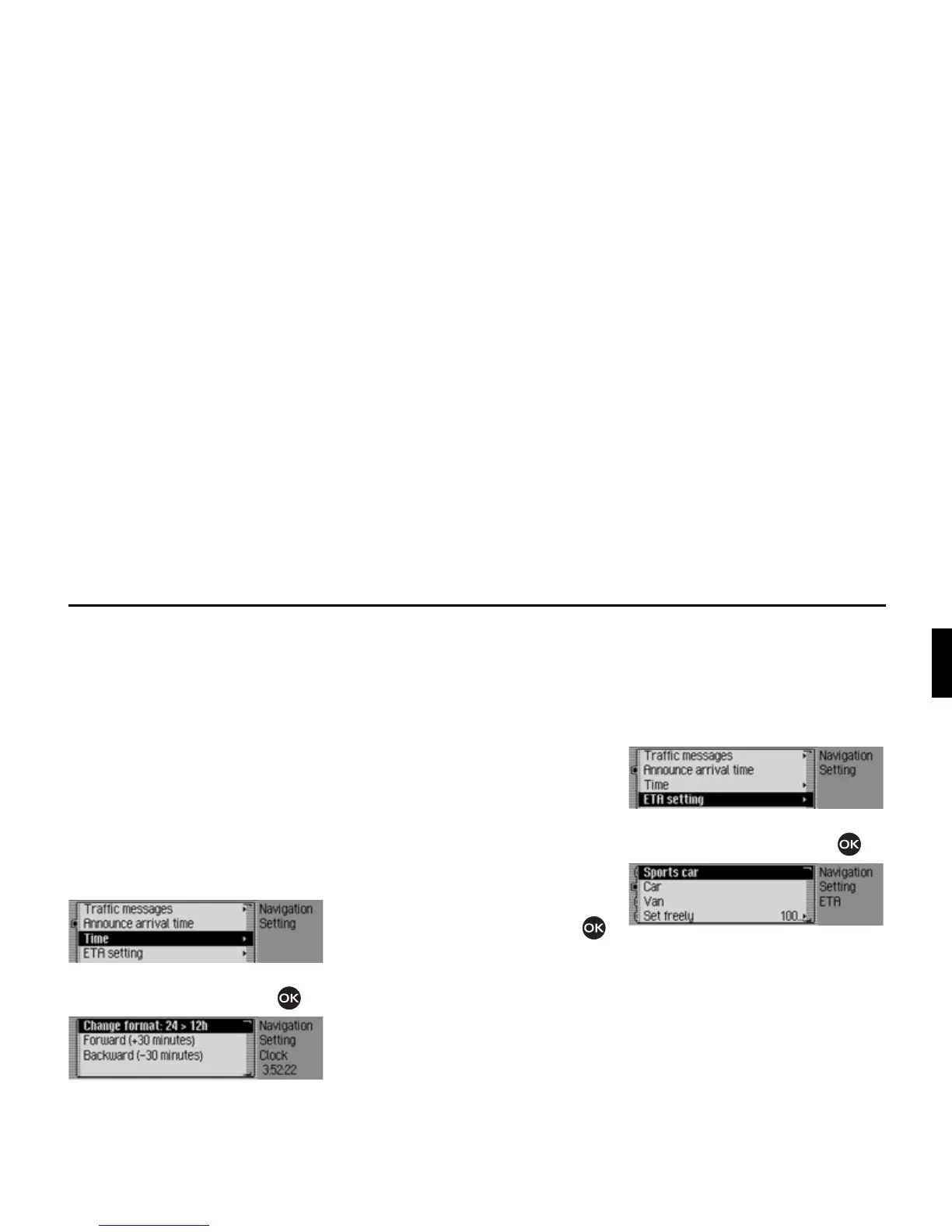
X In the Settings menu, select the &ORFN
entry.
X Confirm your selection by pressing
the rotary control/push button .
The Clock Settings menu appears. The
current time setting appears on the right-
hand side of the display.
X You may now select &KDQJH IRUPDW,
)RUZDUG PLQXWHV or %DFNZDUG
PLQXWHV
.
•
&KDQJHIRUPDW
You can switch the time display for-
mat from 12 to 24-hour and vice versa.
•
)RUZDUGPLQXWHV
You can put the time forward in inter-
vals of 30 minutes.
• %DFNZDUGPLQXWHV
You can put the time back in intervals
of 30 minutes.
X Press the rotary control/push button
to execute the relevant function.
ETA setting
You can configure the calculation of the
ETA. ETA stands for Estimated Time
of Arrival.
X In the Settings menu, select the (7$
VHWWLQJ
entry.
X Confirm your selection by pressing
the rotary control/push button .
X You may now select 6SRUWV FDU, &DU,
9DQ or 6HWIUHHO\.
•
6SRUWVFDU
This setting indicates to the Traffic Pro
that you tend to drive rather quickly.
An earlier ETA is calculated.



 To Next Page