150
Overview Display
⦁
touch «Hoop size»-icon
Functions
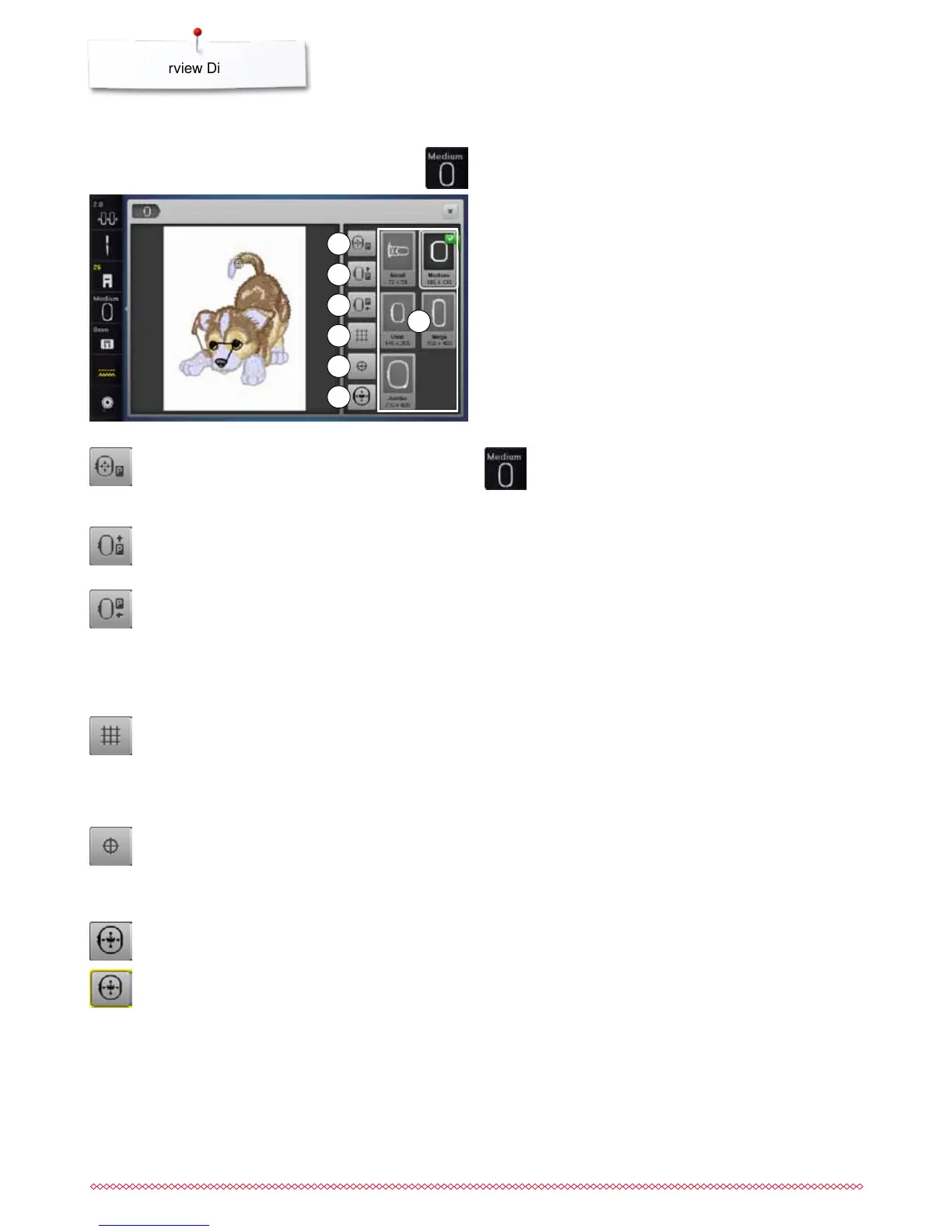
1 Moving the hoop to the left
2 Moving the hoop to the back
3 Parking the module
4 Grid
5 Motif center
6 Virtual positioning
7 Select hoop/Display
Select hoop/Display
►
the optimal hoop for the motif selected is displayed
⦁
touch the icon
►
the Display with the Select Hoop and further
functions appear
Motif center
The exact motif center is indicated by the cursor.
The embroidery hoop is moved until the needle is
positioned exactly in the center of the embroidery motif
when the function «Virtual positioning» is activated.
Moving the hoop to the back
►
the hoop moves vertically to the far back
Better access for changing the bobbin.
Virtual positioning
Icon is inactive = if the motif is repositioned, the hoop
does not move.
⦁
touch the icon
If the motif is repositioned, the hoop simultaneously
moves along with it to the new position.
This function is only visible when an embroidery hoop
is attached.
Parking the embroidery module
⦁
remove the hoop
►
the embroidery arm travels horizontally to the left to
the park position
⦁
change to the sewing mode
Sewing is possible even with the embroidery module
attached.
2
5
3
4
1
6
7
Moving the hoop to the left
►
the hoop moves to the center
⦁
press «Start-/Stop»-button
►
the hoop moves back to the previous position
Grid
⦁
touch the icon
►
a large cursor shows the center of the hoop
⦁
touch the icon again
►
the grid appears
⦁
the motif can be positioned more exactly


 To Next Page