M (E3.1) 1/2023 page 49/136
10.6.1 Add a new program section
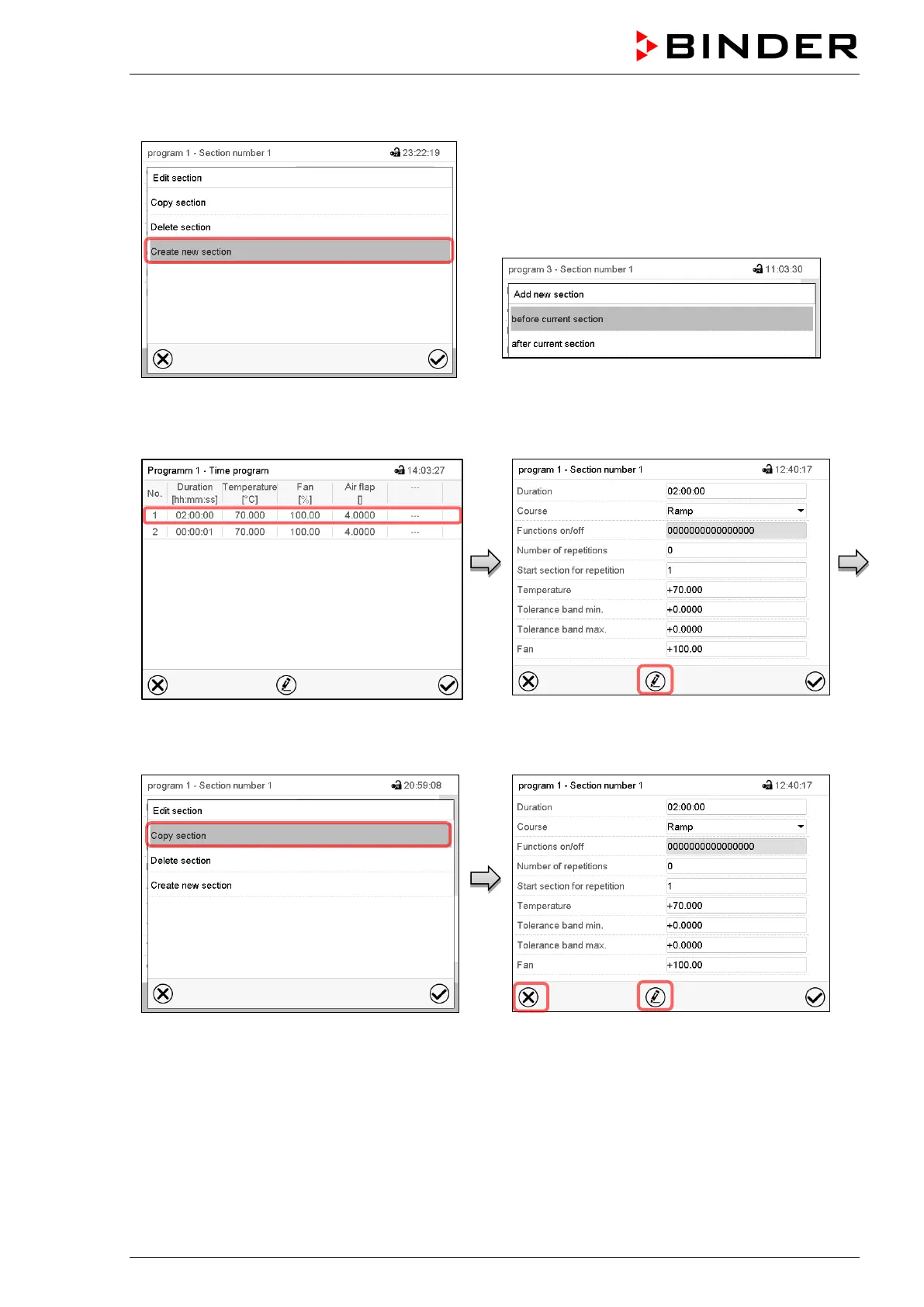
Section editor: “Edit section” menu.
Select “Create new section” and press the Con-
firm icon.
Then select whether to insert the new section be-
fore or after the current section.
Press the Confirm icon. The new section opens.
10.6.2 Copy and insert or replace a program section
Program view.
Select the program section to be copied
(example: section 1)
Section view (example: section 1).
Press the Edit icon to open the section editor.
Section editor: “Edit section” menu
Select “Copy section” and press the Confirm
icon.
The current section (example: section 1) is
copied. The controller returns to the section
view.
Section view (example: section 1).
Press the Close icon to change to the pro-
gram view, if you want to select another sec-
tion to be replaced or before or after which
the copied section shall be inserted…


 To Next Page