Make sure you back up anything important from your media as all data will be lost when it is
formatted.
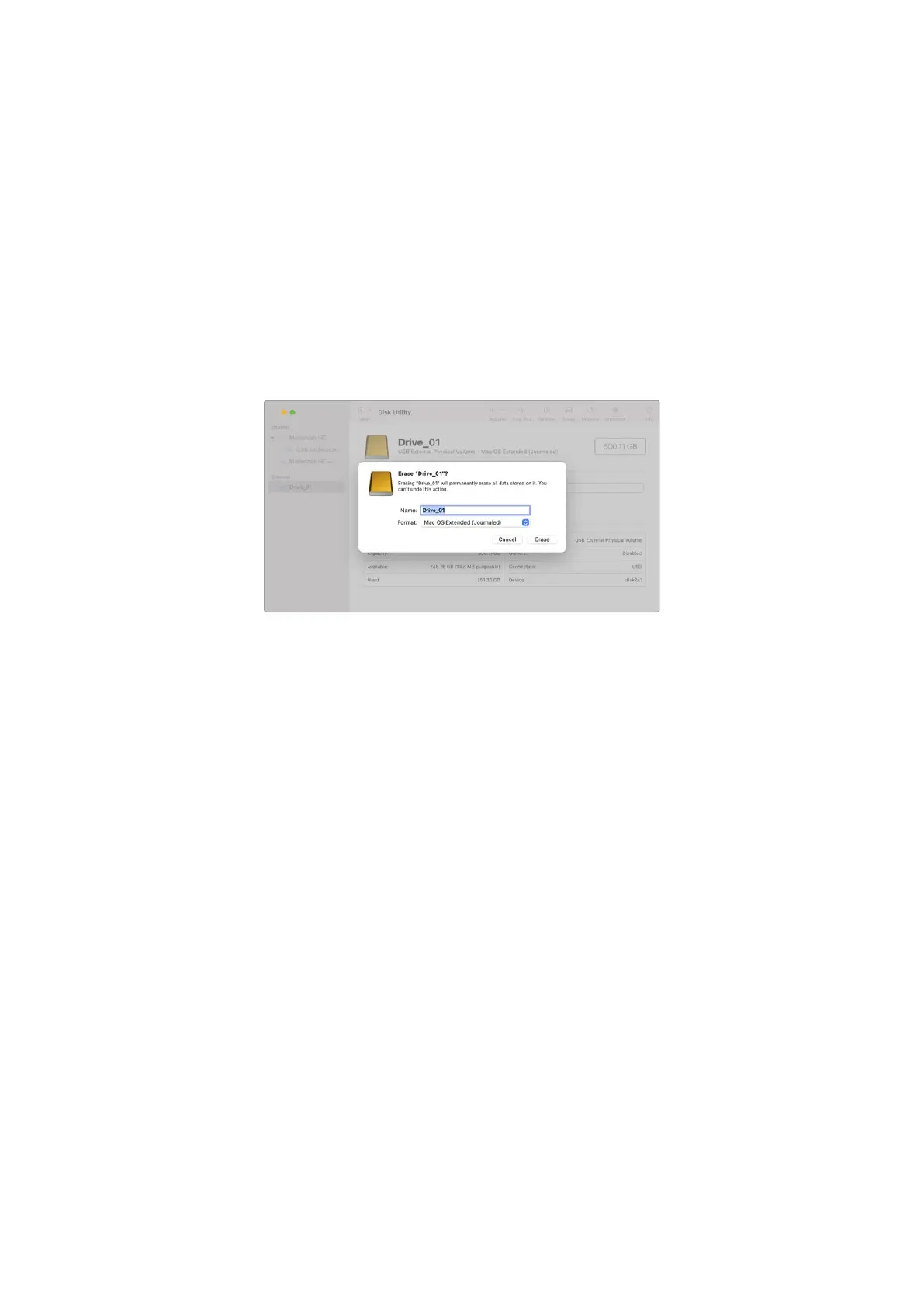
To format your disk:
1 Connect the USB-C flash disk to your computer and dismiss any message offering to use
your media for Time Machine backups.
2 Go to applications/utilities and launch Disk Utility.
3 Click on the disk icon for your USB-C flask disk and then click the ‘erase’ tab.
4 Set the ‘format’ to ‘Mac OS extended ( journaled)’ or ‘exFAT’.
5 Type a ‘name’ for the new volume and then click ‘erase’. Your USB-C flash disk will quickly
be formatted and made ready for use with your camera.
Preparing Media on a Windows PC
Windows PCs provide a ‘format’ option when you right click on the drive. Make sure you back
up anything important from your USB-C flash disk as you will lose everything on it when it is
formatted.
To format your disk:
1 Connect a USB-C flash disk to your computer.
2 Open the start menu or start screen and choose computer. Right-click on your USB-C
flash disk.
3 From the contextual menu, choose ‘format’.
4 Set the file system to exFAT and the allocation unit size to 128 kilobytes.
5 Type a volume label, select ‘quick format’ and click ‘start’.
6 Your media will quickly be formatted and made ready for use with your camera.
50Settings


 To Next Page
 Loading...
