Gyro Stabilization
Your Blackmagic Micro Studio Camera 4K G2 automatically records pan, tilt and roll data
captured by an internal motion sensor. This data is also known as gyro data, which DaVinci
Resolve can then use to stabilize shots.
It’s important to calibrate your camera’s motion sensor prior to recording to ensure that the
recorded gyro data is accurate. You can find more information in the ‘setup menu’ section under
‘motion sensor calibration’.
Enabling Gyro Stabilization
To enable gyro stabilization you will need to make sure your lens’s optical image stabilization is
turned off. If the lens you are using does not have a physical switch to turn optical stabilization
off, you can disable lens stabilization in your camera’s ‘setup’ settings.
To disable lens stabilization:
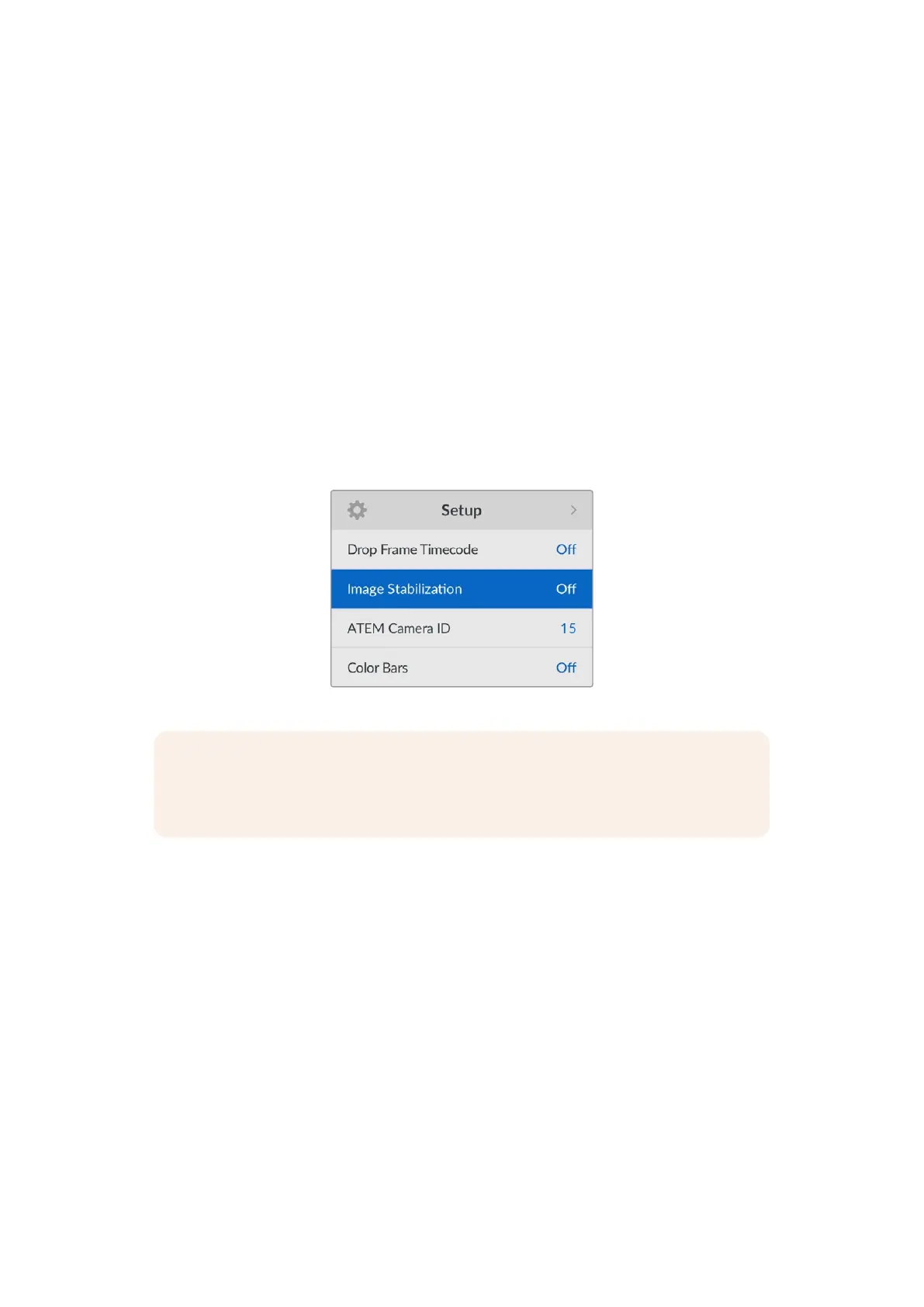
1 In your camera’s ‘setup’ menu, navigate to ‘image stabilization’.
2 Press ‘set’ to switch image stabilization to ‘off’.
3 Press ‘menu’ to return to the home screen.
NOTE For gyro stabilization to work at its best, it requires accurate lens focal length
information which is included in the metadata that is automatically recorded when
using most micro four thirds lenses.
67Entering Metadata


 To Next Page
 Loading...
