Transferring Files over a Network
When connected to a network via Ethernet, files can be transferred over a network from
Blackmagic Micro Studio Camera 4K G2 using following protocols:
HTTP
Hypertext transfer protocol.
HTTPS
Hypertext transfer protocol secure.
FTP
File transfer protocol.
SMB
Server message block.
These protocol options let you copy files directly from your camera’s USB media to your
computer via a network with the fast speeds a local network can provide. For example, you can
copy clips and start editing them as soon as you have finished recording.
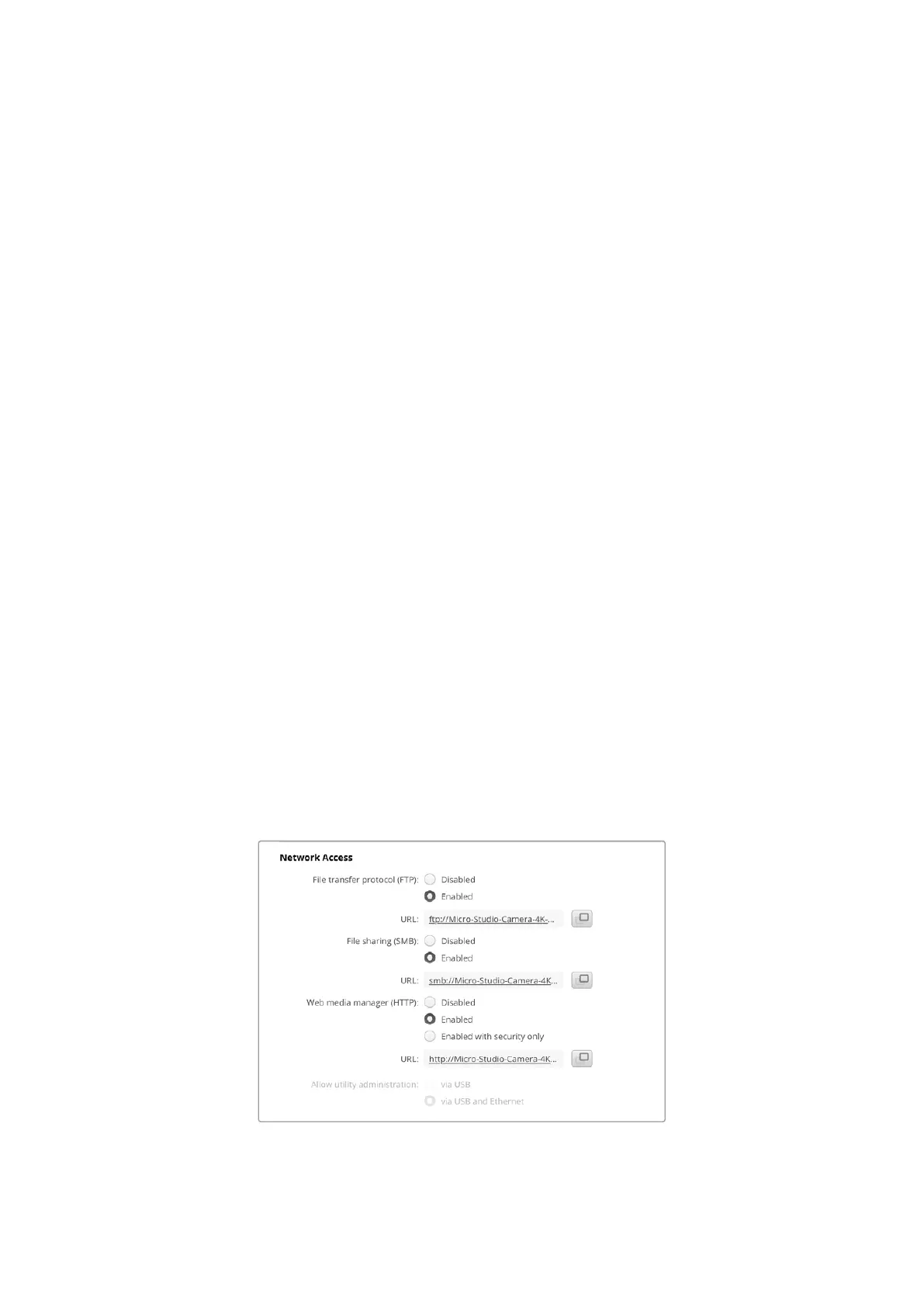
Access to your camera via any of these protocols can be enabled or disabled via the Camera
Setup utility. For example, you could disable FTP access and enable HTTPS access at the
same time.
Connecting to your Camera via HTTPS
To access your Blackmagic Micro Studio Camera 4K G2 via the web media manager you will
need the URL available via the network access settings. Network access settings appear in
Camera Setup utility when your computer is connected via USB or Ethernet but are disabled
when only Ethernet is connected.
1 Using a USB-C cable, connect your computer to the camera via the USB port on the side
panel and open Camera Setup. You should see a USB connection icon next to the unit
name. Click on the circular icon or anywhere on the product image to open the settings.
2 When using a self signed certificate, navigate to the network access settings and click on
the copy icon beside the URL. This URL is based on the name of your camera. To modify
the URL, modify the name of the unit.
When using a self signed certificate, click on the link
81Transferring Files over a Network


 To Next Page
 Loading...
