DeveloperInformation
Camera
Control
REST
API
If you are a software developer you can build custom applications or leverage ready to use
tools such as REST client or Postman to seamlessly control and interact with your Blackmagic
Studio Camera using Camera Control REST API. This API enables you to perform a wide range
of operations, such as starting or stopping recordings, accessing disk information and much
more. Whether you’re developing a custom application tailored to your specific needs or
utilizing existing tools, this API empowers you to unlock the full potential of your camera with
ease. We look forward to seeing what you come up with!
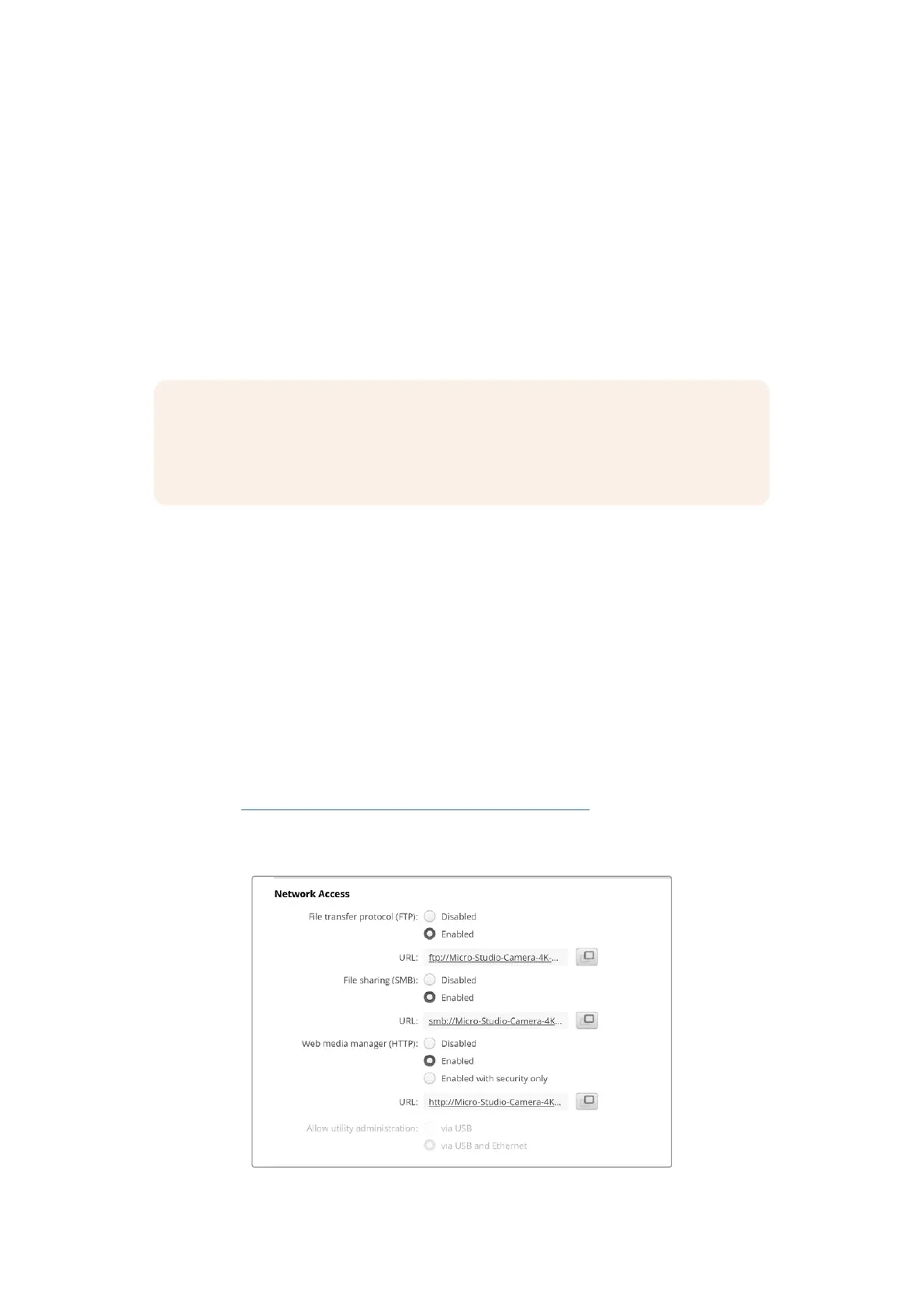
NOTE It’s important to mention that controlling Blackmagic Micro Studio Camera 4K G2
via REST API relies on the web media manager being enabled on each camera. Enable
the web media manager in the Blackmagic Camera Setup ‘network access’ settings for
each camera you are controlling.
The following Blackmagic cameras are compatible with Camera Control REST API:
Blackmagic Cinema Camera 6K
Blackmagic Micro Studio Camera 4K G2
Blackmagic Studio Camera 4K Plus
Blackmagic Studio Camera 4K Pro
Blackmagic Studio Camera 4K Pro G2
Blackmagic Studio Camera 4K Plus G2
Blackmagic Studio Camera 6K Pro
Sending API Commands
To send an API command to your camera from a third party application such as Postman,
add /control/api/v1/ to the end of the camera’s Web media manager URL or IP address.
For example, https://micro-studio-camera-4k-g2.local/control/api/v1/
You can find the Web media manager URL and IP address information in Blackmagic
Camera Setup.
The Web media manager URL in Blackmagic Camera Setup
914
DeveloperInformation


 To Next Page
 Loading...
