104
Section 6. Using USB
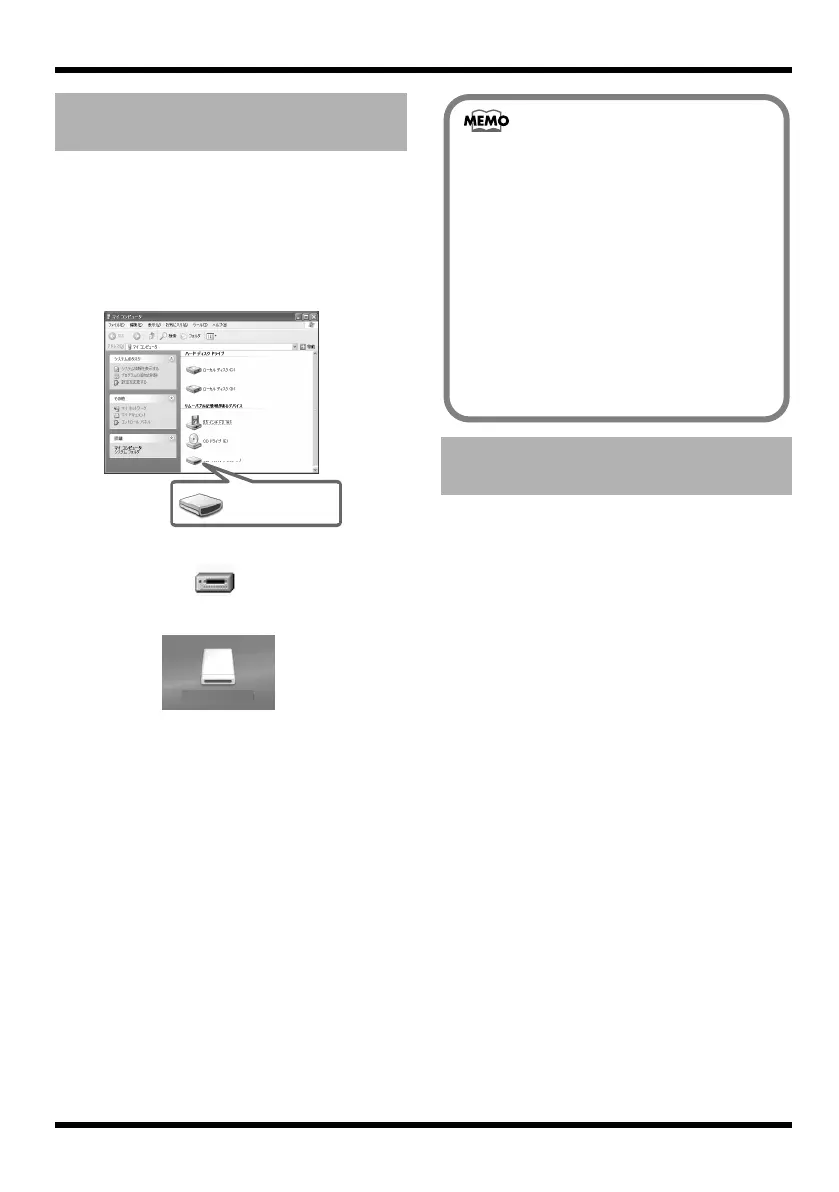
When you connect the MICRO BR via USB to
your computer (p. 105, p. 108), a MICRO_BR icon
will appear on your computer.
* With certain versions of Windows OS, the “Removable
disk (?:)” icon may be displayed.
fig.05-020
When you double-click the “MICRO_BR” icon
(or the “Removable disk (?:)” icon), the “MP3”
folder and the “ROLAND” folder is displayed.
MP3 files and WAV files must be saved in the
MP3 folder.
The following types of song data are backed up.
• Recorded data
• Mixer status (level, pan etc.)
• Insert effects song patches
• Mastering Tool Kit song patches
• Song Arrangements
• Loop Effects
• Utility (Master Level, PlugIn Power)
• Input Sns parameter
• MP3 mode
Checking the folders and files
saved on a memory card
Windows XP
Windows 2000
Macintosh
MICRO_BR (F:)
Removable Disk (?:)
(Ex.)
(Ex.)
(Ex.)
MICRO_BR
MICRO_BR
Regarding the backed-up
data
• The MICRO BR does not support long
filenames. Such filenames will not be
displayed correctly. Assign filenames of no
more than eight characters, not including the
filename extension.
(ex.)
123MUSIC.MP3 (eight characters)
HELLO.WAV (five characters)
• The MICRO BR does not support filenames
containing double-byte characters (e.g.,
Japanese).
• You can use the following characters.
A–Z 0–9 ! # $ % & ’ ( ) - ^ ` @ { } _
MICRO-BR_e.book 104 ページ 2009年5月28日 木曜日 午後2時26分



 To Next Page