81
Section 3. Using effects
Section 3
Here’s how you can assign a name (patch name)
to the kit settings you’ve edited, and save them as
a new patch.
* You can’t save a patch while a song is playing or being
recorded.
* If you don’t need to edit the patch name, proceed to step
5.
1.
Press [EFFECTS].
The mastering tool kit screen appears.
fig.Disp-FX-MT-P01.eps
2.
If you want to edit the patch name, press
[TR4] (NAM).
The FX NAME screen appears.
fig.Disp-FX-MT-P01.eps
3.
Use CURSOR [ ] [ ] and VALUE [-] [+]
to enter the desired patch name.
You can use the following functions when
editing text.
4.
Press [EXIT] to return to the mastering
tool kit screen.
5.
Press [TR3] (WRT).
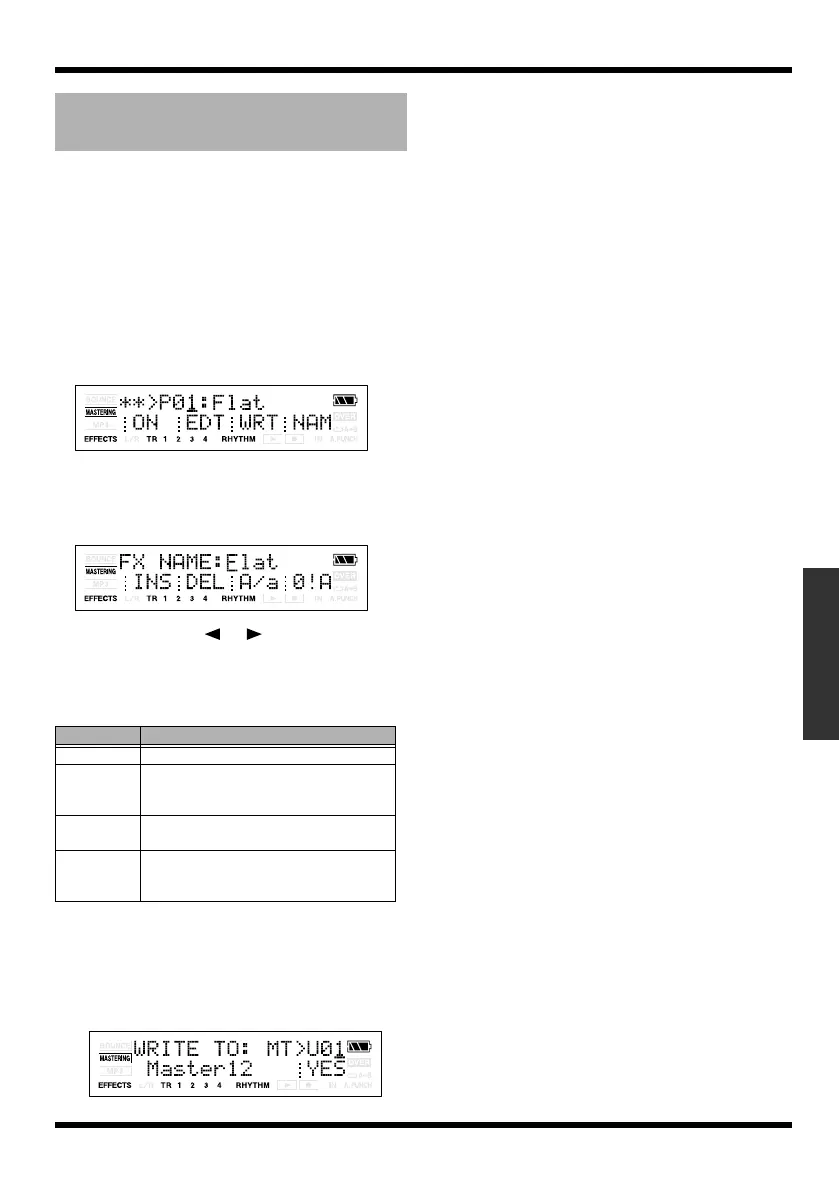
The Write screen appears.
fig.Disp-WRITE-MT-U01.eps
6.
Use VALUE [-] [+] to select the write-
destination patch number.
7.
Press [TR4] (YES).
The display will ask “Are you sure?”
8.
If you are sure you want to write to the
patch, press [TR4] (YES). If you decide
not to write the patch, press [EXIT].
Once the data has been written, you’re
returned to the mastering tool kit screen.
Saving the mastering tool kit
settings (Write)
Button
Function
[TR1] (INS) Inserts a space at the cursor location.
[TR2] (DEL) Deletes the character at the cursor loca-
tion, and moves the subsequent charac-
ters toward the left.
[TR3] (A/a) Switches the character at the cursor loca-
tion between uppercase/lowercase.
[TR4] (0!A) Switches the type of character (numeral/
symbol/alphabetical) at the cursor loca-
tion.
MICRO-BR_e.book 81 ページ 2009年5月28日 木曜日 午後2時26分



 To Next Page