65
Section 3. Using effects
Section 3
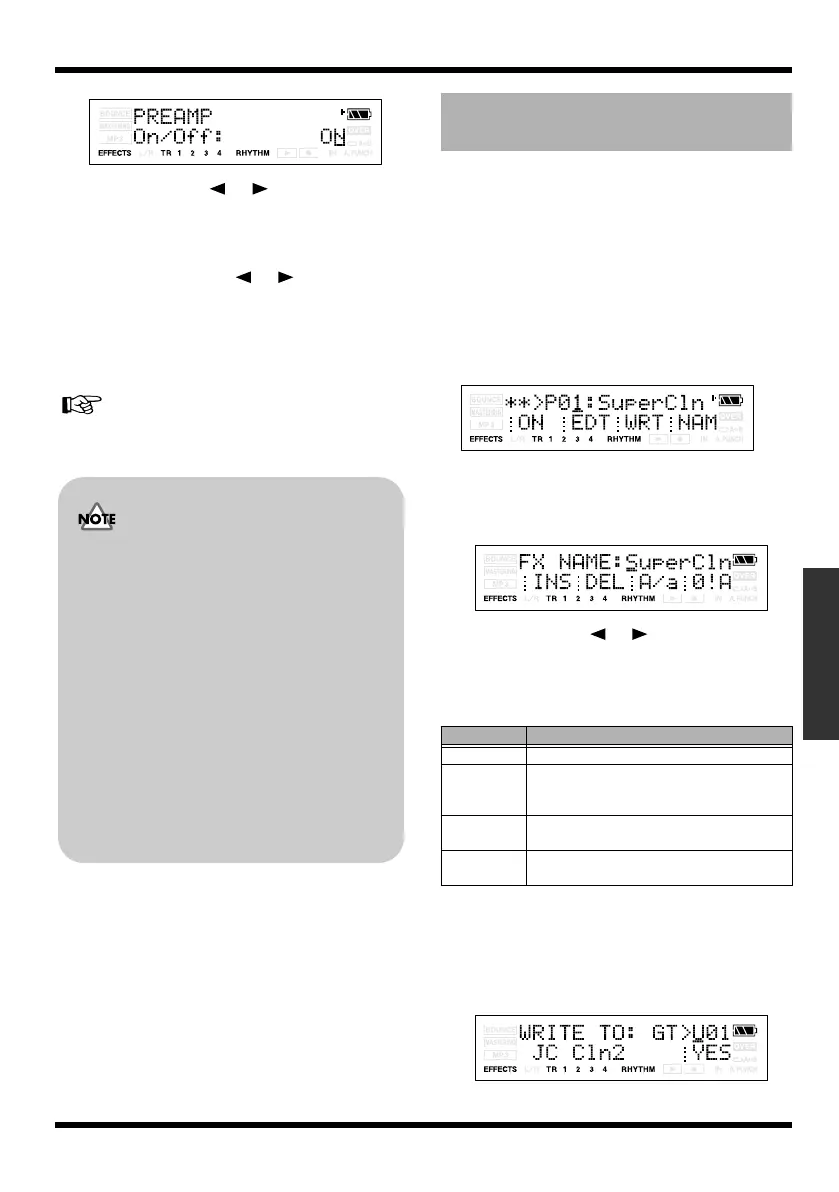
fig.Disp-PREAMP-OnOff.eps
6.
Use CURSOR [ ] [ ] to move the
cursor to each parameter, and use
VALUE [-] [+] to edit the value.
If there are other parameters you want to
edit, use CURSOR [ ] [ ] to move the
cursor to each parameter, and use VALUE
[-] [+] to edit the value.
7.
If you want to edit another effect block,
press [EXIT] and then repeat steps 5–7.
If you want to save the current effect settings, refer
to “Saving insert effects settings (Write)” (p. 65).
Here’s how to assign a name (patch name) to the
effect settings you’ve edited, and save them as a
new effect patch.
* You can’t save an effect patch while you’re recording or
playing a song.
* If you don’t need to edit the patch name, proceed to step
5.
1.
Press [EFFECTS].
The effect screen appears.
fig.Disp-GT-P01.eps
2.
If you want to edit the patch name press
[TR4] (NAM).
The FX NAME screen appears.
fig.Disp-FX-NAME.eps
3.
Use CURSOR [ ] [ ] and VALUE [-] [+]
to enter the desired patch name.
You can use the following functions when
editing text.
4.
Press [EXIT].
Return to the effect screen.
5.
Press [TR3] (WRT).
The Write screen appears.
fig.Disp-WRITE-U01.eps
Changes you make to the effect settings are
temporary. If you exit the effect edit screen
without saving your edited effect patch, the
indication “**” will appear in the area that
indicates the bank.
Please be aware that your edits will be lost
if you perform any of the following when
this “**” indication is shown:
• Select another effect patch
• Load a song
• Turn off the power
• Use a USB cable to connect the MICRO BR to
computer
• Return to the Normal mode from the MP3
mode
Saving insert effects settings
(Write)
Button
Function
[TR1] (INS) Inserts a space at the cursor location.
[TR2] (DEL) Deletes the character at the cursor location,
and moves the subsequent characters to-
ward the left.
[TR3] (A/a) Switches the character at the cursor loca-
tion between uppercase and lowercase.
[TR4] (0!A) Switches the type of character (numeral/
symbol/letter) at the cursor location.
MICRO-BR_e.book 65 ページ 2009年5月28日 木曜日 午後2時26分



 To Next Page