90
Section 4. Using rhythm
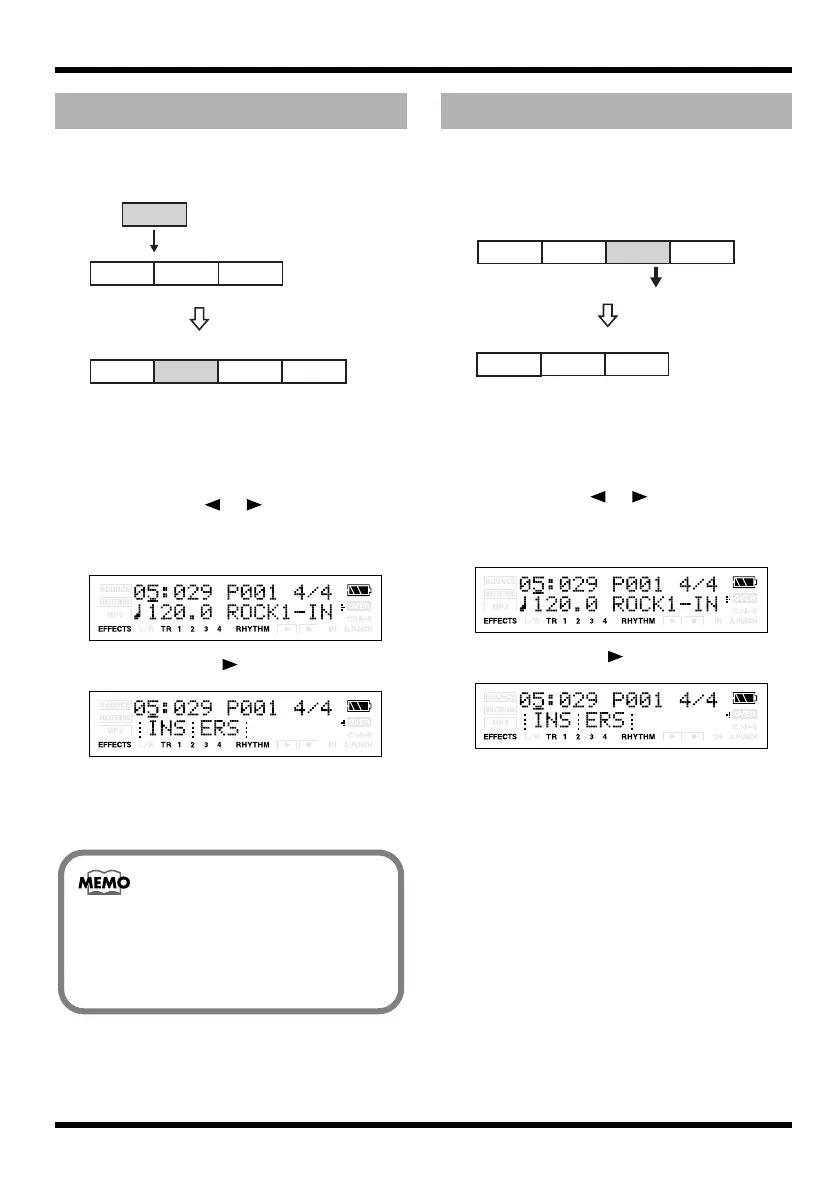
Here’s how to insert a new step at the current
step.
fig.04-550
1.
Perform steps 1 through 7 of “Specifying
the pattern for the first measure” (p. 88),
to select the song arrange you want to
edit.
2.
Use CURSOR [ ] [ ] and VALUE [-] [+]
to select the position (step number) at
which you want to insert a step.
fig.Disp-ar-ins.eps
3.
Press CURSOR [ ] several times.
fig.Disp-step-ins-ers.eps
4.
Press [TR1] (INS).
The display will indicate “Insert!” and the
current step will be copied and inserted.
Here’s how to erase the contents of the selected
step. The erased step will take on the contents of
the subsequent step.
fig.04-570
1.
Perform steps 1 through 7 of “Specifying
the pattern for the first measure” (p. 88),
to select the song arrange you want to
edit.
2.
Use CURSOR [ ] [ ] and VALUE [-] [+]
to select the step number that you want to
erase.
fig.Disp-ar-ins.eps
3.
Press CURSOR [ ] several times.
fig.Disp-step-ins-ers.eps
4.
Press [TR2] (ERS).
The display will indicate “Erase!” and the
selected step will be erased.
* If only step 1 remains, no further steps can be erased.
Inserting a step
Intro Verse Fill
Verse
Verse
Insert
Step 1 Step 2 Step 3
Step 1 Step 2 Step 3
Intro
Verse Fill
Step 4
The pattern used for the inserted step will be
the same pattern as used in the current step.
If you want to use a different pattern in the
inserted step, reselect the pattern after
you’ve inserted the step.
Erasing a step
Erase
Verse
Intro
Verse
Verse
Intro
Verse
Fill
Step 1 Step 2 Step 3
Step 1 Step 2 Step 3
Step 4
MICRO-BR_e.book 90 ページ 2009年5月28日 木曜日 午後2時26分



 To Next Page