62
Section 2. Editing
Even after you’ve finished the work of creating a
song, you could lose your song by accidentally
recording over it or erasing it. To prevent such
accidents, the Song Protect setting lets you
protect a song so that it cannot be erased or
modified.
* If a song is protected, you won’t be able to perform the
following operations:
• Recording
• Track editing
• Changing the song name
• Deleting the song
• Song optimize
• Writing a rhythm arrangement
• Importing MP3 or WAV
• Writing an effect song patch
1.
Press [UTILITY] then press [TR1] (SNG).
2.
Press CURSOR [ ].
fig.Disp-util-song2.eps
3.
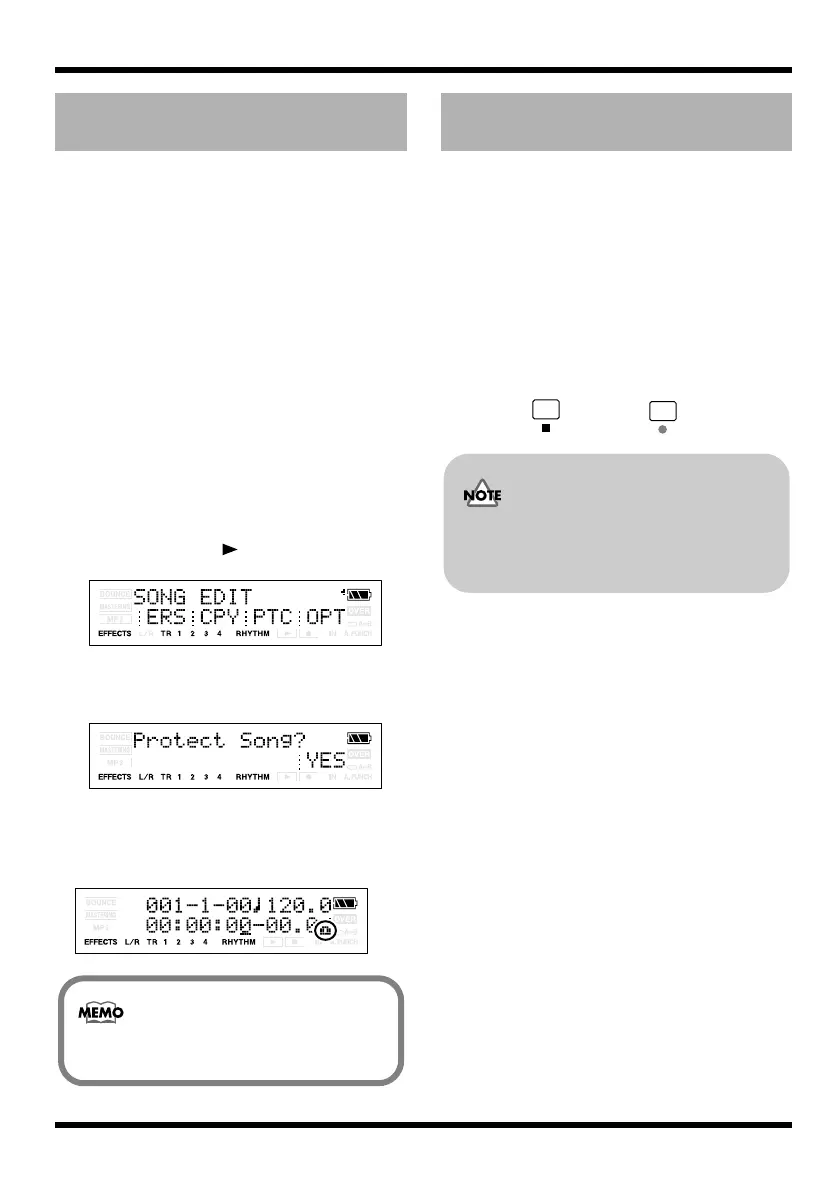
Press [TR3] (PTC).
The display will ask “Protect Song?”
fig.Disp-SONG-PROTECT.eps
4.
Press [TR4] (EXE).
If a song is protected, the song protect
indicator is shown in the screen.
fig.Disp-SONG-PROTECT.eps
On the MICRO BR, the following content is saved
as song data.
• Recording data
• Mixer status (pan, etc.)
• Insert effects song patch
• Mastering Tool Kit song patch
• Song arrangement
• Reverb
• Plug-in Power parameter
To save the current state, perform the following
step.
Hold down and press .
Protecting a song (Song
Protect)
To turn off the protect setting, perform the
same procedure once again.
Saving the current settings to
the song (Song Save)
You can use the Write operation (p. 65) to
save the effect patch without performing
the Song Save operation.
MICRO-BR_e.book 62 ページ 2009年5月28日 木曜日 午後2時26分



 To Next Page