114
Section 7. Other Convenient Functions
You can convert track data into an audio file
(MP3/WAV formats), or use an audio file as
track data.
Here’s how track data recorded on a track can be
converted to an audio file (MP3/WAV formats).
1.
Make sure that you’re in normal mode (p.
44), and press [UTILITY].
If you’re in MP3 mode, press [MP3/TRAINER]
to switch to Normal mode, and then press
[UTILITY].
2.
Press [TR2] (TRK).
3.
Press CURSOR [ ].
4.
Press [TR2] (EXP).
The export setting screen appears.
fig.06-020
5.
Use CURSOR [ ][ ] and VALUE [-] [+]
to select the track you want to convert to
audio file.
Range: TR1-V1–V8, TR2-V1–V8, ...,
TR34V1–V8
6.
Press [TR4] (NEXT).
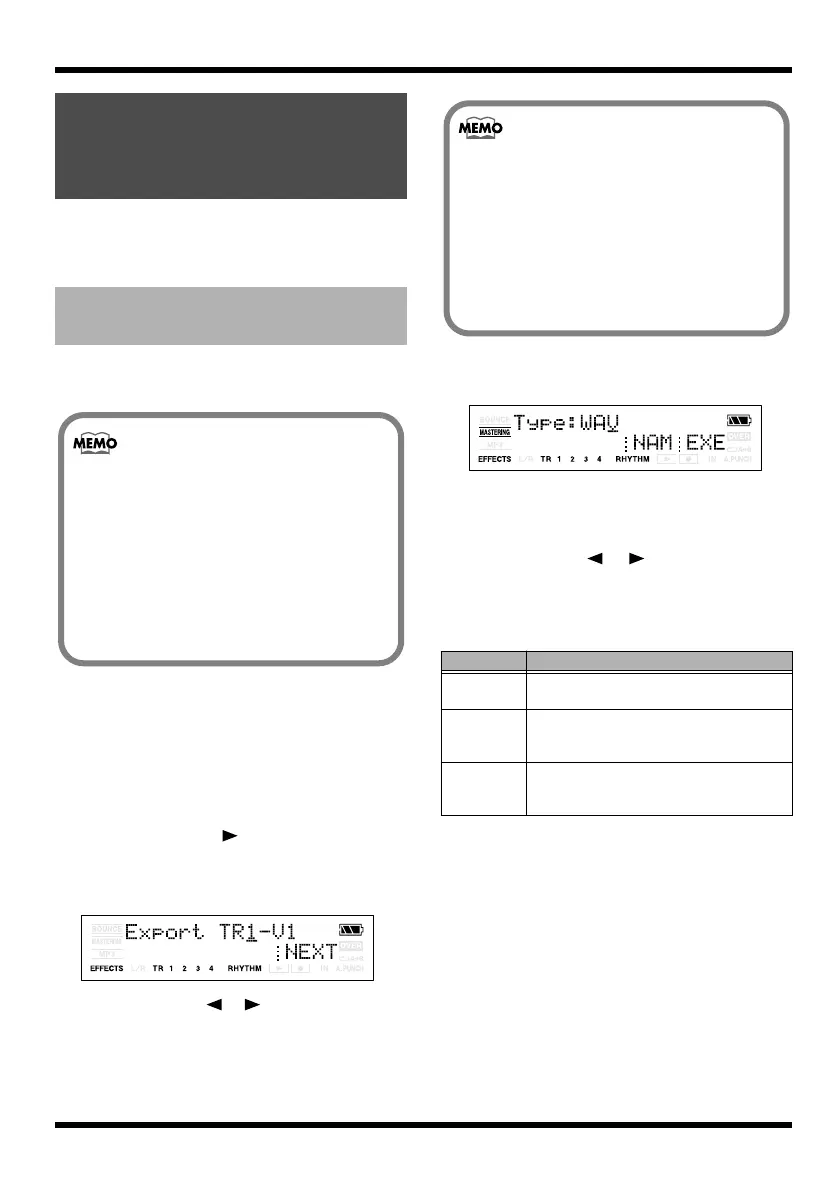
The file type setting screen appears.
fig.06-020
7.
If you want to edit the export filename,
press [TR3] (NAM).
The filename edit screen appears.
Use CURSOR [ ] [ ] and VALUE [-] [+]
to enter the desired patch name.
You can use the following functions when
editing text.
If you finished naming, press [EXIT].
Converting between
track data and audio
files
Converting track data to an
audio file (Track Export)
The data in the following formats can be
exported.
WAV format
• Sampling Frequency: 44.1 kHz
• 16-bit
MP3 format
• Sampling Frequency: 44.1 kHz
• 64, 128, 192 kbps
Button
Function
[TR1] (INS)
Inserts an underscore (_) at the cursor loca-
tion.
[TR2] (DEL) Deletes the character at the cursor location,
and moves the subsequent characters to-
ward the left.
[TR4] (0!A) Switches the type of character (numeral/
symbol/alphabetical) at the cursor loca-
tion.
If you select TR1-TR4, the data will be
created to a monaural audio file, and if
you select TR12 or TR34, the data will
be created to a stereo audio file.
For example, if you select TR12, TR1
will be exported to the left channel, and
TR2 will be exported to the right
channel of a stereo audio file.
MICRO-BR_e.book 114 ページ 2009年5月28日 木曜日 午後2時26分



 To Next Page