79
Section 3. Using effects
Section 3
8.
Press [EXIT] to return to the mastering
screen.
9.
Hold down and press .
Move to the beginning of the song
(00:00:00-00.0).
10.
Press .
will blink, and the MICRO BR will be
in recording standby condition.
fig.Disp-mst-standby.eps
11.
Press .
will lights, and mastering begins.
fig.Disp-mst-standby.eps
12.
When you finished mastering, press
.
The mastering data was stored in the V-track
that you had specified in step 2.
“MP3/WAV Export?” message will appear.
13.
If you want to convert to MP3 or WAV,
press [TR4] (YES). If you want to cancel
this operation, press [EXIT].
Press [TR4] (YES), the file type setting screen
appears. Press [EXIT], the mastering
operation will cancel, and return to the
mastering screen.
14.
If you want to edit the exported filename,
press [TR3] (NAM).
The file name edit screen appears.
Use CURSOR [ ] [ ] and VALUE [-] [+]
to enter the desired filename.
You can use the following functions when
editing text.
If you finished naming, press [EXIT].
15.
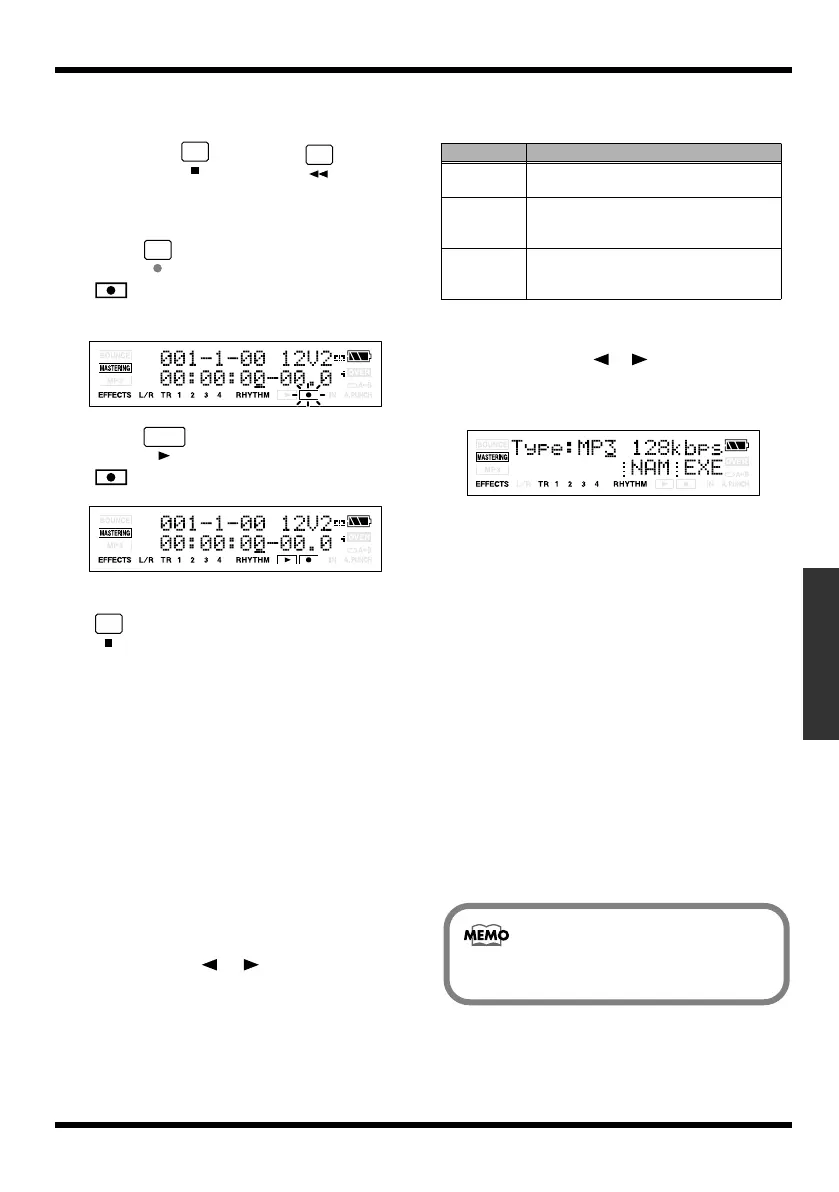
Use CURSOR [ ][ ] and VALUE [-][+]
to set the Type parameter to the desired
type of file.
fig.06-020
You can choose either WAV or MP3 as the
file type.
Range: MP3 64kbps, MP3 128kbps,
MP3 192kbps, WAV
16.
Press [TR4] (EXE).
The display will ask “********.*** OK?”
* “********.***” stands for the filename and the file
extension.
17.
If you want to convert, press [TR4] (YES).
If you want to cancel this operation, press
[EXIT].
Press [TR4] (YES), and the track data will be
converted to MP3 or WAV.
The converted audio file will be saved in the
MP3 folder. (p. 103)
The mastering data has been converted,
you’re returned to the mastering screen.
Button
Function
[TR1] (INS)
Inserts an underscore (_) at the cursor lo-
cation.
[TR2] (DEL) Deletes the character at the cursor loca-
tion, and moves the subsequent charac-
ters toward the left.
[TR4] (0!A) Switches the type of character (numeral/
symbol/alphabetical) at the cursor loca-
tion.
You can listen the converted audio file
in MP3 mode. (p. 95)
MICRO-BR_e.book 79 ページ 2009年5月28日 木曜日 午後2時26分



 To Next Page