Printing Using the Mobile Device
90
5
Printing from a Mobile Device 5
Printing from Your Mobile Device 5
a Start the application (Mobile Cable Label Tool/Brother iPrint&Label) on your mobile device.
(See Available Applications on page 87.)
Make sure that the P-touch is connected to your mobile device.
See Connecting the P-touch to a Mobile Device on page 88.
b Select a label template or design.
You can also select a label or image you designed previously, and print it.
c Check the cutting option. (See Cutting Options on page 90.)
d Tap [Print] in the application menu.
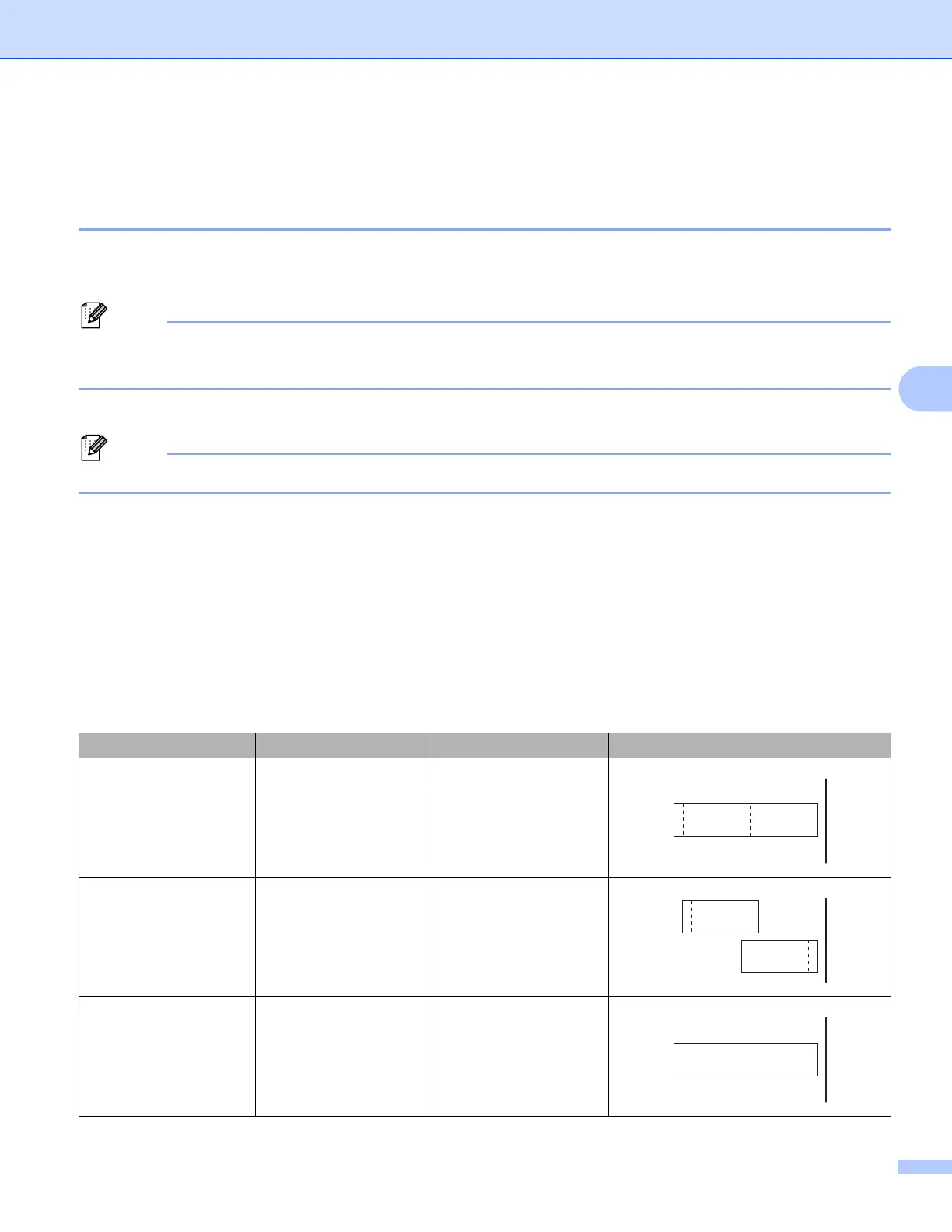
Cutting Options 5
The cutting options allow you to specify how the item is fed and cut when it is printed. Use the printing option
to select the cutting option when printing from the mobile device using the application.
See the following table for a list of all available settings:
Tape Cut Option Table
Auto Cut Half Cut Chain Printing Image
No Yes No
Yes Yes No
No No No





 To Next Page