Printing a Tube or Label Using the P-touch Keyboard
38
2
• New settings are NOT applied unless you press the OK or Enter key.
• To return to the previous step, press the Esc key.
• To set the [Frame] setting as the default setting, press the Space key when the [Frame] dialog box
appears.
Using Auto Format Layouts (Labels Only) 2
Using Templates 2
You can use supplied templates to create labels by just entering the text or selecting the format. Selectable
“Templates” are listed in the Appendix. (See Template on page 237.)
a Select [Auto Format] in the Home screen using the , , or key, and then press the OK or
Enter key.
b Select [Templates] using the or key, and then press the OK or Enter key.
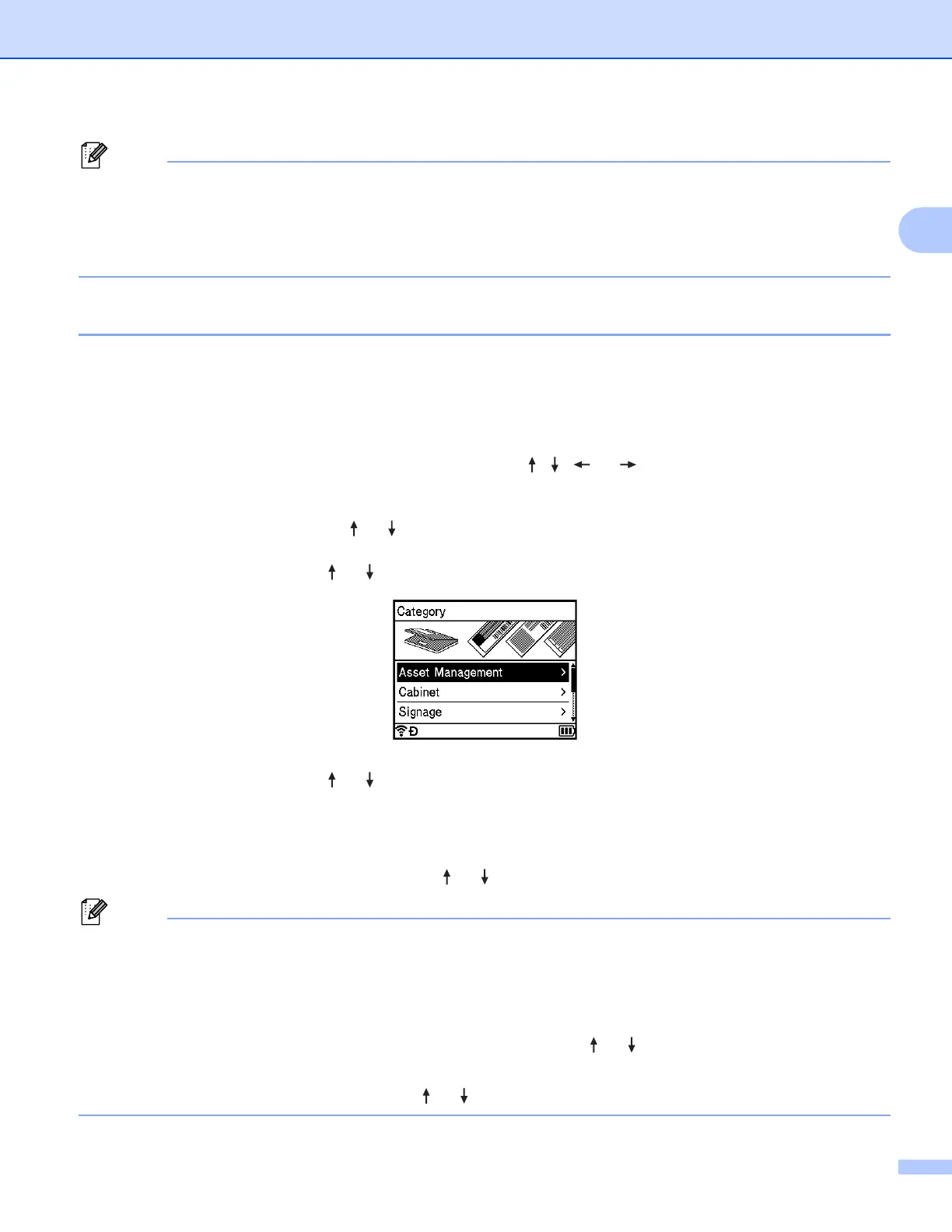
c Select a category using the or key, and then press the OK or Enter key.
d Select a template using the or key, and then press the OK or Enter key.
e Enter text or a barcode for each text field if needed, and then press the OK or Enter key.
f When finished, press the OK or Enter key.
To print the label, select [Print] using the or key, and then press the OK or Enter key.
• For more information about barcodes, see Creating a Barcode Label (Labels Only) on page 31.
• You can use the serialize settings with the entered text and barcodes. To specify the serialize settings,
see Entering a Serialised Tube or Label on page 24. (The advanced serialize mode cannot be used.)
• To print the label, see Printing a Label on page 52.
• To preview the label before printing, select [Preview] using the or key, and then press the OK or
Enter key. For more information about the preview screen, see Label Preview on page 56.
• To save the label, select [Save] using the or key, and then press the OK or Enter key.












 To Next Page