140
10
10
Starting P-touch Editor 10
a Start the P-touch Editor.
For Windows Vista
®
/ Windows
®
7 / Windows Server
®
2008 / Windows Server
®
2008 R2:
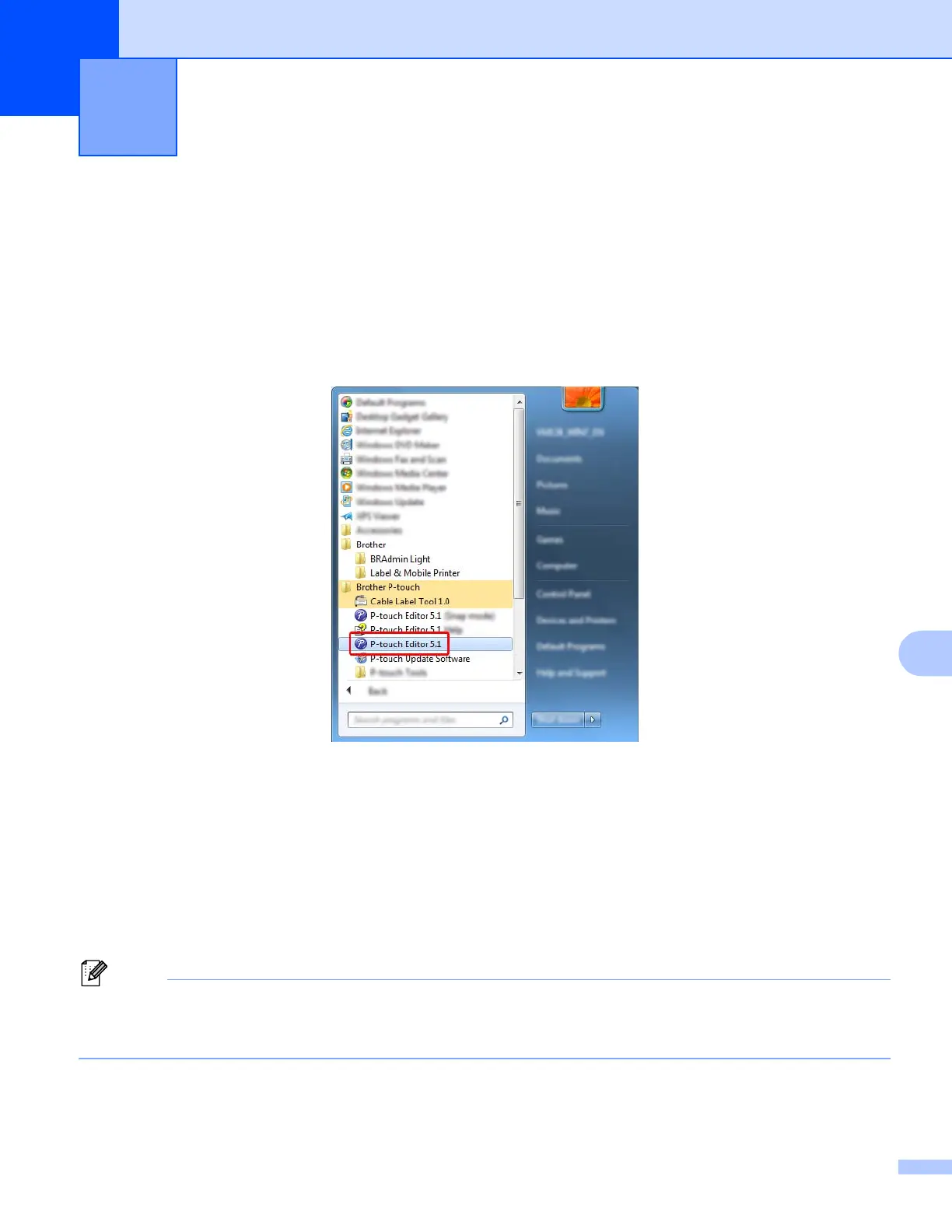
From the Start button, click [All Programs] - [Brother P-touch] - [P-touch Editor 5.1], or double-click
[P-touch Editor 5.1] shortcut icon on the desktop.
When P-touch Editor starts, select whether you want to create a new layout or open an existing layout.
For Windows
®
8 / Windows
®
8.1 / Windows Server
®
2012 / Windows Server
®
2012 R2:
Click [P-touch Editor 5.1] on the [Apps] screen or double-click [P-touch Editor 5.1] on the desktop.
When P-touch Editor starts, select whether you want to create a new layout or open an existing layout.
For Windows
®
10:
From the Start button, select [All apps] and click [P-touch Editor 5.1] under [Brother P-touch], or
double-click [P-touch Editor 5.1] on the desktop.
When P-touch Editor starts, select whether you want to create a new layout or open an existing layout.
To change how P-touch Editor functions when it starts, click [Tools] - [Options] in the P-touch Editor menu
bar to display the [Options] dialog box. On the left side, select the [General] heading, and then the setting
you want in the [Operations] list box under [Startup Settings]. The factory setting is [Display New View].
How to Use P-touch Editor 10





 To Next Page