Printing Using the Computer
82
4
Printing from a Computer 4
Available Applications 4
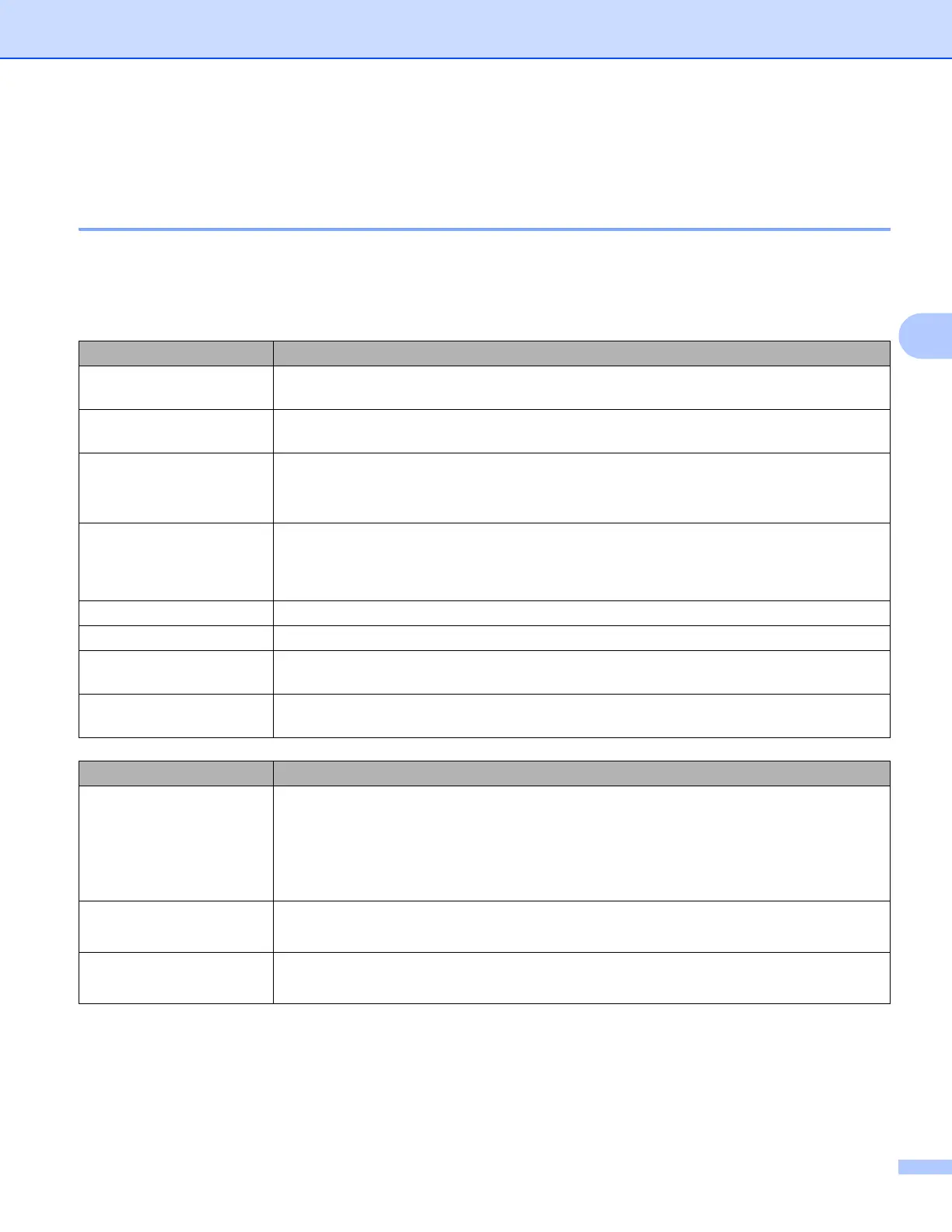
To use the P-touch effectively, a number of applications and functions are available.
You must install the printer driver to use these applications.
You can install these applications and the printer driver using the CD-ROM.
Application Features
Cable Label Tool
Create and print labels for cables, patch panels, faceplates, electrical equipment and
more.
P-touch Editor
Design and print custom labels with built in drawing tools, text using different fonts and
styles, imported graphic images and barcodes.
P-touch Transfer Manager
It allows you to transfer templates and other data to the P-touch and save backups of
your data on the computer.
This application is installed with P-touch Editor.
P-touch Library
Manage and print P-touch Editor templates.
You can use P-touch Library to print templates.
This application is installed with P-touch Editor.
P-touch Update Software Update software to the latest version.
Printer Setting Tool Specify the printer's device settings from a computer.
BRAdmin Light
Finds the P-touch on your network and is used to make basic configuration settings from
your computer.
BRAdmin Professional
Finds the P-touch on your network and is used to make advanced configuration settings
and updates from your computer.
Useful Function Features
Distributed printing
When printing a large number of labels, printing can be distributed among multiple
printers.
Because printing is performed at the same time, the total printing time can be reduced.
For more information, see Printing Labels Distributed to Multiple Printers (Label Only)
on page 121.
High resolution printing
Print in higher resolution.
For more information, see Printing Labels in High Resolution Mode on page 125.
High speed printing
Print faster.
For more information, see Printing Labels in High Speed Mode on page 126.












 To Next Page