Printing a Tube or Label Using the P-touch Keyboard
49
2
Printing Tubes 2
You can print tubes after you finish entering the text and selecting the format settings.
• Do not pull the tube coming out of the tube exit slot.
• To prevent damage to the tube and ink ribbon, do not touch any key while the [Printing... Copies]
or [Feeding Tube... Please Wait] message appears.
• Do not block the tube exit slot during printing or when feeding tube. Doing so will cause the tube to jam.
• Be sure to check that there is enough tube and ink ribbon remaining when printing several tubes
continuously. If tube or ink ribbon is running low, set fewer copies, print tubes one at a time, or replace the
tube or ribbon cassette.
Printing a Single Page 2
If there is only one page, press the Print key, and then press the Print or OK key to start printing.
Printing All Pages and Multiple Copies 2
When printing multiple pages, you can print the same number of copies for all pages or a different number of
copies for each page.
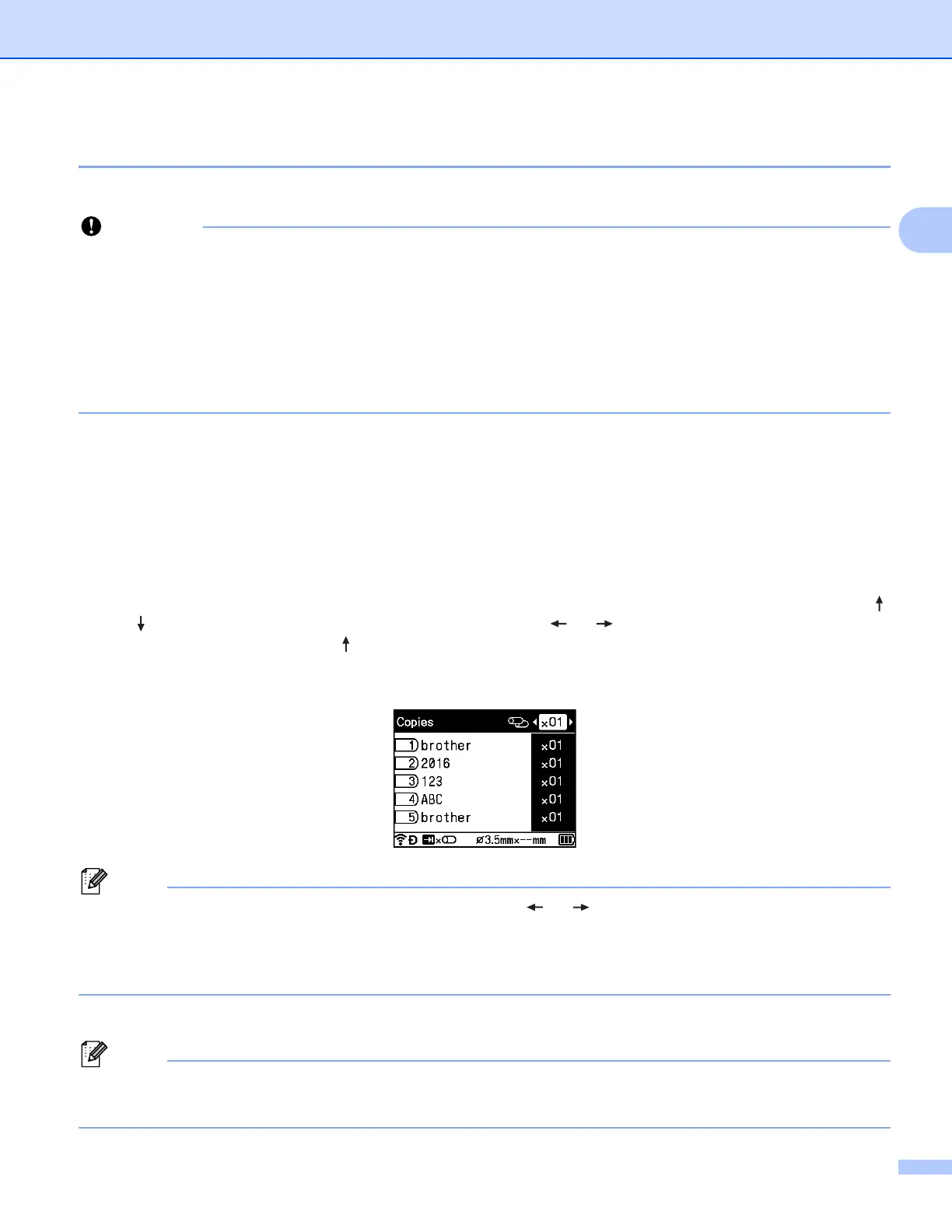
a Press the Print key, and then select the number of copies for each page. Select the pages using the
or key, and then select the number of copies using the or key, or type the number using the
number keys. If you press the key to select the setting field in the upper-right corner of the screen, the
selected pages will be printed as one set according to the number of copies set for each page and you
can select the number of sets to print.
• To change the number of copies quickly, hold down the or key.
• To set the same number of copies for all pages, press the Tab key in the tube creation screen to set the
number of copies. For more information, see Using the Tab Key to Set Multiple Copies (Tubes Only)
on page 21.
b Press the Print or OK key to print.
• You can print up to 99 copies of a single page.
• You can print up to 9,999 copies for a single print job.












 To Next Page