Printing a Tube or Label Using the P-touch Keyboard
36
2
Changing and Deleting the Time Stamp Settings 2
To change the [Time Stamp] settings, select the clock icon, and then press the OK or Enter key.
To delete a time stamp from a tube or label, position the cursor to the right of the clock icon or select the clock
icon, and then press the Backspace key.
Setting Character Attributes 2
Setting Character Attributes by Tube or Label 2
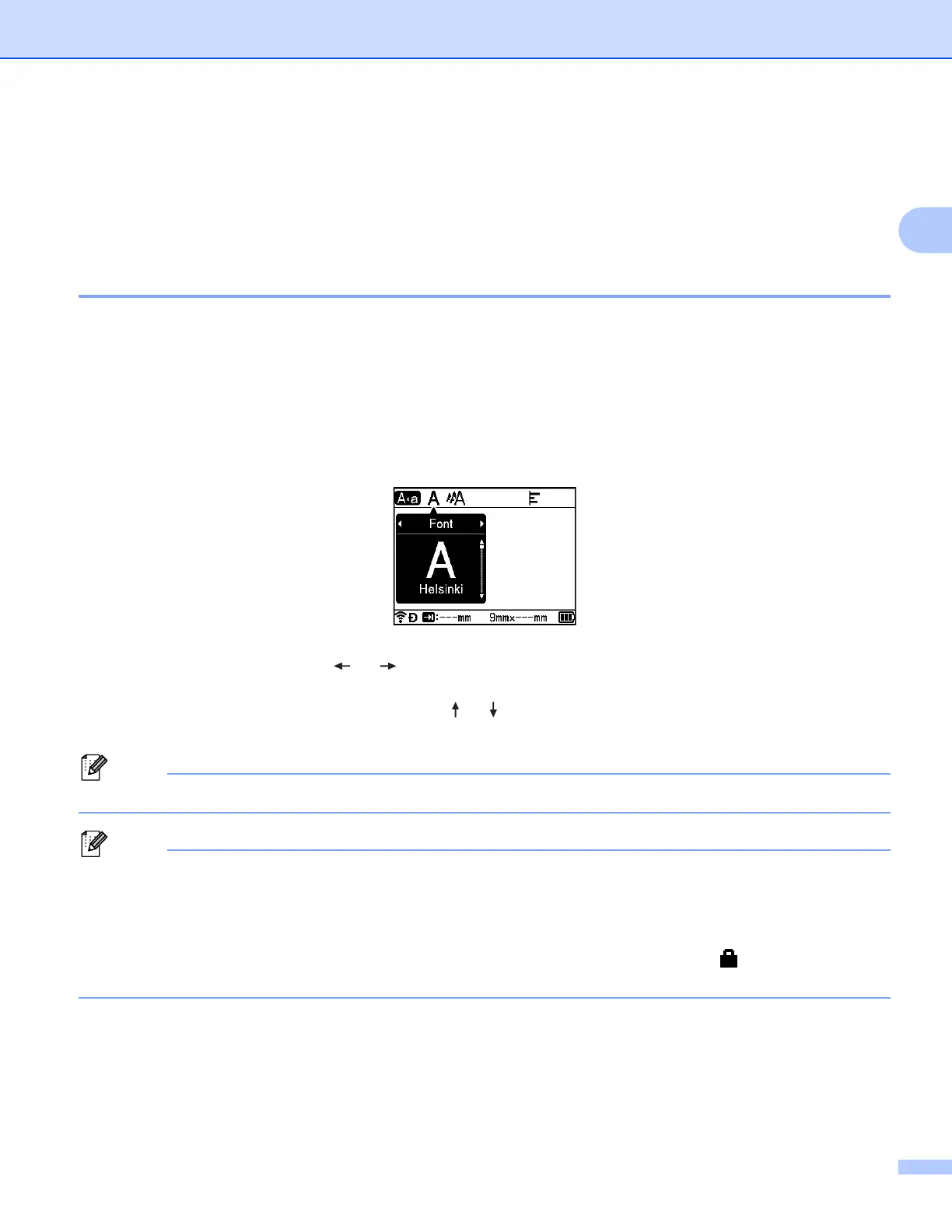
Using the Format key, you can select a font (labels only) and apply size, width, style, line, and alignment
attributes. Selectable “Character Attribute” options are listed in the Appendix. (See Character Attribute
on page 233.)
a Press the Format key.
The setting dialog box appears.
b Select an attribute using the or key.
c Select the setting for that attribute using the or key, and then press the OK or Enter key to apply
the settings.
New settings are NOT applied unless you press the OK or Enter key.
• To return to the previous step, press the Esc key.
• To set the selected attribute as the default setting, press the Space key.
• Small characters may be difficult to read when certain styles are applied (for example, Shadow + Italic).
• Depending on the label type, you cannot change the Format setting. In this case, appears on the left
side of the dialog box.
Setting Character Attributes by Each Line 2
When a tube or label consists of two or more lines of text, you can set different character attributes (font, size,
width, style, line and alignment) for each line. (The items that can be set are different for tubes and labels.)












 To Next Page