Printing a Tube or Label Using the P-touch Keyboard
21
2
Using the Tab Key to Set Multiple Copies (Tubes Only) 2
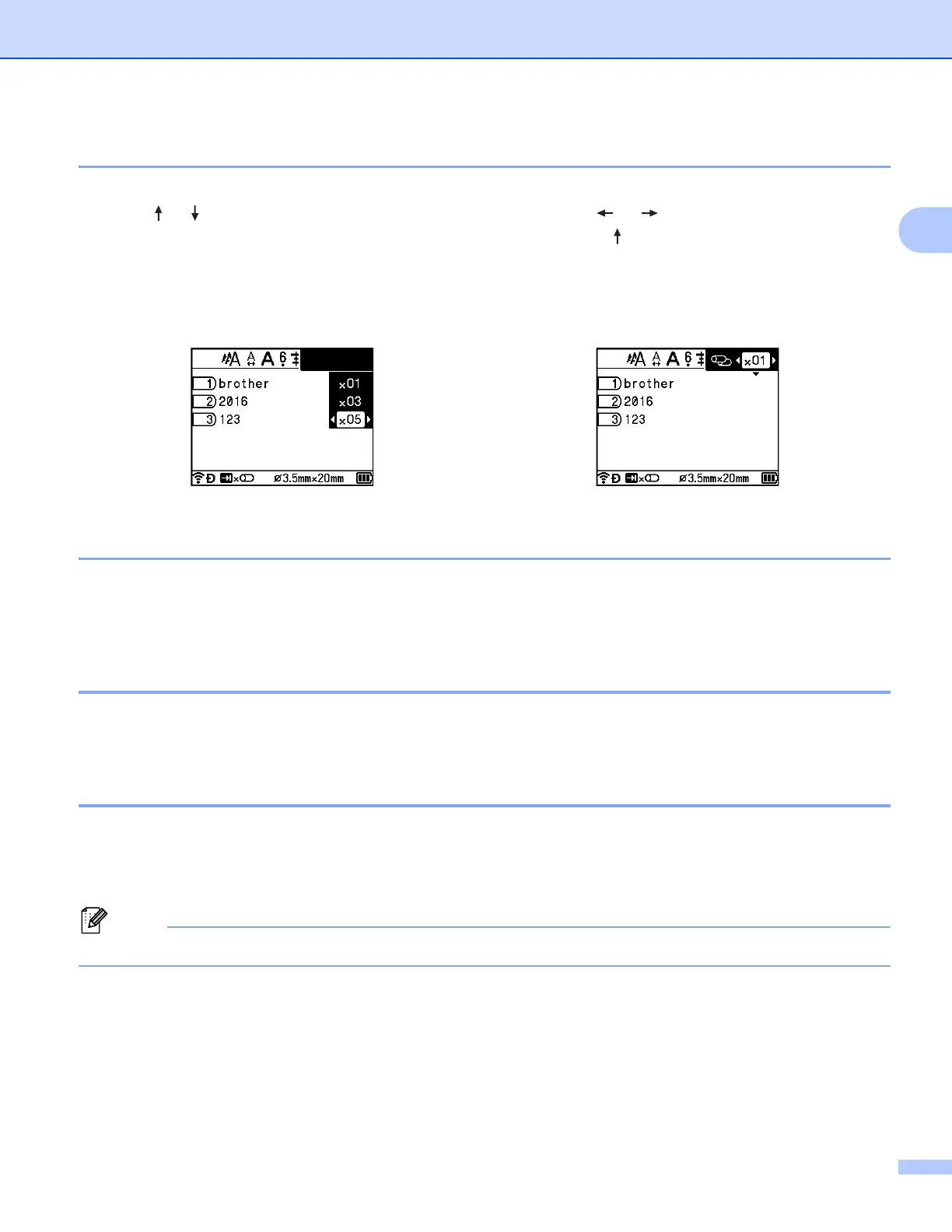
While editing the text, you can press the Tab key to set the number of copies for each page. Select the pages
using the or key, and then select the number of copies using the or key, or type the number using
the number keys, and then press the OK or Enter key. If you press the key to select the setting field in the
upper-right corner of the screen, the same number of copies can be set for all pages. Even if the number of
copies has already been specified for an individual page, the number of copies will be changed to the number
specified in this field.
Adding a New Block (Labels Only) 2
You can create up to 99 new blocks. To create a new block of text and lines, press the Shift and Enter keys.
The text to the right of the cursor will be moved to the new block. In some label types, you can set the number
of blocks when selecting the label type.
Adding a New Page 2
You can press the Next key to create a new page. The cursor moves to the start of the new page. You can
create up to 99 new pages for labels and up to 999 new pages for tubes.
Entering Accented Characters 2
The P-touch can display and print a set of accented characters, such as other language-specific characters.
Selectable “Accented Characters” are listed in the Appendix. (See Accented Characters on page 232.)
a Enter the character you want to change to an accented character.
Caps mode can be used with the accent function.
b Press the Accent key.
The selectable accented characters appear on the screen.





 To Next Page