Printing a Tube or Label Using the P-touch Keyboard
56
2
Label Preview 2
You can preview the current page and check the layout before printing.
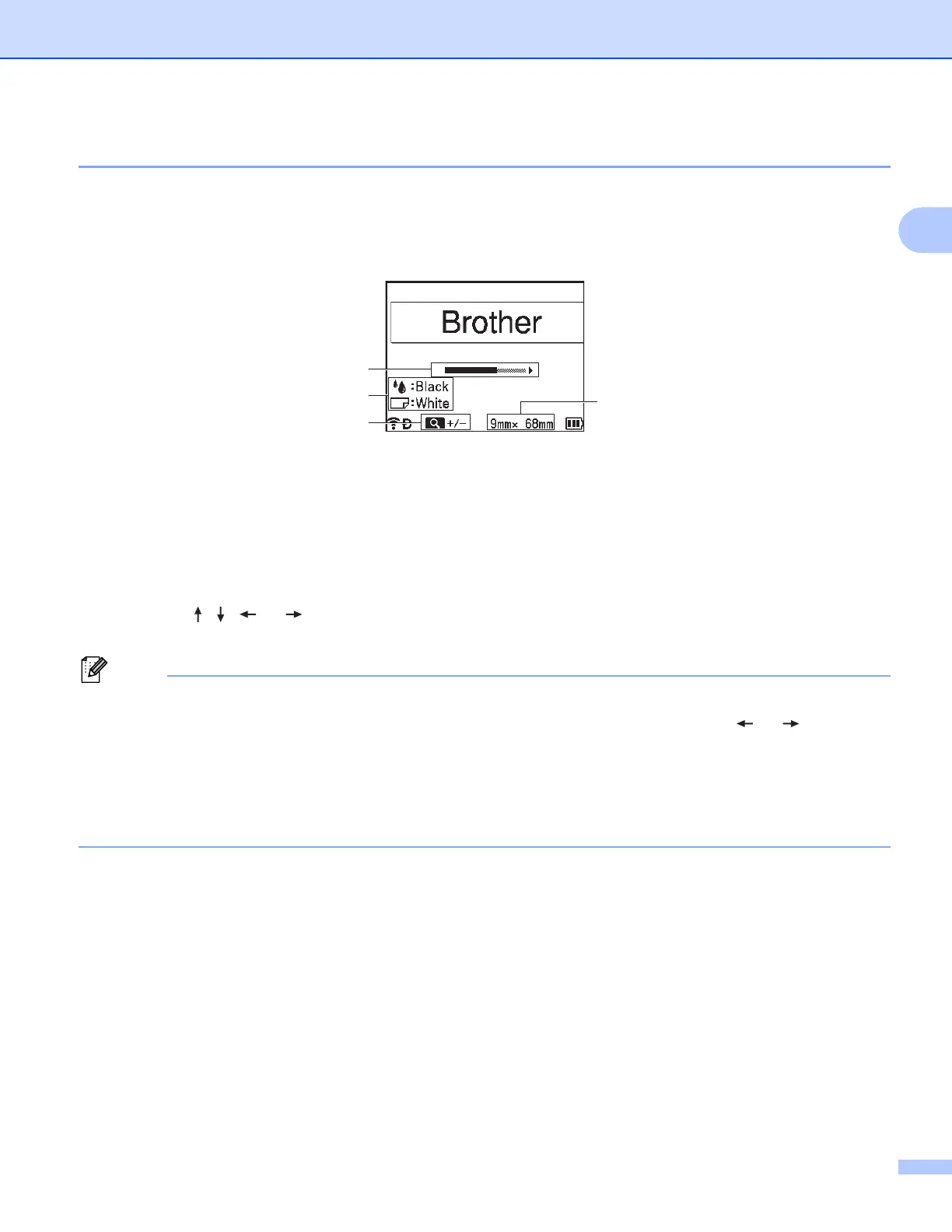
a Press the Preview key.
An image of the label appears on the screen.
1 Indicates the position of the currently displayed portion of the label using the bar.
2 Indicates the information detected for the installed tape cassette. The first line indicates the
character colour and the second line indicates the tape colour.
3 Press the Preview key to increase or decrease the magnification of the preview.
4 Indicates the tape width of the installed tape cassette and the label length as follows:
Tape width x Label length.
Press the , , or key to scroll the preview.
Press the Preview key to change the magnification of the preview.
• To return to the label creation screen, press the Esc, OK or Enter key.
• To scroll the preview to the left or right end, press the Shift key, and then press the or key.
• To print the label directly from the preview screen, press the Print key or open the [Print Options]
screen and select a print option. See Printing Labels on page 57 for more information.
• The print preview is a generated image of the label, and may differ from the actual label when printed.
• The character colour and tape colour cannot be detected for some tape cassettes.
2
1
3
4





 To Next Page