Printing a Tube or Label Using the P-touch Keyboard
58
2
Printing a Range of Pages 2
When there are multiple pages, you can specify the range of pages to print.
a Press the Shift and Print keys.
b Select [Current Page] or [Range] using the or key, and then press the OK or Enter key. If you
select [Current Page], go to step d.
c Using the , , or key, specify the first page and the last page, and then select the number of
copies.
Blank pages are not printed.
d Press the Print or OK key to print.
• If you need all pages, press the Print key, and then press the Print or OK key to print all pages without
specifying the range.
• To return to the previous step, press the Esc key.
• The figures shown on the screen during printing indicate the “count/number of copies set”.
• Pressing the Space key when setting the number of copies resets the value to 01 (default).
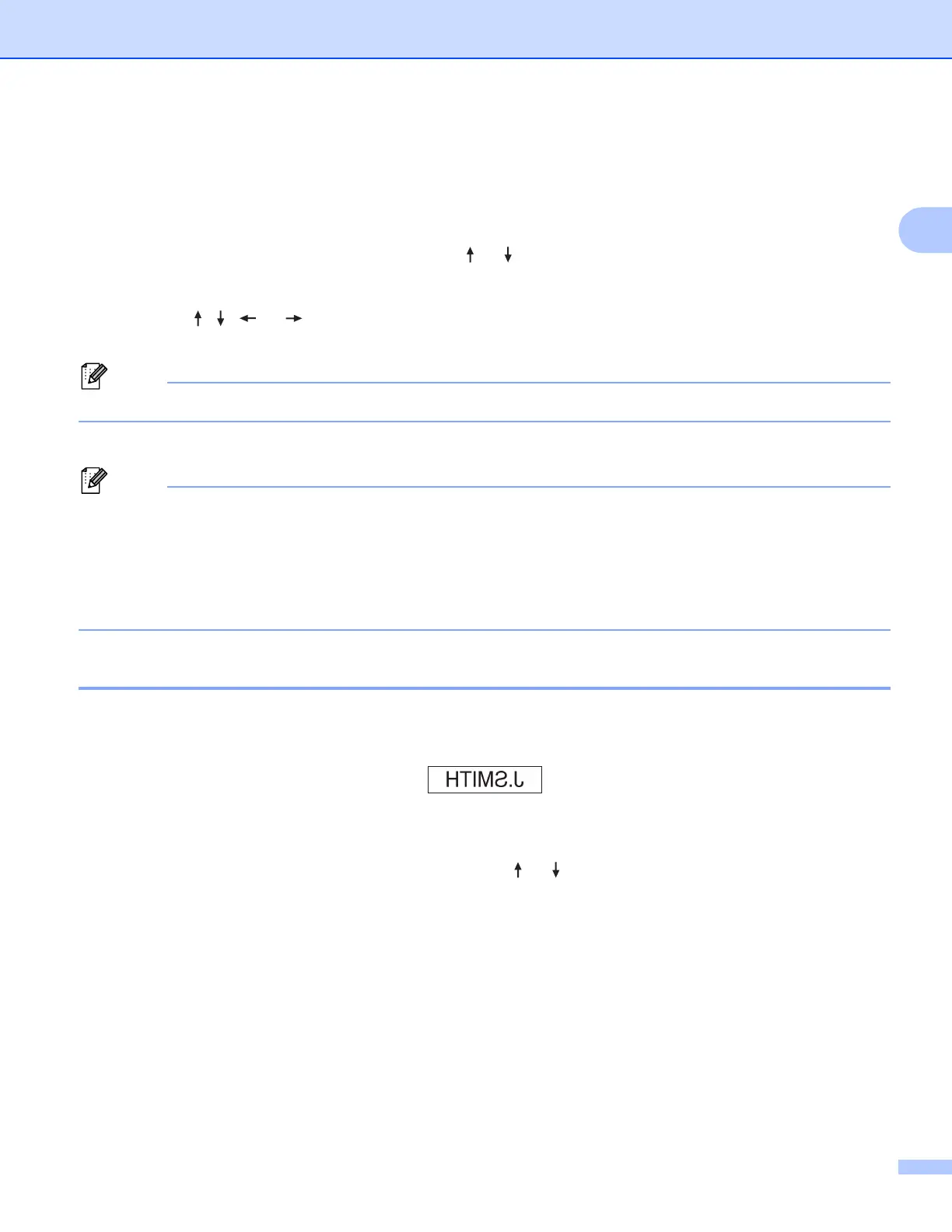
Mirror Printing 2
Use clear tape so the labels can be read correctly from the opposite side when attached on glass, windows
or other transparent surfaces.
a Press the Shift and Print keys.
b Select [Mirror-print current page] using the or key, and then press the OK or Enter key.
c Press the Print or OK key to print.












 To Next Page