Printing a Tube or Label Using the P-touch Keyboard
37
2
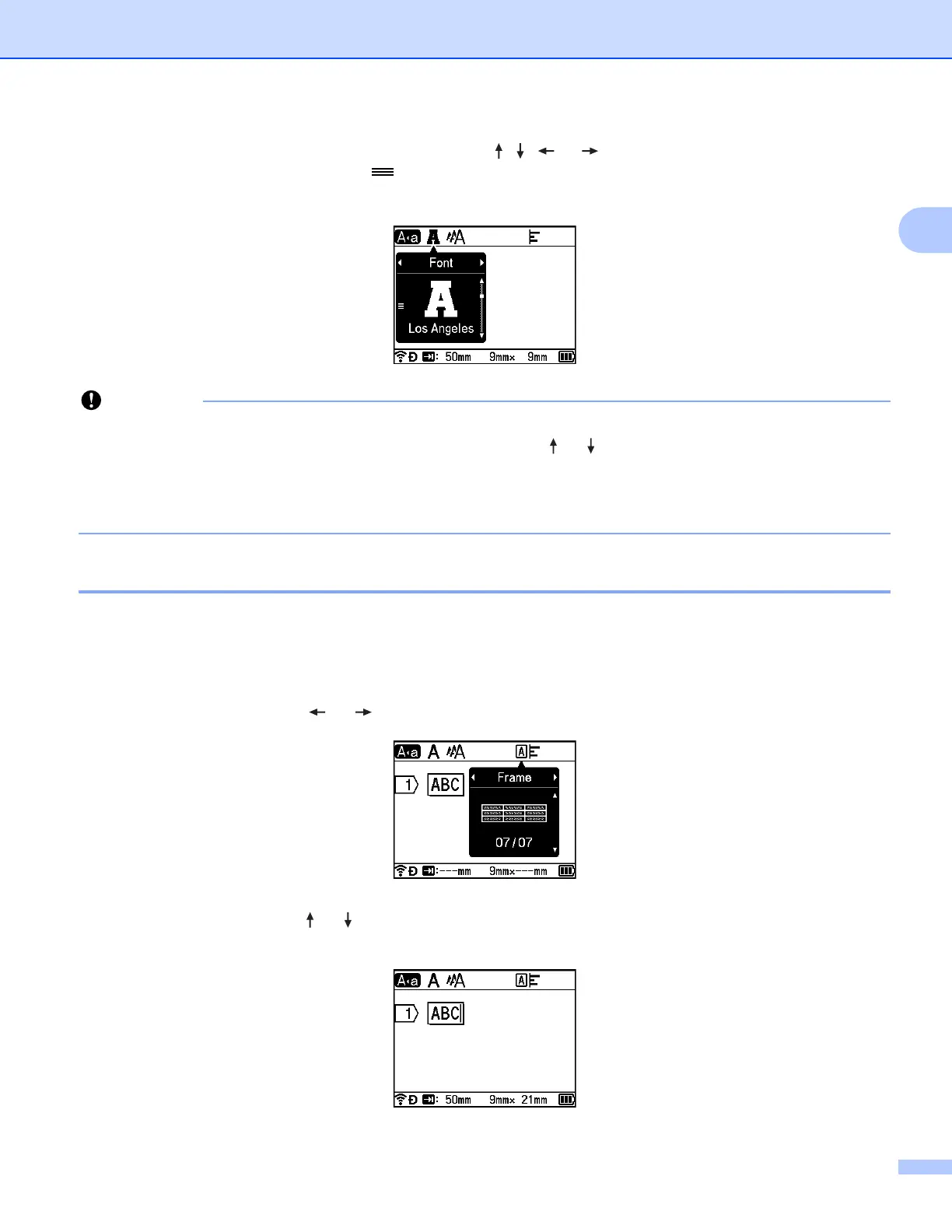
Move the cursor to the line you want to modify using the , , or key. Next, press the Shift and Format
keys to display the setting dialog box. ( on the dialog box indicates that you are now setting the attributes
for that specific line only.)
• When different attribute values are set for each line, the value appears as ***** when you press the Format
key. When you change the setting on this screen using the or key, the same change is applied to all
lines of the tube or label.
• When different attribute values are set for each line, the settings of the line where the cursor is positioned
in the tube creation screen or the label creation screen appear at the top of the screen.
Setting Frames (Labels Only) 2
You can select the frame of the label using the Format key. Selectable “Frames” are listed in the Appendix.
(See Frames (Labels Only) on page 236.)
a Press the Format key.
b Select [Frame] using the or key.
c Select a frame using the or key, and then press the OK or Enter key.
The selected frame is inserted.












 To Next Page