Printing Using the Computer
80
4
Configuring by entering the PIN
a Select [Settings] in the Home screen using the , , or key, and then press the OK or Enter
key.
b Select [WLAN] using the or key, and then press the OK or Enter key.
c Select [Infrastructure Mode] using the or key, and then press the OK or Enter key.
d Select [Network Setting] using the or key, and then press the OK or Enter key.
e Select [PIN Code] using the or key, and then press the OK or Enter key.
f If some messages appear, press the OK or Enter key for each message.
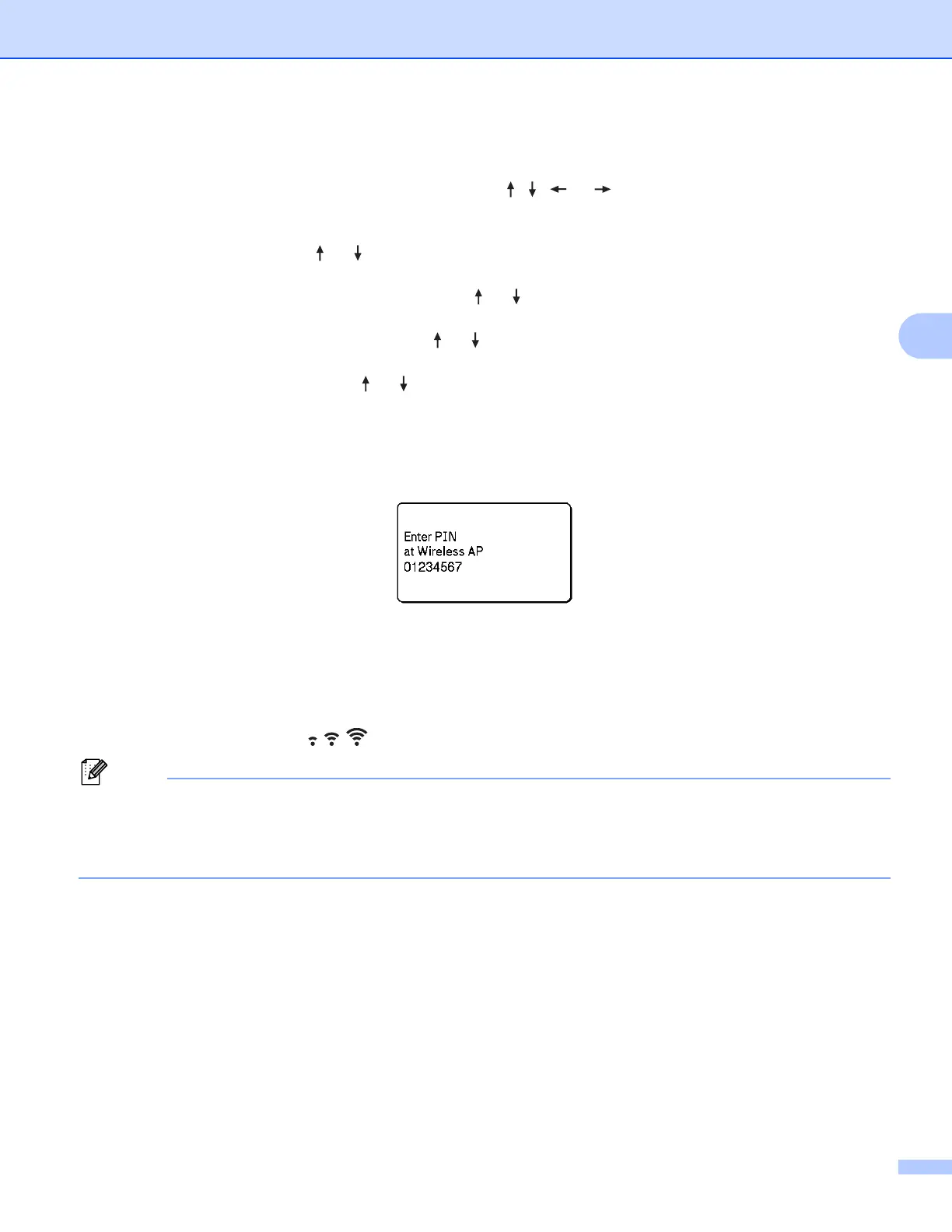
g Type the PIN displayed on the screen into your wireless access point/router, and then press the OK
or Enter key.
h [Connecting…] appears for a while, and then [Connected!] appears.
i Press the OK or Enter key.
The screen returns to the [Settings] menu screen.
Depending on the strength of the wireless signal, the wireless connection indicator may show one of
the following symbols:
If you start the setup wizard for the Infrastructure mode or select the network settings for the Direct mode
when the wireless function of the P-touch is turned off, [Turning on Wi-Fi Radio] appears and the
wireless function turns itself on automatically (or after the OK key is pressed). It is no longer necessary to
turn the Infrastructure mode or Direct mode on manually.
Ad-Hoc Mode 4
For Windows, after installing the printer driver and other applications to your computer, set the Ad-Hoc mode
using the Printer Setting Tool installed on the computer.
For Mac, set the Ad-Hoc mode using the Wireless Device Setup Wizard.












 To Next Page