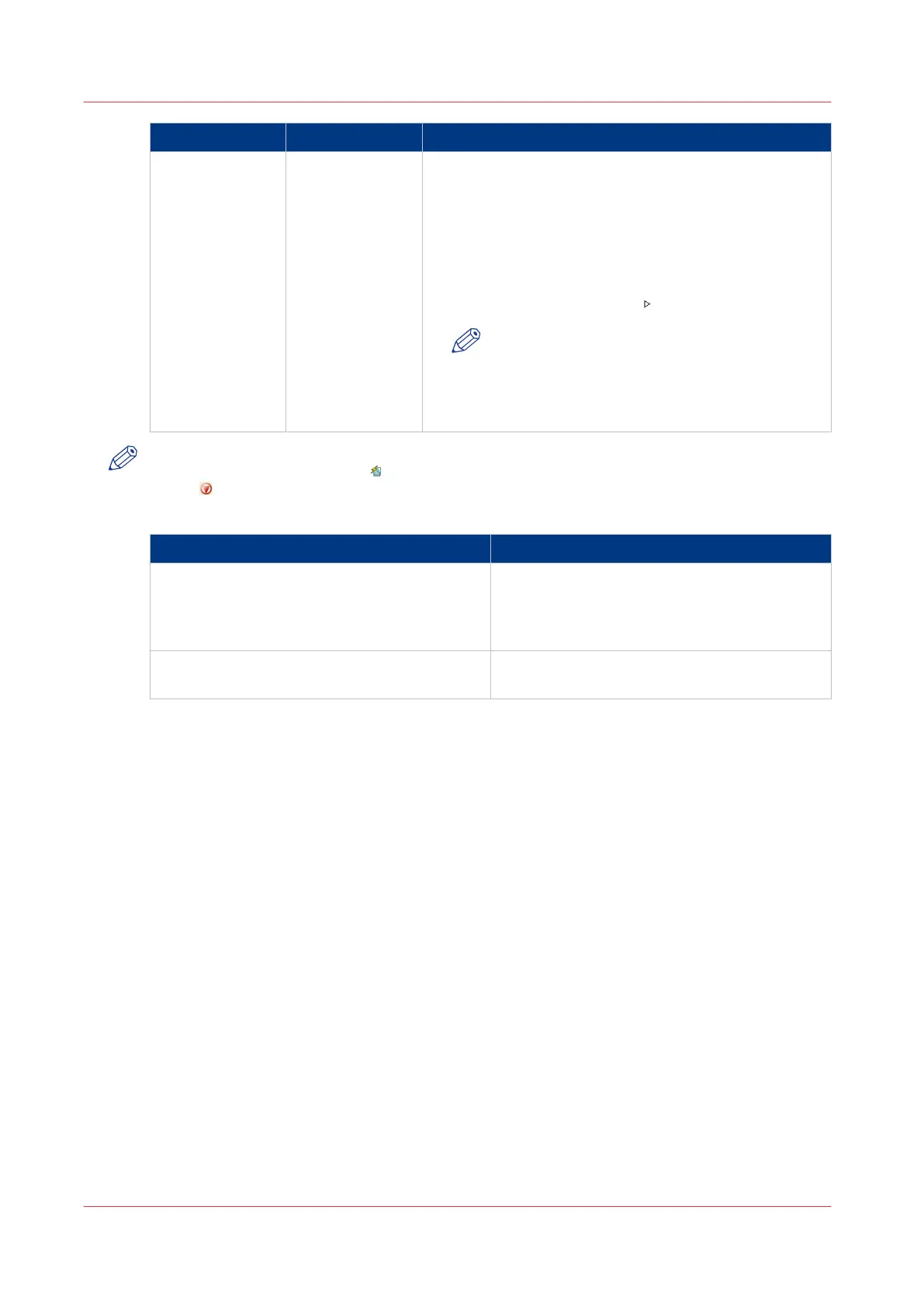
When to stop Action Description
After a job Touch the [Stop
after job] button
• In [Jobs] -> [Queues] -> [Scheduled jobs] you must se-
lect the job after which the printer must stop. Then
touch the [Stop after job] button.
• A horizontal, red and white stop bar indicates that the
stop-after-job function is active.
• The printer stops when the last job before the stop bar
is completed.
• Touch the [Resume] button
to continue printing.
NOTE
The [Stop after job] button is not available
when the [Confirm start of job] setting in the
active [Workflow profile] is set to [On]. Then
the printer stops automatically after each job.
NOTE
When you print streaming jobs
or jobs that consist of 1 large set, you must press the Stop
button two times to stop the printer as soon as possible.
Automatic stop
When Then
• The [Check first set] setting in a [Workflow
profile] is [On], and
• The [Check first set] setting is also enabled
in the job.
The printer stops each time the first set of a
print job is completed. You can check the first
set before you continue the print job.
The [Confirm start of job] setting in a [Work-
flow profile] is [On].
The printer stops each time at the start of a
new job. You must start each job manually.
Stop the Printer
130
Chapter 6 - Carry Out Print Jobs
Canon varioPRINT 135 Series








 To Next Page