Chapter 3 – Illuminator Description
Section 3.7 – Illuminator Settings
3-24
• Press the ‘Enter’ button after every entry. A confirmation
screen will appear once you have entered all the data for
date and time.
• Press the ‘OK’ button to confirm the date and time. The
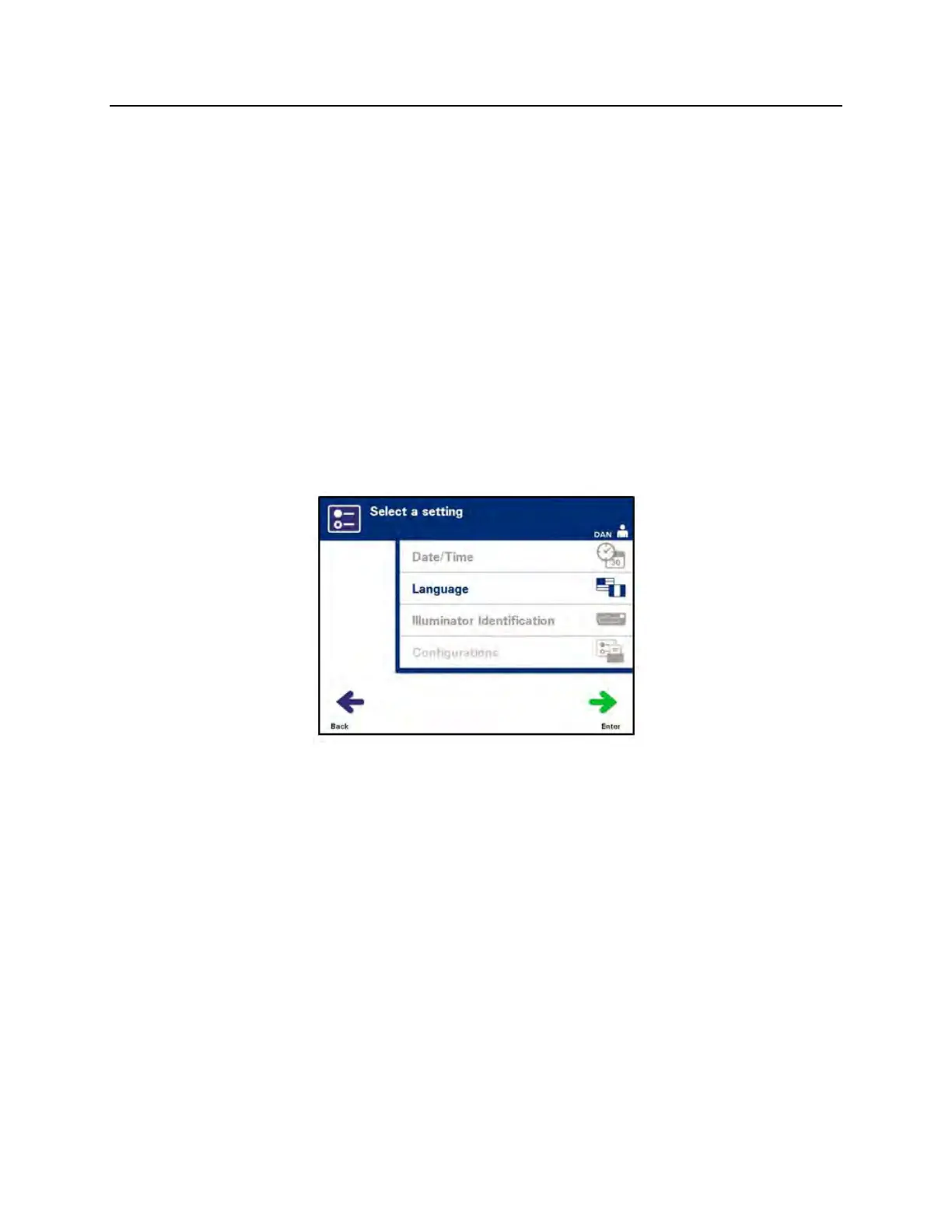
‘Select a setting’ screen will appear.
Language
The language setting allows you to change the language
displayed on the screen.
NOTE:
Only ‘Administrator’ accounts have the ability to change the
language. Changing the language setting will not change the
language for ‘Service’ users.
To change the language, perform the following:
• From the ‘Select a setting’ screen, use the arrow buttons to
choose the ‘Language’ option.
• Press the ‘Enter’ button to select the option. The
‘Select a language’ screen will appear.
• Use the arrow buttons to choose the desired language. If
your language is not listed on the screen, press the advance
() button on the keypad to display the next page of
languages. Then use the arrow buttons again to choose the
desired language.
• Press the ‘Enter’ button to select the language. A
confirmation screen will appear.
• If the language is incorrect, press the ‘Edit’ button to return to
the ‘Select a language’ screen.
• Use the arrow buttons to choose the correct language. Press
the ‘Enter’ button to select the language. A confirmation
screen will appear.


 To Next Page