Chapter 3 – Illuminator Description
Section 3.7 – Illuminator Settings
3-38
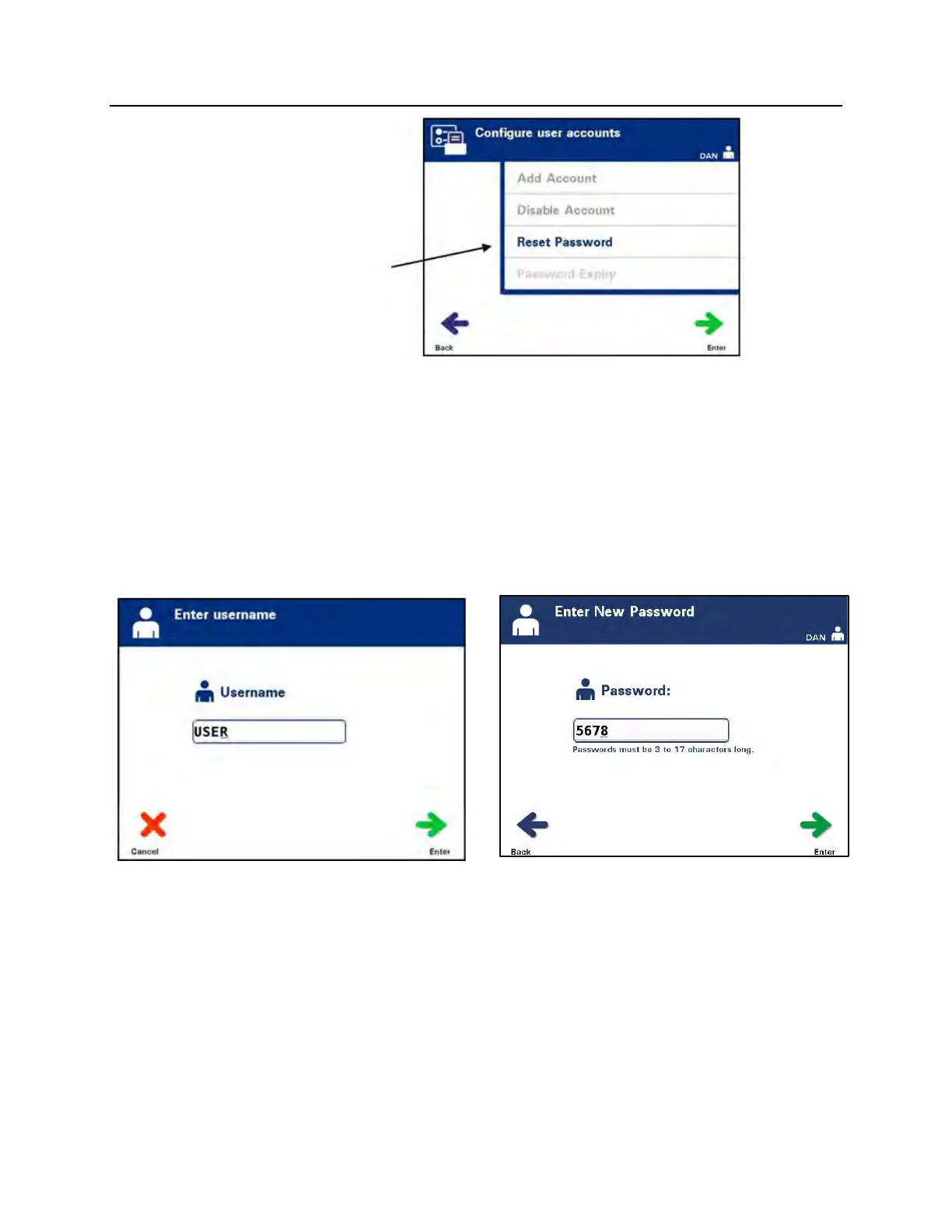
• Use the arrow buttons to choose the ‘Reset Password’ option.
Press the ‘Enter’ button to select the ‘Reset Password’ option.
• The ‘Enter username’ screen will appear. Enter the username
of the account whose password is to be reset either by
scanning a barcode or by entering the username manually
with the keypad. (Refer to Section 4.2.) Press the ‘Enter’
button if the username is manually entered.
• If the username is valid, the ‘Enter New Password’ screen will
appear.
• Enter the new password for the account, either by scanning
a barcode or by entering the password manually with the
keypad. (Refer to Section 4.2.) Press the ‘Enter’ button if the
password is manually entered. The ‘Confirm Password’ popup
window will appear if the password was manually entered. If
the manually-entered password is incorrect, press the ‘Edit’
button and correct. If the manually-entered password is
correct, press the ‘OK’ button.
NOTE:
The new password must be different than the current password.


 To Next Page