Chapter 3 – Illuminator Description
Section 3.8 – Change Password
3-49
Section 3.8 Change Password
Any user can change their own account password after providing
the appropriate credentials. The new password must be different
from the current password. Valid passwords are 3 to 17 characters
in length and are limited to alphabetic characters, digits, and the
special characters “-“, “+”, “*”, “$”, “.”, “/”, and “:”. Passwords are
NOT case sensitive.
If the system is configured for password expiration, the system will
prompt the user to change the password once a day for 7 days
prior to password expiry for the account. If a user’s password has
expired, the user will be required to change it prior to gaining
access to any password-protected functions.
To change the account password, perform the following steps:
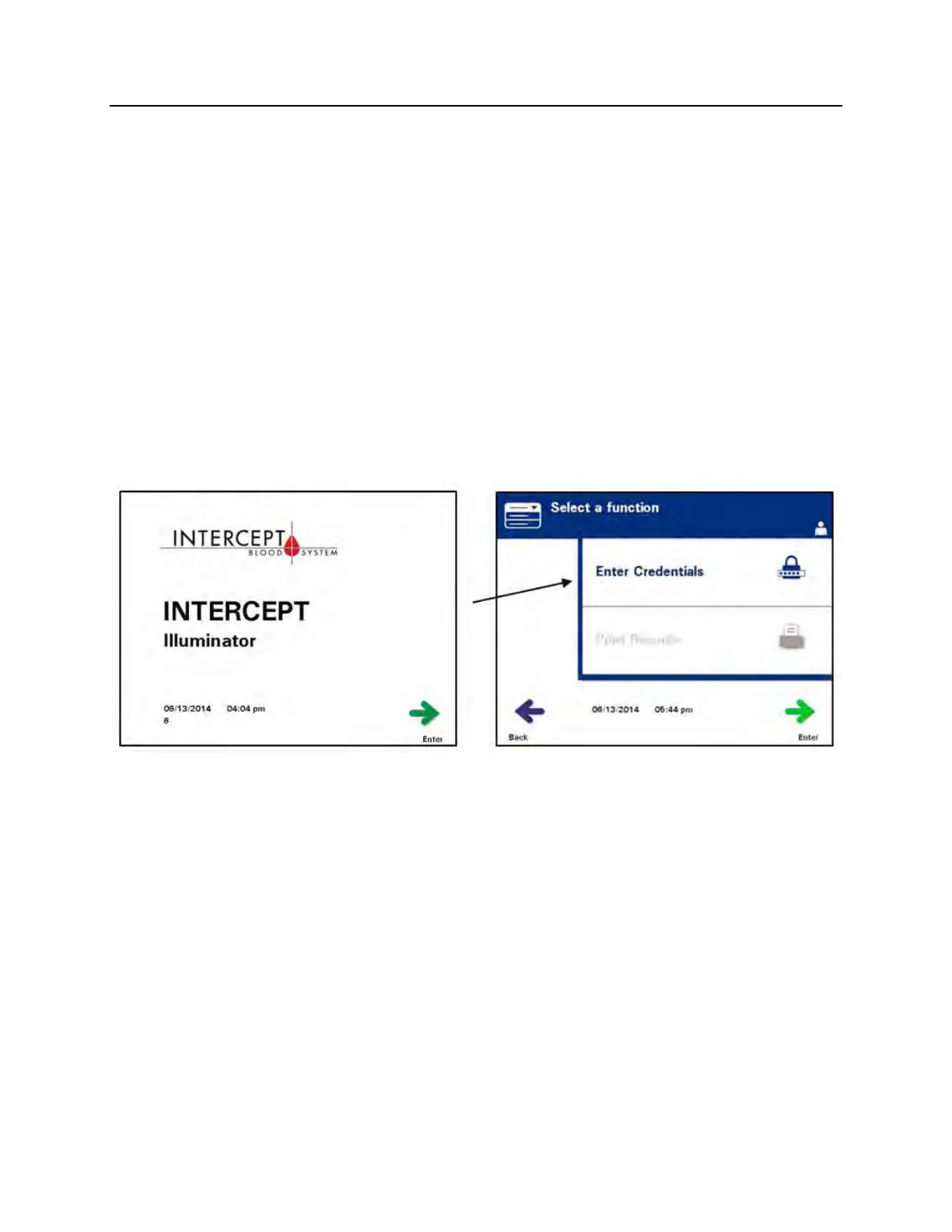
• Turn on the device and press the ‘Enter’ button once it
appears.
• The ‘Select a function’ screen will appear. Select the ‘Enter
Credentials’ option and press the ‘Enter’ button.
• The ‘Enter username’ screen will appear. Enter your username
and press the ‘Enter’ button.
• The ‘Enter password’ screen will appear. Enter your password
and press the ‘Enter’ button.


 To Next Page