Working With Rules
R81 Harmony Endpoint Server Administration Guide|150
Changes to Virtual Groups
If you make changes to an object that is related to Virtual Groups, the changes are enforced
immediately. For example, if you move an object into a virtual group, the rules for that group
apply to the object immediately. However, if you change a policy that is assigned to a virtual
group, the changes to the policy only apply after you install policies.
To save a rule:
n
Select a rule, and in the Policy tab, click Save rule.
or
n
Select a rule, and from the File menu, select Save.
To install the Policy on Endpoint Security clients:
n
In the Policy tab, click Install.
or
n
From the File menu, select Install Policies.
Showing the Policy that Applies to a User or Computer
By default, the Policy tab shows default rules that apply to Entire Organization, and other
rules that apply to other entities.
You can filter the view in the Policy tab and show the Policy for a specific part of the
organization.
To show the Policy for a specific part of the organization:
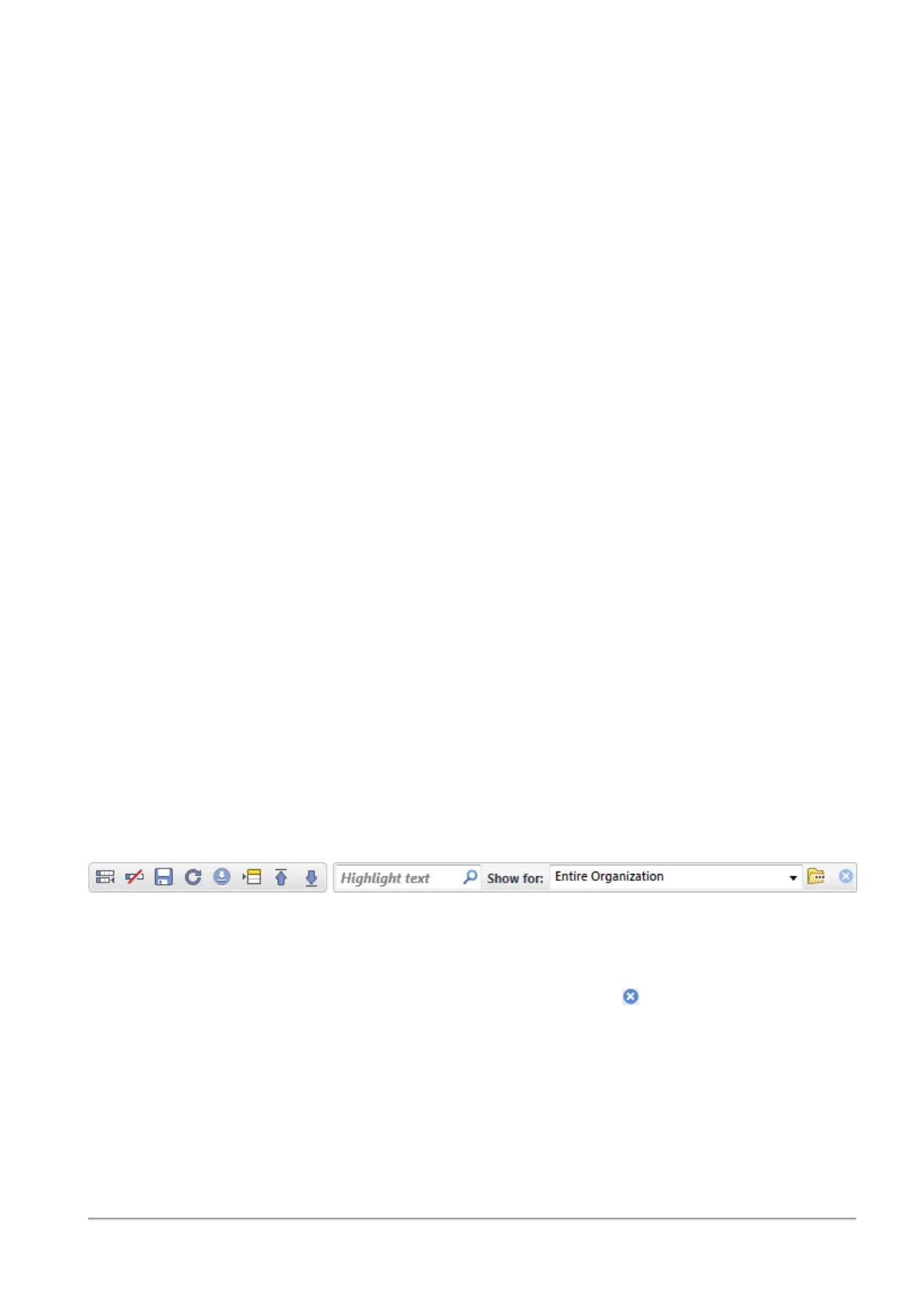
In the Policy tab, in the Show for area of the toolbar, type the name of a user, computer, OU,
or other entity.
If you show the Policy for a specific user, you can select the associated computer.
You cannot edit the policy when list is filtered
To restore the default view and show the entire Policy, click Clear .
Direct Assignment of Rules to Users and Computers
You can assign rules to an entity. This is called
Direct Assignment
. You can also see which
rules are assigned to an entity.














 To Next Page