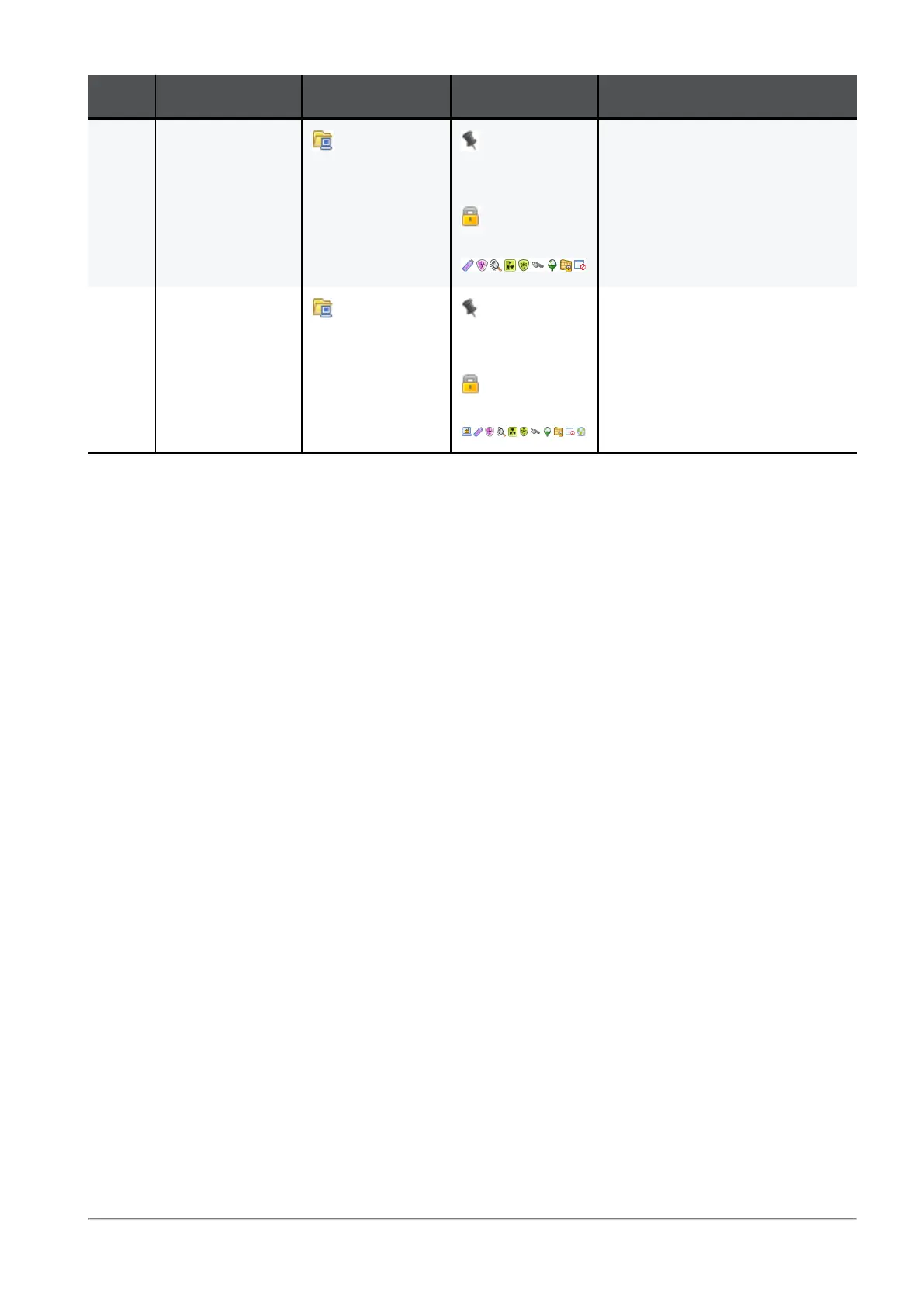
Virtual Groups in Policy Rules
R81 Harmony Endpoint Server Administration Guide|157
No Name Applies to Actions Comment
1 Deployment to
Desktops
All
Desktops
\Virtual Groups
Endpoint
Client Version
80.88.4122
Selected
blades
2 Deployment to
laptops
All Laptops
\Virtual Groups
Endpoint
Client Version
80.88.4122
Selected
blades
Same as desktop plus Full
Disk Encryption and
Endpoint Security VPN
Adding Objects with an Installation Package
When you distribute a new Endpoint Security client installation package, you can assign users
and computers to a destination group. Computers and users that use this package are
automatically assigned to the group when they connect to the server for the first time.
For example, an MSP that services 5 organizations can export 5 installation packages to
divide endpoints into 5 different groups. Users who install the package designated for Group A
are automatically put in Group A. Users who install the package designated for Group B are
automatically put in Group B.
To configure a virtual group destination for an installation package:
1. In the Users and Computers tab, create a virtual group.
2. In the Deployment tab, click Packages for Export.
3. Select a package and change the rule settings to Export to the new virtual group.
Change other rule settings as necessary. If you are upgrading from version R73 or
earlier, make sure that you configure the legacy version passwords.
4. Right-click the package and select Export Package from the option menu.
5. In the Export Package window, select the platform type and 32-bit or 64-bit.
6. Define the path to the directory that the package is saved to.
7. Click OK.
The package downloads to the specified location.




 To Next Page