Creating Firewall Rules
R81 Harmony Endpoint Server Administration Guide|349
Creating Firewall Rules
Create Firewall rules that relate to inbound traffic in the inbound traffic Rule Base and rules
that relate to outbound traffic in the outbound traffic Rule Base.
To create a Firewall rule:
1. In the Firewall rule in the Policy tab, right-click the inbound or outbound traffic Action and
select Edit Properties.
2. Click one of the Add Rule icons from above the Rule Base.
3. Fill in the columns of the rule. Right-click in a column to select an option.
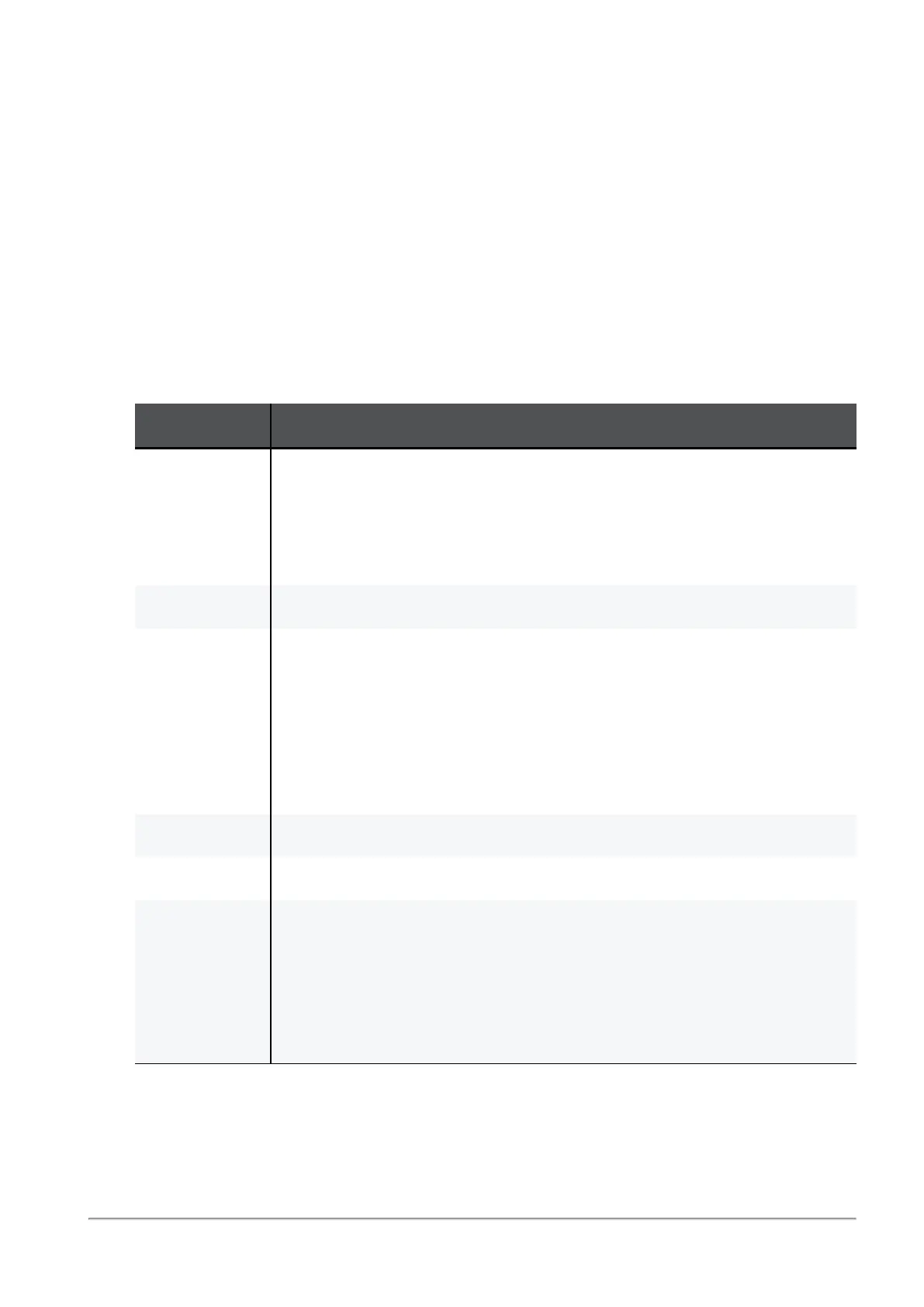
Column Description
NO Rule priority number. Rule priority is important because a client
checks Firewall rules based on its sequence in the Rule Base. Rules
are enforced from the top to the bottom. The last rule is usually a
Cleanup Rule that says to drop traffic that does not match any of the
previous rules.
Name Name of the Firewall Rule.
Source or
Destination
n
Source - Source location of the network traffic. For an outbound
rule, the source is always the local computer.
n
Destination - Destination location of network traffic. For an
inbound rule, the destination is always the local computer.
n
Source and Destination can be any of the Network Objects
defined in the Access Zones policy or the Trusted/Internet
Zone.
Service Network protocol or service used by traffic.
Action What is done to traffic that matches the rule: Accept or Drop.
Track When the rule is enforced:
n
Log - Record rule enforcement in the Endpoint Client Log
Viewer.
n
Alert -Show a message on the endpoint computer and record
rule enforcement in the Endpoint Client Log Viewer.
n
None - Log and alert messages are not created.
Notes on configuring Tracking:






 To Next Page