Client User Interface Settings
R81 Harmony Endpoint Server Administration Guide|388
Client User Interface Settings
You can choose the default client user interface settings or edit them to customize the
Endpoint Security client interface on user computers.
You can change these settings:
n
Display client icon - When selected, the client icon shows in the windows notification
area when the Endpoint Security client is installed.
n
Show UserCheck messages - Define how many UserCheck messages a user may see.
These notifications are configured in the
"UserCheck Actions" on page273
for Media
Encryption & Port Protection, and in other places.
The notification options are:
l
Show only critical notifications
l
Show notifications when protections affect user experience (recommended)
l
Show all notifications
n
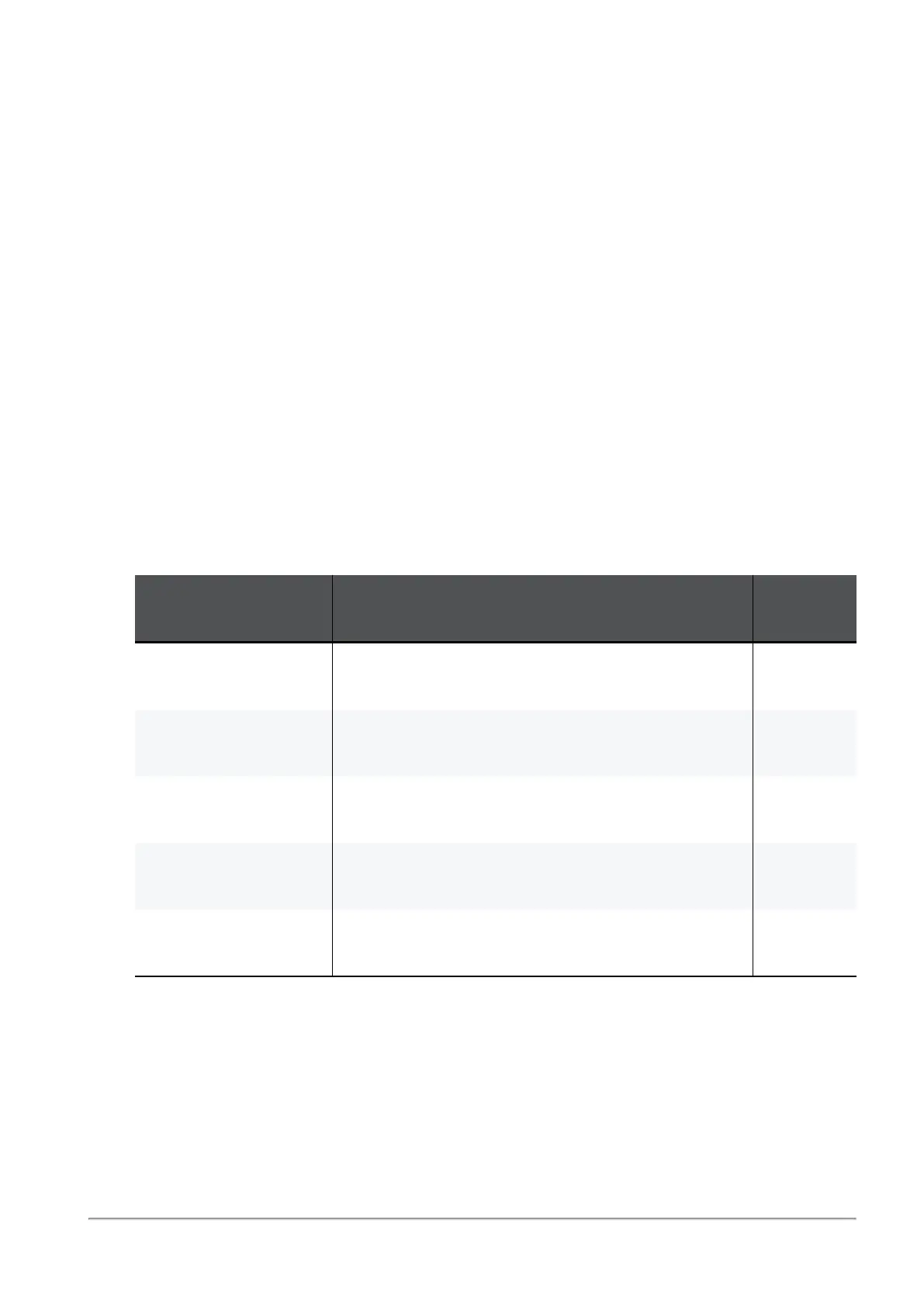
Graphics that show in the Pre-boot and OneCheck Logon - For each of these
graphics, you can Select to upload a new image or Revert to Default image:
Item Description
Size of
Image
Pre-boot
Background Image
Image on Pre-boot screen behind the smaller
logon window
800 x 600
pixels
Pre-boot Screen
Saver
Image that shows when the system is idle 260 x 128
pixels
Pre-boot Banner
Image
The banner image on the smaller logon window 447 x 98
pixels
OneCheck Logon
Background Image
Image in the background of the Windows logon
window if OneCheck Logon is enabled
256 KB or
smaller
Client Notification
(UserCheck) Icon
Icon in the top-right of a Client Notification
(UserCheck)
135x46
pixels






 To Next Page