Monitoring Endpoint Security Deployment and Policy
R81 Harmony Endpoint Server Administration Guide|58
Monitoring Endpoint Security Deployment and
Policy
Monitoring your Endpoint Security policy and deployment should be a very important part of
your-day-to-day work. The Reporting tab includes many different types of Endpoint Security
status reports.
To see monitoring reports:
1. In SmartEndpoint, click the Reporting tab.
2. Select a report type from the Monitoring tree. The report shows in the pane.
3. Double-click an object in the User or Computer Name field to open a Details window.
You can assign, create, and change policies from the Details window.
Each report shows a summary chart and an Endpoint List that shows the users and
computers. You can sort and filter the monitoring information by different criteria.
Double-click a user or computer to see its status and the configured rules and actions for each
installed component.
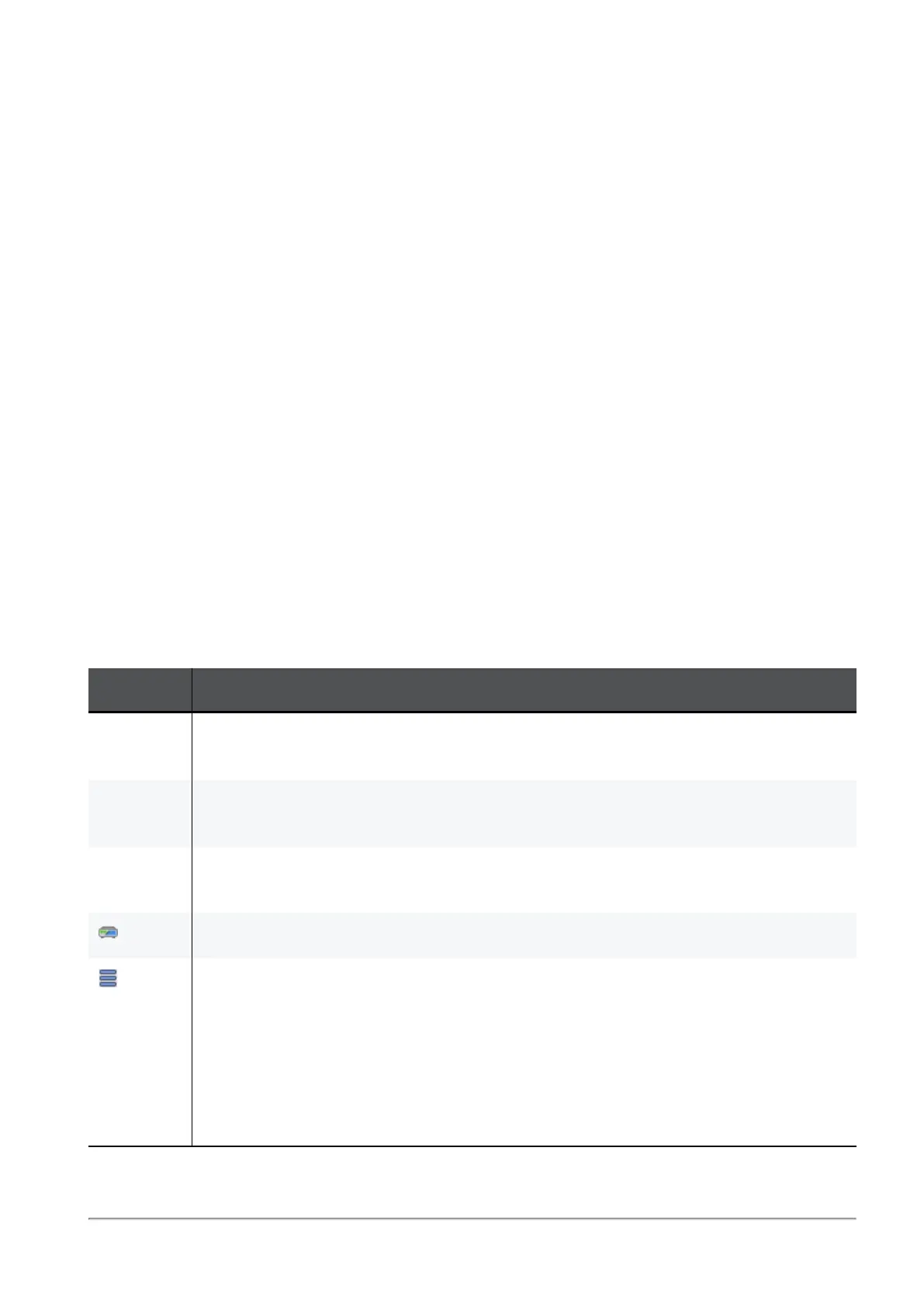
Endpoint List Area - Icons and Controls
Item Description
Search Enter a text string to search all columns and results that contain the string are
shown.
Status: Select a status to filter by. The options are based on the open report. Endpoints
with that status are shown.
In: Narrow the results to an OU, node or group in the organization. Click to select
an item in the Select Node window.
Double click to open the selected user or computer.
Click to see other options available. Options include
"Push Operations" on
page62
. Some options are not available for all reports.
Add to virtual group - Add the selected objects to a virtual group.
Toggle chart percentage - Add and remove the percentages shown on the
graph.
Hide Chart/Show Chart - Close or open the pane with the graph.
Export Report - Export the report results to an XLS, HTML, or CSV file.














 To Next Page