Operation
6-34 Operator's Manual
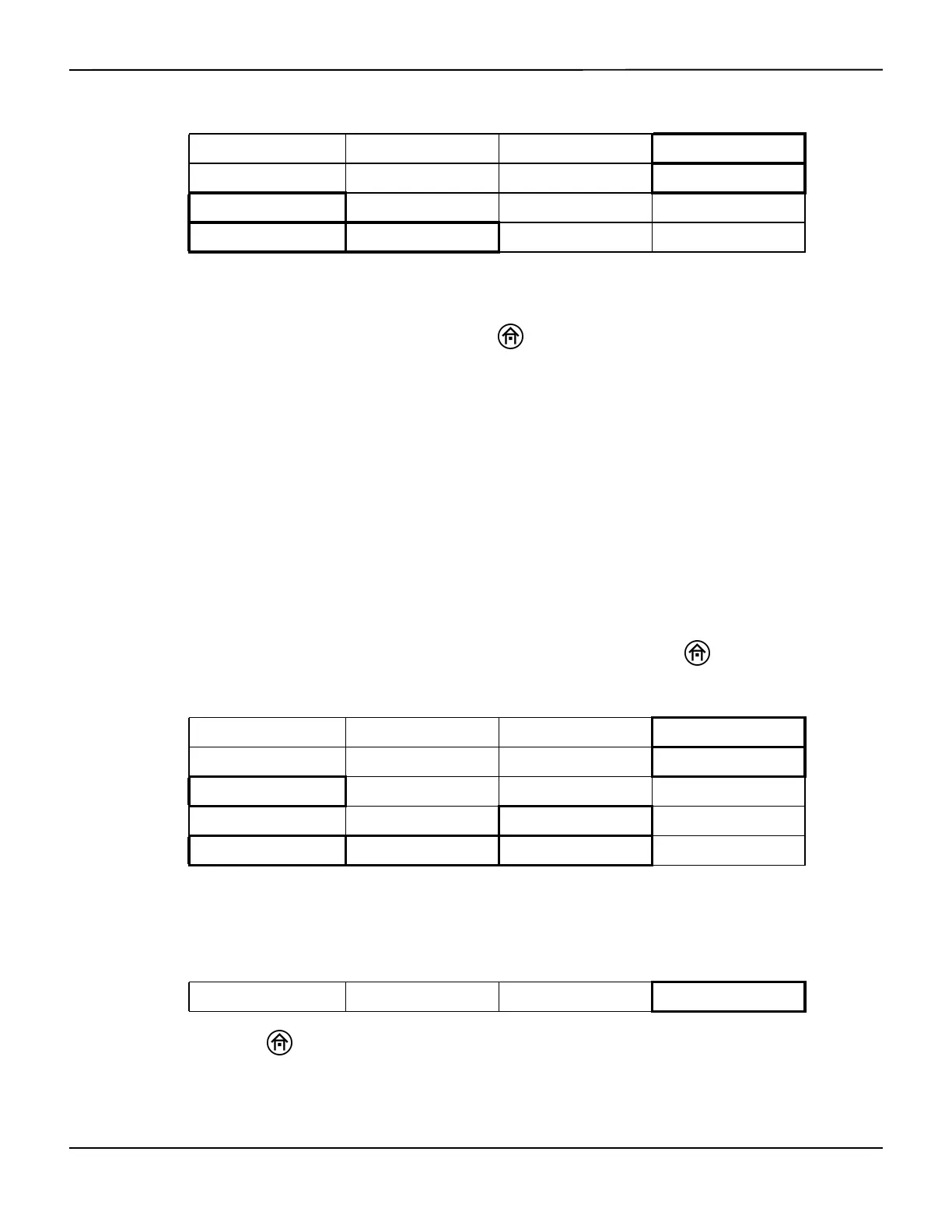
Select the <– TREND GRAPH or TREND GRAPH –> options to scroll across the trend lines on the
screen.
When reviewing is completed, press the HOME key or MAIN MENU to exit Real-time review
and return to the Main screen.
When reviewing in graphical format during a case, a message in yellow may be displayed in the
upper area of the graphs to alert for the following causes: “USB STORAGE ERROR”, “USB STORAGE
FULL”, and “COM PORT UNAVAILABLE.” This message will appear until the error is corrected and
the screen is refreshed.
Run Function—Tabular Trends Screen Format
Note:
Alarm messages, channel identification, and rSO
2
area elements will continue to be displayed while in real-
time review.
To use Real-time review in tabular trends screen format, press the HOME key to display the
Main screen, then perform the following navigation bar options:
Select NEXT PAGE, PREVIOUS PAGE, and LAST PAGE to scroll through the data (see Table5-1.).
When reviewing is completed, select REGRAPH to exit Tabular trends and return to the Real-time
review trend graph.
Press the HOME key to exit Real-time review and return to the Main screen.
BASELINE MENU EVENT MARK ALARM AUDIO ON/OFF NEXT MENU
OUTPUT SELECT USER CONFIGURATION TIME SCALE NEXT MENU
REVIEW PATIENT I.D. PREVIOUS MENU MAIN MENU
<– TREND GRAPH TREND GRAPH –> TABULAR TRENDS MAIN MENU
BASELINE MENU EVENT MARK ALARM AUDIO ON/OFF NEXT MENU
OUTPUT SELECT USER CONFIGURATION TIME SCALE NEXT MENU
REVIEW PATIENT I.D. PREVIOUS MENU MAIN MENU
<– TREND GRAPH TREND GRAPH –> TABULAR TRENDS MAIN MENU
NEXT PAGE PREVIOUS PAGE LAST PAGE REGRAPH
NEXT PAGE PREVIOUS PAGE LAST PAGE REGRAPH




 To Next Page