Secon 5 - Engineer’s Program
Technical Manual
5.11.15.1 Perform Conguraon Clone
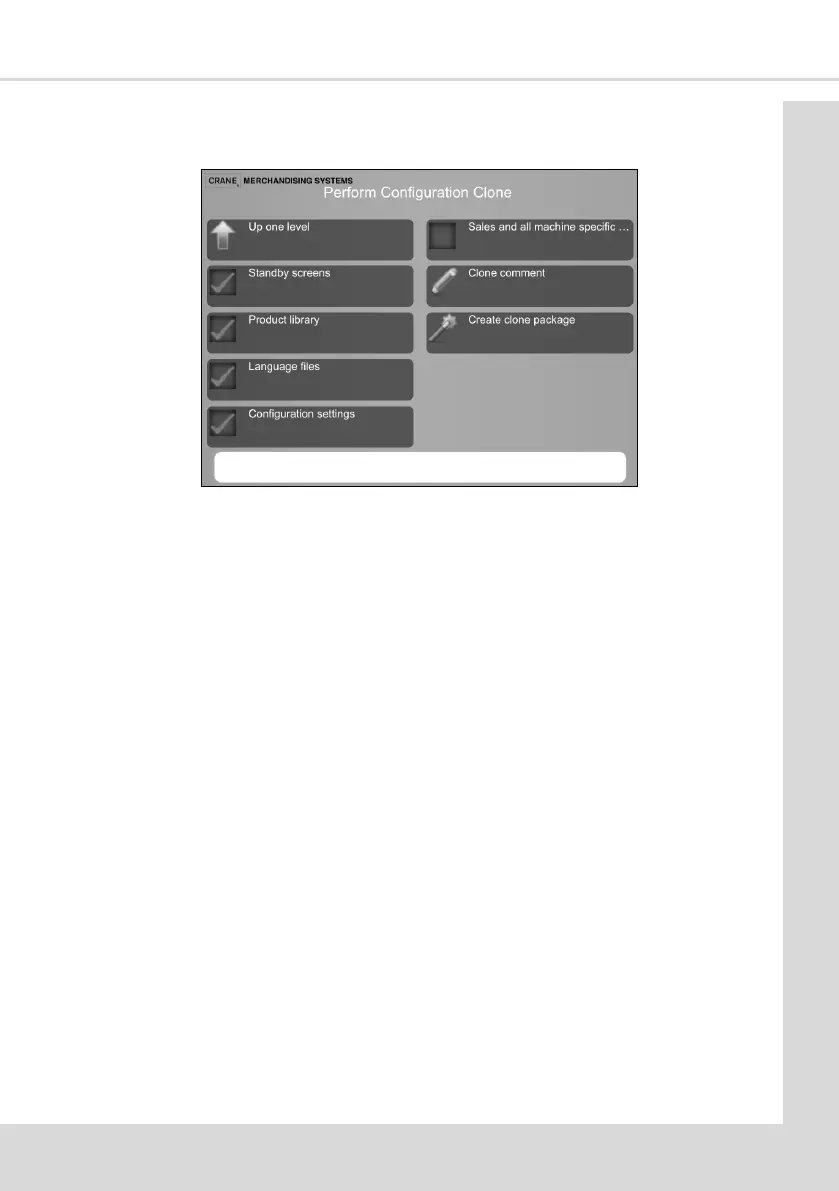
Select this opon to display the screen below to select the elements to be cloned.
1. Insert USB sck formaed with an atlas folder into socket USB 3 on the main controller
2. Select the elements to be cloned.
3. Select Clone comment, this displays a local keyboard and allows the clone to be named
for future reference.
4. When complete select Create clone package.
Note: Your USB sck can hold mulple clone les simultaneously, hence the need to
idenfy each one very carefully.
5.11.15.2 Restore Conguraon
Select this opon to load a Clone conguraon from a USB sck onto the machine.
Note: A clone can only be uploaded onto a machine operang on the same soware and
conguraon as the one the clone was taken from
1. Insert the USB sck with the required Clone into socket USB 3 on the main controller.
2. Select Restore Conguraon and select the required le to load the Clone onto the
machine.
3. When the copy process is complete a conrmaon screen is displayed and the machine
will reboot.
5.11.16 Custom Conguraons
This enables the conguraons loaded via the Soware Update menu (secon 5.11.3) to be
selected and installed. Any conguraons no longer required can be deleted from the
machine’s memory.


 To Next Page