Product Manual — Doc. 9349B Crestron Zūm® Wired Solutions • 221
l
Set the Bluetooth PIN on page 229
l
Configure the Demand Response Mode and Level on page 232
l
Schedule Room Behavior on page 241
System View
The System View lists Floors and rooms (in the Rooms tab) that are discovered by the
ZUM-HUB4. Use the Hardware Management tab to view and edit device information, such as
assigning a device to a floor.
l
Manage Floors on page 250
l
Set the Bluetooth PIN for a Floor on page 230
l
Set the Demand Response Level for a Floor on page 235
l
Manage Devices on page 251
Settings View
The Settings View manages the settings for the ZUM-HUB4, Users, External Control, and
Commissioning. The Settings tab is open by default.
l
Manage Settings on page 255
l
Manage Users on page 258
l
Manage External Controls on page 260
l
Manage Commissioning on page 264
Global Settings and Actions for the ZUM-HUB4
Apply settings that effect all devices discovered by the ZUM-HUB4 regardless of the room, room
category, or floor the device is assigned.
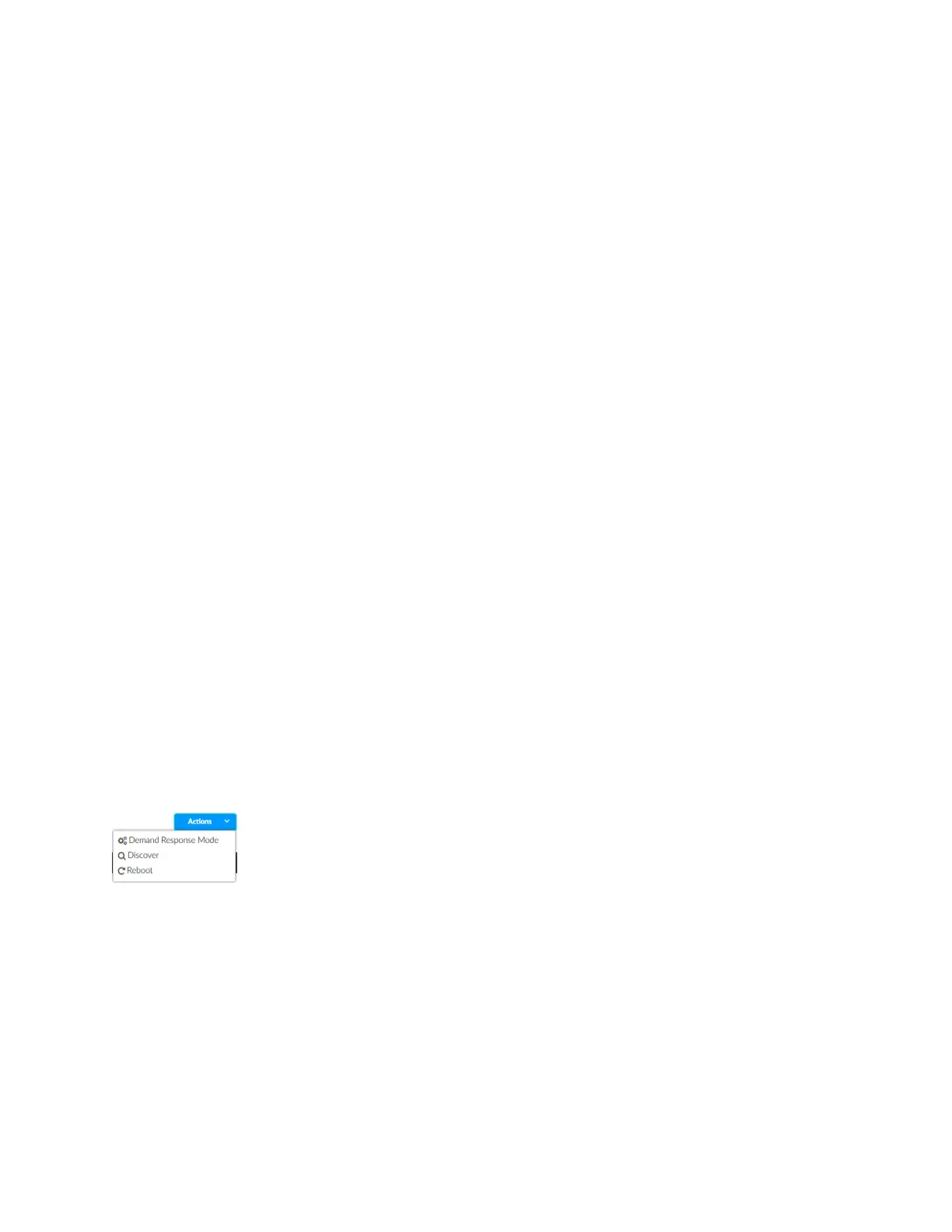
ZUM-HUB4 actions:
l
Configure Demand Response Mode on page 232
l
Discover Rooms on page 224
l
Reboot ZUM-HUB4 on page 269
ZUM-HUB4 controls:
l
Add a Room Category
l
Turn On/Off All Discovered Devices on page 227
l
Set the Bluetooth PIN for All Discovered Devices on page 229
l
Set the Demand Response Level for All Discovered Devices on page 233


 To Next Page