Making Advanced Copies 6-9
d
To print only the front sides that were scanned first, press the
Start (Color) key or the Start (B&W) key in step 5.
Repeat Copying
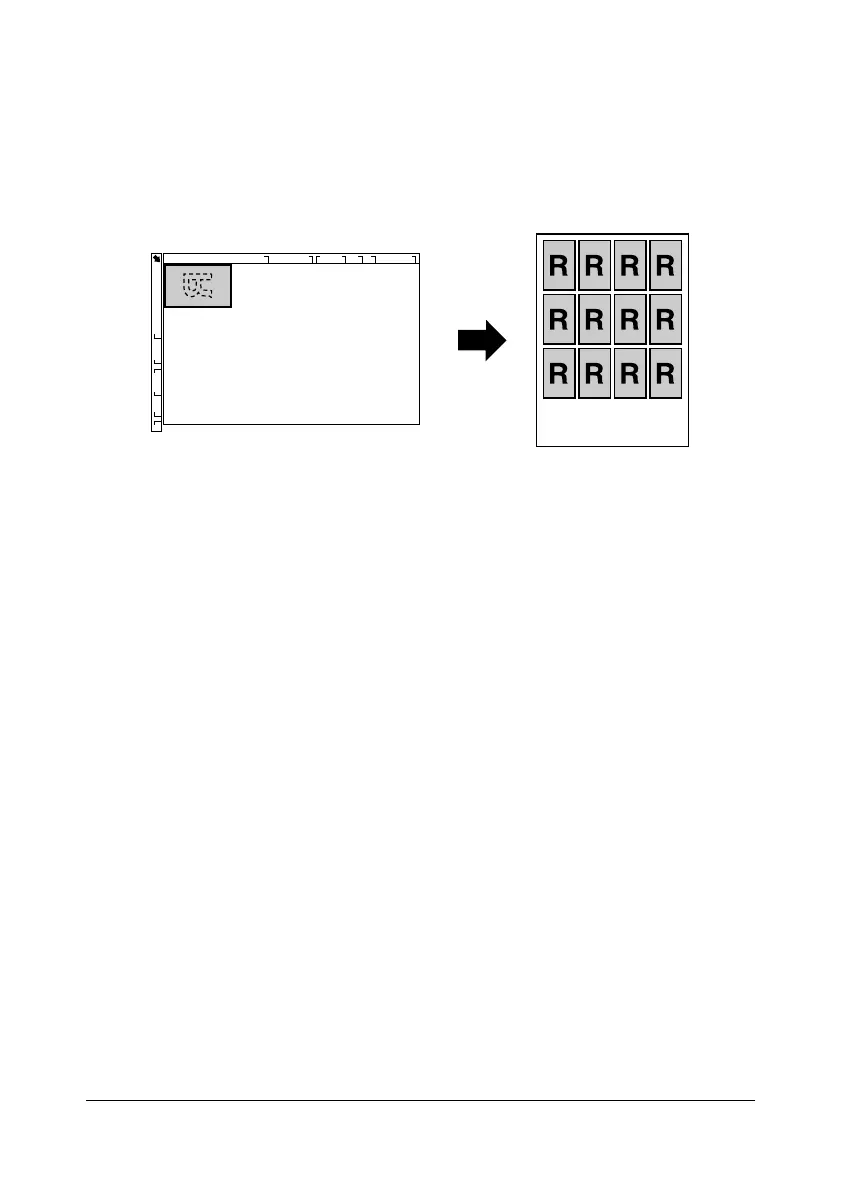
With repeat copying, small documents, such as memos, are tiled and printed
on a single page.
1 Position the document on the original glass.
d
For details on positioning the document on the original glass, refer
to “Placing a document on the original glass” on page 3-33.
2 In the main screen (Copy mode), press the + or , key to select the cur-
rent copy function setting, and then press the Select key.
3 Press the + or , key to select [REPEAT COPY], and then press the
Select key.
4 When the [How to Repeat Copy] screen appears, check the settings, and
then press the Select key.
5 To print color copies, press the Start (Color) key. To print monochrome
copies, press the Start (B&W) key.
6 Use the keypad to type in the document length, and then press the
Select key.
d
To change the document size, press the Back key to delete the
current size, and then use the keypad to specify the desired size.
7 Use the keypad to type in the document width, and then press the Select
key.
After the document has been scanned, printing automatically begins.
d
To change the document size, press the Back key to delete the
current size, and then use the keypad to specify the desired size.










 To Next Page