Maintenance Manual D900
49-MD900EN05
68
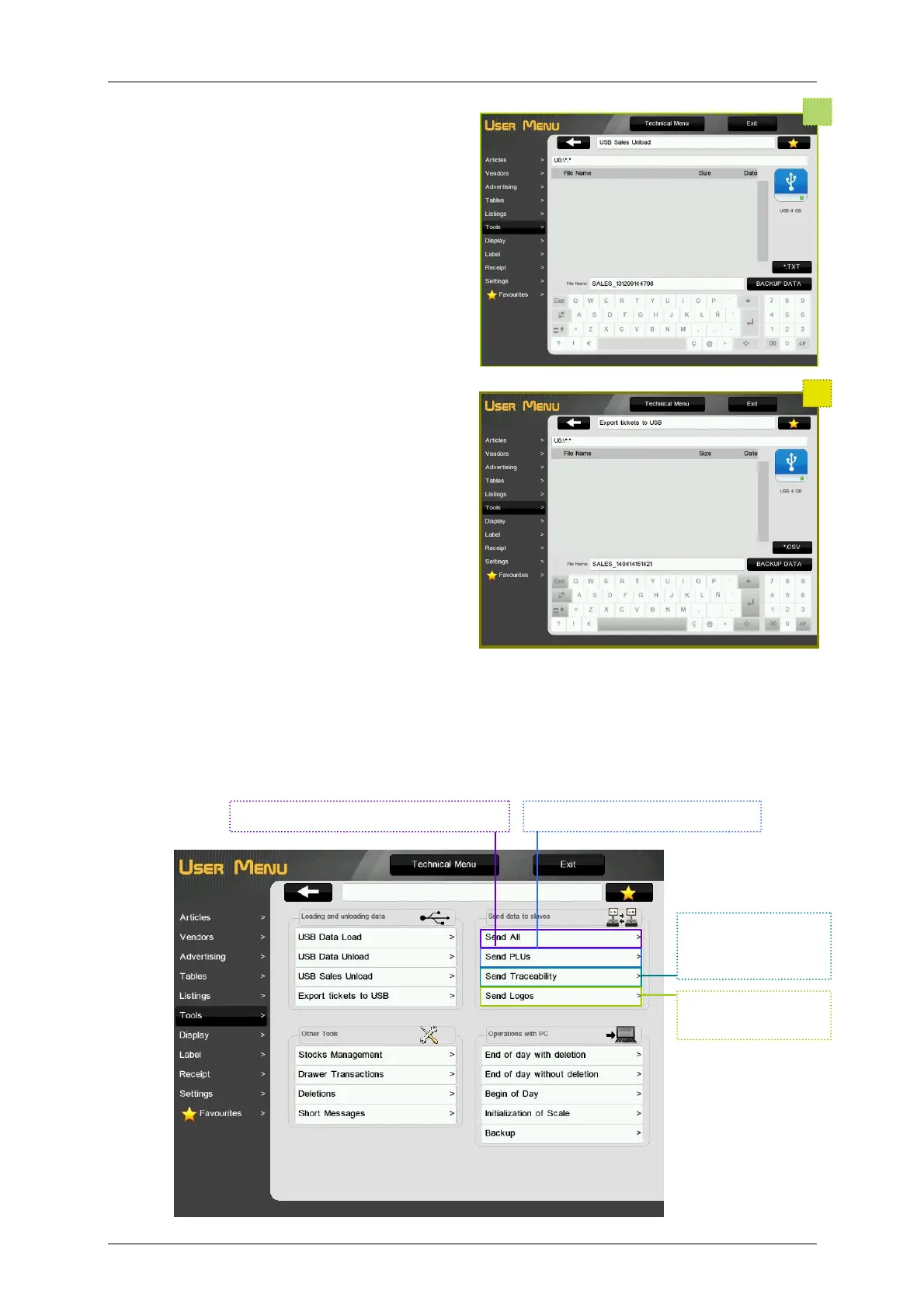
3.6.1.3.USB Sales Download
It is possible to download the sales of the scale to
an USB device through the USB port.
It will be created a file with extension *.TXT
The default name of the file is:
SALES_YYMMDDHHMMSS.TXT
Where:
- YYMMDDHHMMSS is the date and time when the
download has been done
- TXT is the extension of the file
3.6.1.4.Export tickets to USB
We can download the tickets of the scale to an
USB device. The parameter Fiscal Mode must be
at Yes (Technical Menu Application Basic
Settings Fiscal Mode) After pressing Backup
data we must select the starting and ending date
and time that the tickets we want to export were
issued in.
Two files will be generated, a TXT file and a CSV
file. We can introduce a name for them or use the
default one.
SALES_YYMMDDHHMMSS.TXT
SALES_YYMMDDHHMMSS.CSV
Where:
- YYMMDDHHMMSS is the date and time when the download has been done.
- TXT and CSV are the extensions of the files.
3.6.2.Send data to slaves
This menu allows to make a copy of the data of the master scale in the slave scales.
The scale will print a list with the status of the scales of the network and it will start the load of data to
the slaves. At the end of the load, the scale will print a list with the result of the operation.
Send all the data to the slaves. Send the articles to the slaves.
Send the
traceability data to
the slaves.
Send the printer
logos to the slaves.



 To Next Page