OPERATOR’S MANUAL
NOTE: Large font on the Operate
screen indicates the control is
active. Small font indicates the
control is not active.
OPERATE SCREEN OVERVIEW
The Flex4 Pro
TM
tablet is powered on manually by pressing the Power button
located on the top right edge of the tablet next to the volume adjustment.
IMPORTANT: The ignition key should be powered on prior to the Flex4 Pro
tablet.
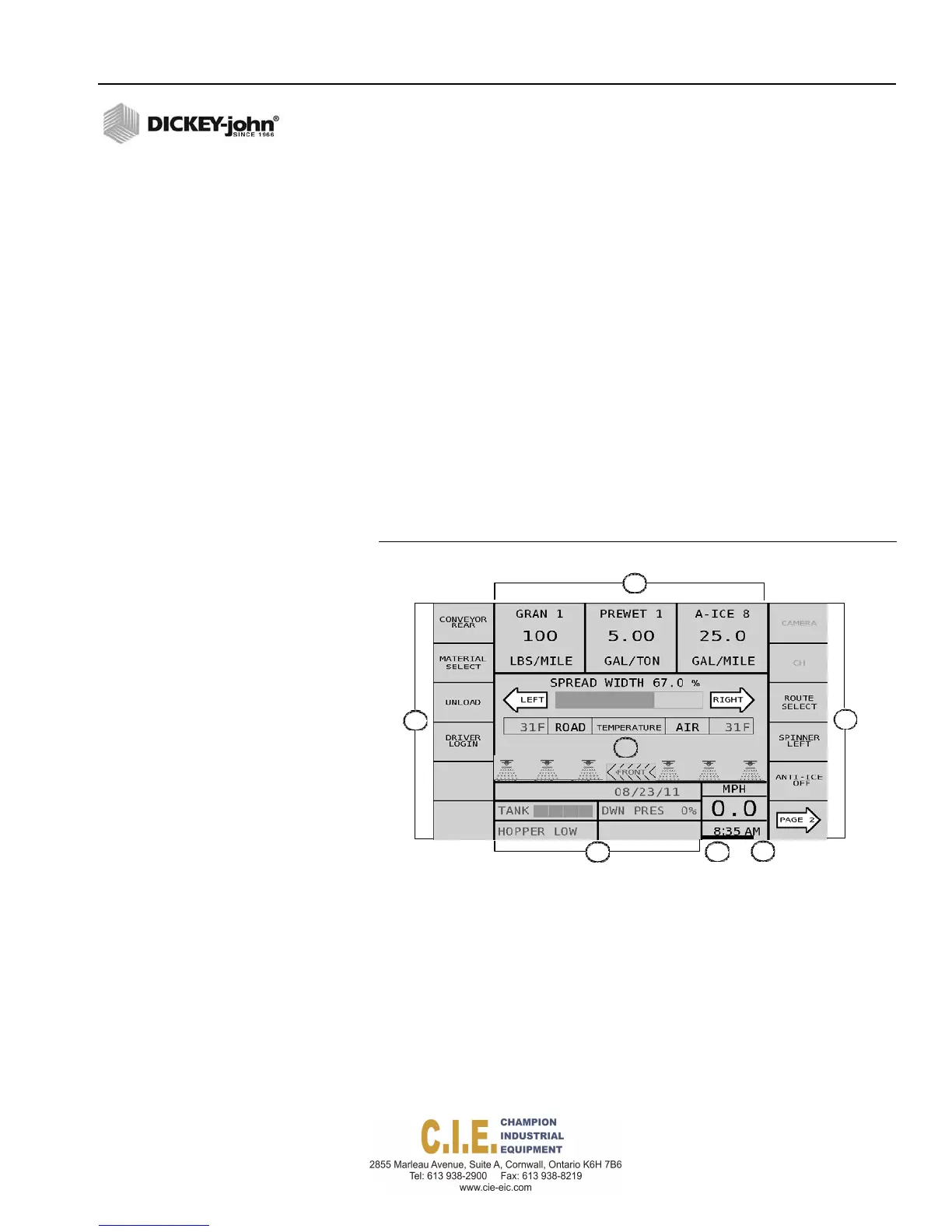
The Operate screen has five main structured areas to display button
selections and operation functions that include:
1.
Control channel application rate windows displays up to 4 channels
when assigned as materials (non spinner)
2.
Display function buttons on left and right side of display
3.
Main operator window displaying alarms, temperature readings,
spread width status bar, and optional video
4.
Accessory/alarm status windows
5.
Ground speed, time, and date information
6.
Battery status power bar and position indicator
Figure 24
Operate Screen Layout
(1)
CONTROL CHANNELS
Four control channels monitor granular and liquid applications and also
controls spinner speed.
Flex4 Pro
TM
Control System
6010541 Rev A
OPERATE SCREEN OVERVIEW / 27
1
2
2
3
4
6
5


 To Next Page