OPERATOR’S MANUAL
ANTI-ICE FEATURE
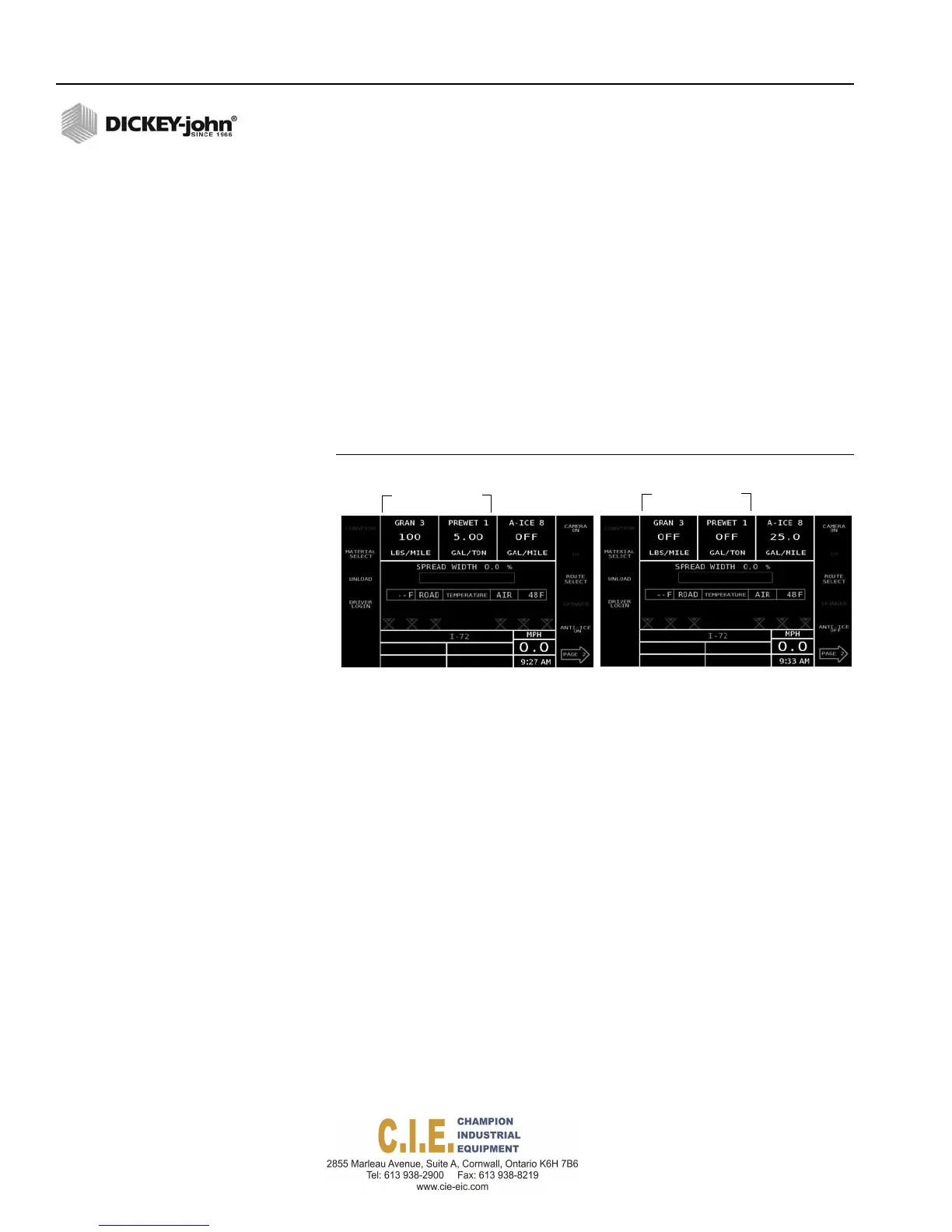
An Anti-Ice button appears on the Operate screen when a channel is
enabled for anti-ice material. Activating the anti-ice feature automatically
turns granular and liquid channels off to spread anti-ice material.
Deactivating anti-ice stops spreading anti-ice material and automatically
turns the granular and liquid channels on again.
To activate Anti-Ice:
1.
At the Operate screen, press the Anti-Ice On button.
2.
Press the Anti-Ice Off button to deactivate.
IMPORTANT: To enable the Anti-Ice Button mode at the Operate
screen, refer to “System Programming Anti-Ice Button
Mode Feature” section for proper setup.
Figure 41
Anti-Ice On/Off Feature
GranularandLiquid
channelsareON
Anti‐Ice
OFF
GranularandLiquid
channelsareOFF
Anti‐Ice
ON
ACCESSORY SENSORS
A dedicated accessory window at screen bottom of the Operate screen
displays the enabled accessory sensors. When operating within normal
ranges, the sensor status appears in green text. When the pre-defined
limits exceed the normal ranges, an audible alarm beeps with an alarm
message and the sensor status flashes in red. Operation can continue
when a sensor is in an alarm state and the sensor status remains in red until
normal ranges are met.
OUTPUT MODULE ACCESSORIES
An accessory connected to an output module and enabled at the (F11)
Output Module screen can be monitored and controlled at the Operate
screen.
Front/Rear Conveyor
•
The Front/Rear Conveyor button toggles between front and rear
operation. A graphic indicates the current active state.
42 / OPERATION
Flex4 Pro
TM
Control System
6010541 Rev A



 To Next Page