OPERATOR’S MANUAL
OUTPUT MODULE SETUP (F11)
An optional output module connects to the master control module via a CAN
BUS to control additional installed accessories. A 10 foot accessory
harness extension is available that connects the output module harness to
the rate control harness, if required.
Accessory functions include:
•
Boom section shutoff valves
•
Open and close V-Box gates
•
Switching valves for front/rear conveyors
•
Switching valves for left/right discharge cross conveyors
To enter Output Module Setup:
1.
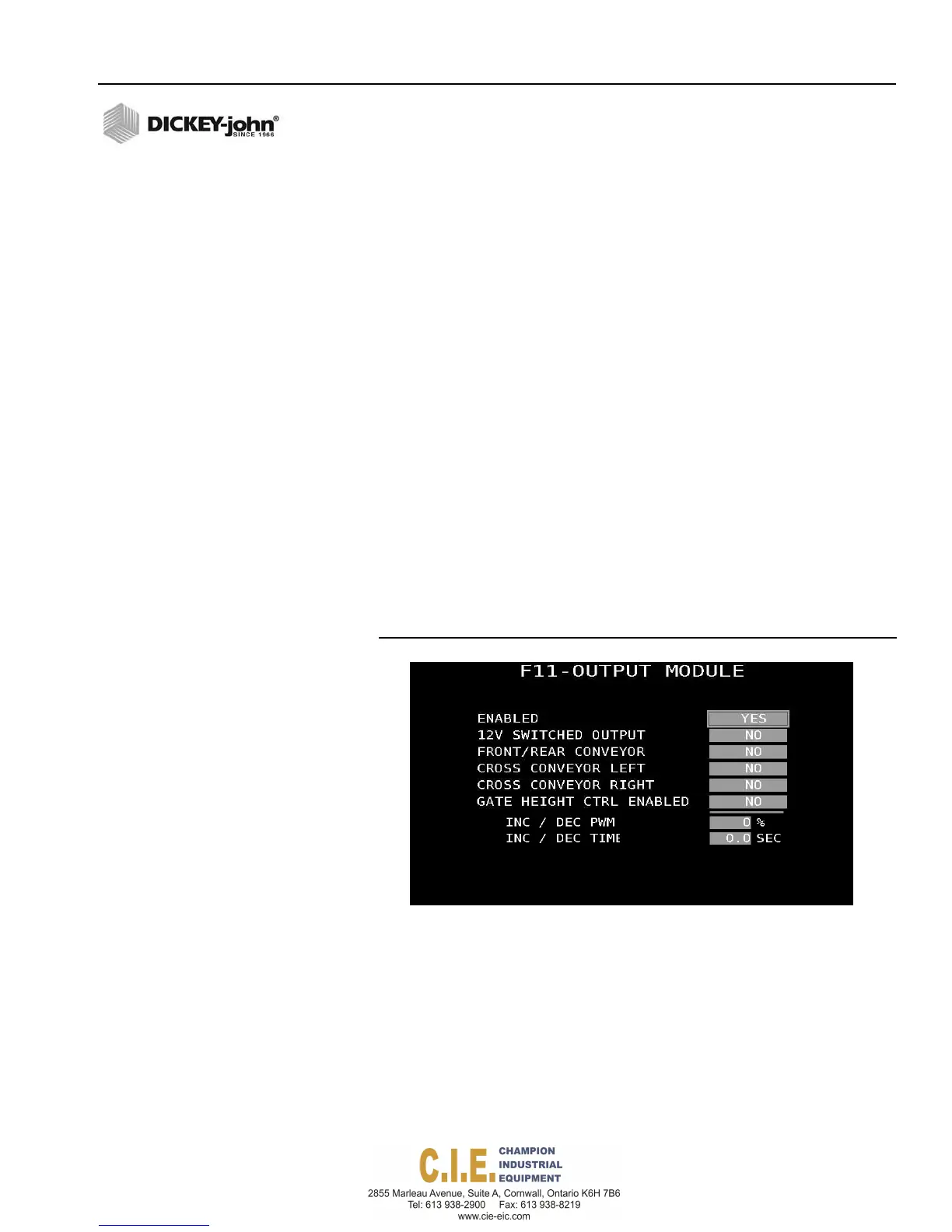
Press F11 to display the Output Module screen.
2.
Select Yes to Enable.
3.
Select Yes if a 12V output signal is used.
4.
Select Yes to control the front and rear conveyor.
5.
Select Yes to control material application from the left and right side of
the truck at the Operate screen
6.
Select Yes to control raising and lowering the gate height from the cab.
7.
Enter the increase/decrease PWM% that determines how fast the gate
opens and closes.
8.
Enter the increase/decrease time that affects the speed of opening and
closing the gate.
Figure 84
Output Module Setup Screen
FRONT/REAR CONVEYOR
Select Yes to control the front and rear conveyor position during operation
by selecting the front and rear conveyor buttons available on the Operate
screen. Current conveyor position is displayed on the Operate screen.
LEFT/RIGHT CONVEYOR
Select Yes to control material application from the left and right side of the
truck at the Operate screen. Spinner direction can be left, right, or both can
be on at the same time. The active position of the conveyor displays on the
Operate screen.
Flex4 Pro
TM
Control System
6010541 Rev A
SYSTEM PROGRAMMING / 91


 To Next Page