Vigor3900 Series User’s Guide
51
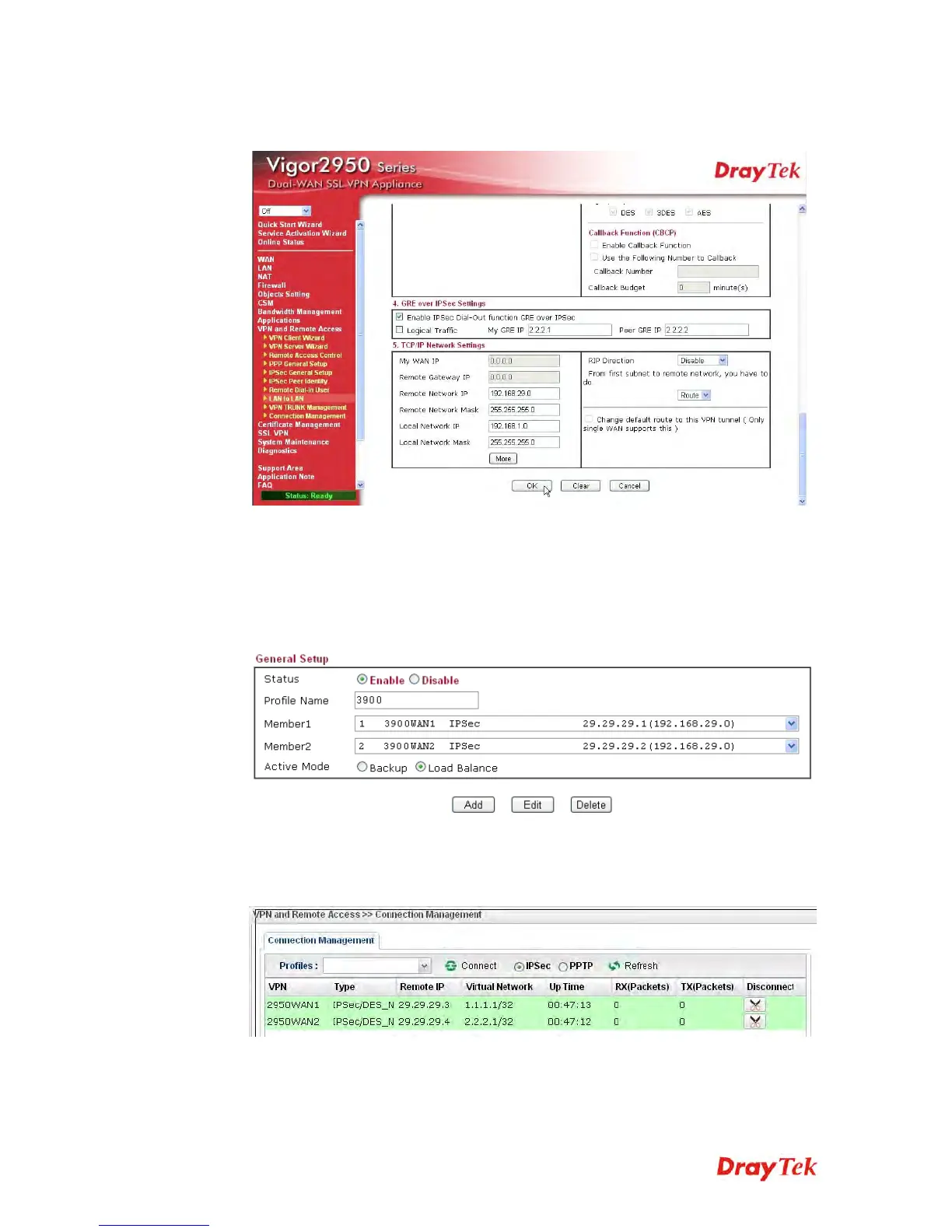
Next, type the Network IP and Network Mask for both remote and local ends to
complete the second VPN connection.
3. After finished the settings on both VPN connections, please access the Web User
Interface of Vigor2950 and open VPN and Remote Access > VPN Trunk
Management to make these two VPN connections into one Load Balance group.
4. Type the name (e.g., 3900) of the Load Balance in the field of Profile Name. Specify
the VPN profiles in Member 1 and Member 2 respectively. Then, choose Load
Balance as the Active Mode.
5. Click Add. After finished the settings for Vigor3900 and Vigor2950, please check if
the VPN connection is built successfully in both devices respectively. Take Vigor3900
for an example, open VPN and Remote Access>> Connection Management for
viewing the result.






 To Next Page